Chromebook Limits? Know Them
Chromebooks are cheap, fast, and beloved by schools — until you hit the wall. That wall is real: no real Windows or Mac software, limited offline capability, and an expiration date on updates. None of this makes Chromebooks bad; it makes them specific. Know the limits before the purchase, not after.
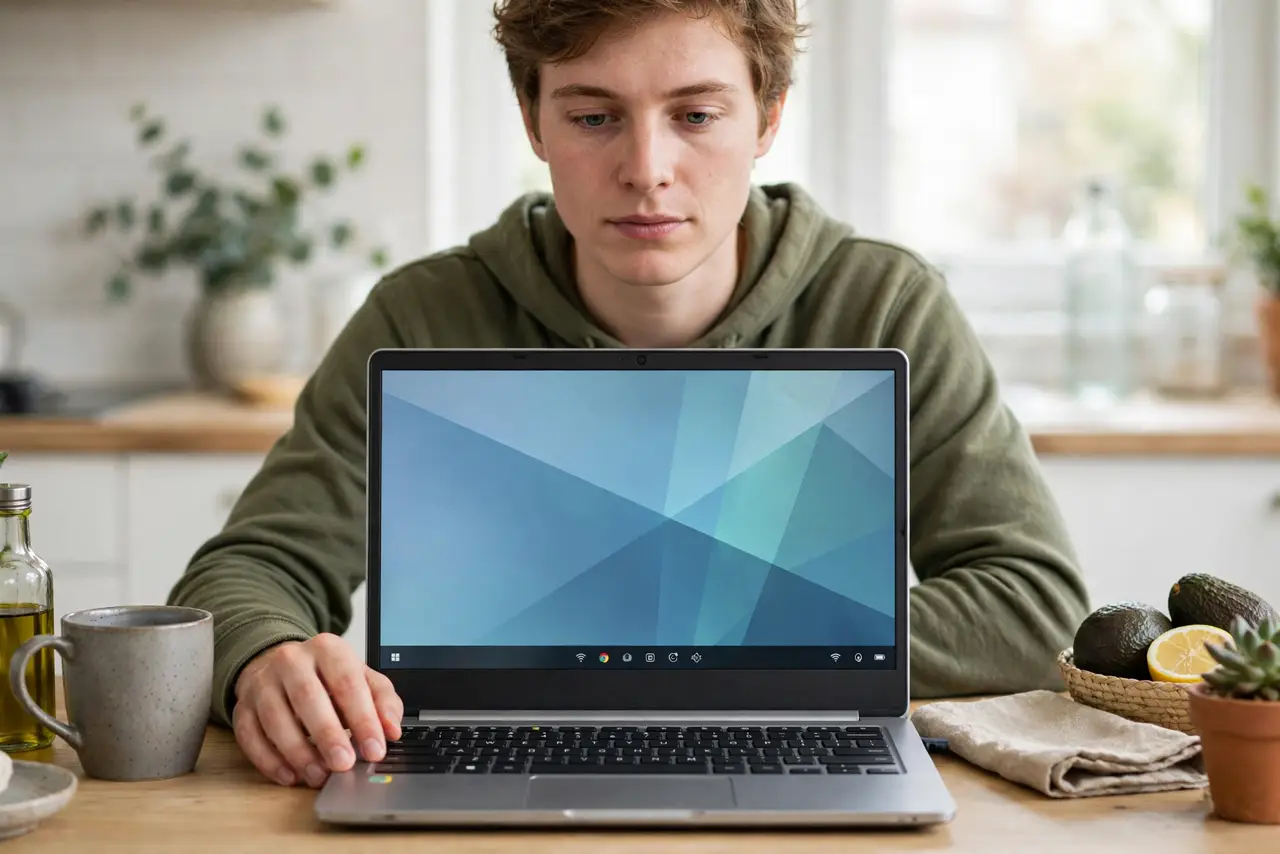
TL;DR / Quick Fix
Quick fix: a Chromebook runs web and Android apps well but cannot run traditional Windows or Mac desktop software. Check that everything you need works in a browser first. They are perfect second machines or for cloud-first users — and wrong as an only computer for demanding software.
Follow these steps
- Understand what ChromeOS actually runs. Web apps, Android apps, and Linux apps (on many models). What it does not run: .exe programs, Mac apps, and full desktop creative suites. Your software list decides everything.
- Test your must-have apps in a browser. Open each critical app's web version on any computer and use it for real. If the web version suffices, the Chromebook suffices — if you keep hitting 'download the desktop app,' stop.
- Know about the update expiration date. Every Chromebook has an Auto Update Expiration date — after it, no more security updates. Check the date before buying, especially refurbished; a cheap Chromebook expiring next year is no bargain.
- Check offline capability honestly. Google Docs and some apps work offline, but the Chromebook philosophy is cloud-first. If your internet is unreliable, a traditional laptop serves you better.
- Mind the storage reality. Most Chromebooks ship with small drives because files live in the cloud. That works until you need local video editing or big downloads — then the small SSD bites.
- Consider it as a second machine. Chromebooks shine as the couch-and-travel companion to a real desktop. As the only computer for a power user, they frustrate — as a secondary device, they delight.

What NOT to do
- Do not buy a Chromebook for software it cannot run. 'I will figure it out' meets the wall fast — verify every critical app first.
- Do not ignore the expiration date on refurbished units. Sellers rarely advertise it; look it up by model before paying.
- Do not expect PC gaming. Android games and cloud streaming work; the Steam library does not. Gamers need a different machine.
- Do not assume all Chromebooks are cheap and slow. Premium models exist and are good — but at premium prices, a Windows laptop often does more.
Frequently asked questions
Can a Chromebook replace my laptop?
For browsing, email, documents, streaming, and video calls — completely. For specialized software, heavy creative work, or gaming — no.
What happens after the update expiration?
The machine keeps working but stops receiving security updates — increasingly unsafe for banking and sensitive use. Plan replacement around the date, not after.
Are Chromebooks good for kids?
Excellent — cheap, hard to break with malware, easy to manage, and limited in ways that are features for young users.