Docking Station? What It Does
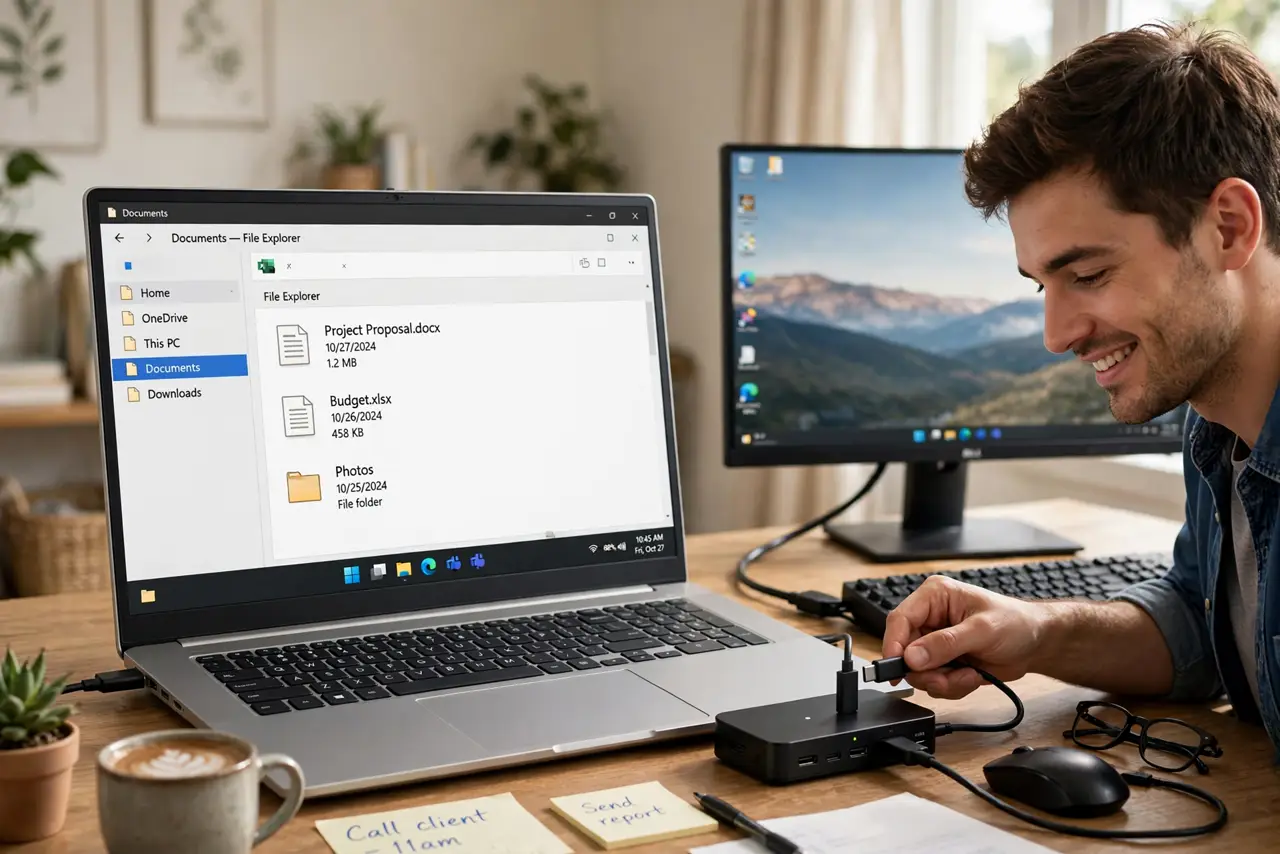
You love the laptop's portability and hate plugging in five cables every morning. A docking station is the one-cable answer: monitor, keyboard, mouse, ethernet, and power all connect to the dock, and your laptop connects to the dock with a single plug. Sit down, plug one cable, and your laptop becomes a desktop.
TL;DR / Quick Fix
Quick fix: a docking station turns one laptop cable into a full desktop — monitor, keyboard, mouse, ethernet, and charging through a single plug. Buy one matching your laptop's port with enough video outputs for your monitors. It is the best upgrade for laptop-at-desk life.
Follow these steps
- Understand the one-cable promise. The dock holds all your peripherals permanently. You plug one cable into the laptop and everything — displays, network, power — connects at once. Undock with one pull when you leave.
- Match the dock to your port. USB-C docks work with most modern laptops; Thunderbolt docks cost more but drive multiple high-resolution monitors. Check your laptop's port capabilities first — see Thunderbolt vs USB-C.
- Count your monitors. Single-monitor docks are cheap; dual 4K needs a serious dock. Verify the dock's exact video outputs and resolutions — 'supports two monitors' sometimes means one at full resolution.
- Check the power delivery wattage. The dock should charge your laptop at its required wattage through the same cable. An underpowered dock means the battery drains while docked — check the numbers.
- Prefer ethernet on the dock. Wired network through the dock is faster and more stable than Wi-Fi for video calls and big uploads. It is one of the dock's quiet superpowers.
- Test the undock-redock cycle. Plug, unplug, and replug a few times in the first week. Flaky docks reveal themselves early — displays that do not wake or USB that drops — while returns are easy.

What NOT to do
- Do not buy a dock before checking your laptop's port. A Thunderbolt dock on a data-only USB-C port is an expensive paperweight.
- Do not cheap out on no-name docks for dual 4K. Video bandwidth is where bargain docks lie — buy the dock rated for your actual monitors.
- Do not forget the dock needs its own power brick. That brick stays on the desk permanently — factor the outlet and cable clutter.
- Do not expect docks to fix a bad laptop. A dock multiplies a good setup; it cannot give a weak machine more performance.
Frequently asked questions
Do I need a dock or just a hub?
A hub is portable and cheap — fine for travel. A dock stays on the desk with its own power and more ports — better for a permanent setup. Many people own both.
Will any USB-C dock work with my laptop?
Basic functions, usually. But charging wattage, monitor count, and resolution support vary — match the dock's specs to your laptop and monitors, not just the connector shape.
Can the dock charge my laptop?
If it advertises sufficient USB-C power delivery for your model's wattage, yes — that is the whole one-cable dream. Verify the wattage number.