Keyboard Backlight? Basics
Typing in a dim room and hunting for keys by feel is nobody's idea of fun. A backlit keyboard lights the keys from underneath so you can see them in the dark — but not every laptop has one, and the ones that do sometimes seem to turn themselves off. This guide covers which laptops include backlights, how to control the brightness, and what to do when it will not stay on.
TL;DR / Quick Fix
Quick fix: most mid-range and premium laptops have backlit keyboards — look for a keyboard icon on a function key. If the light keeps switching off, raise the auto-off timer, often set to 30 seconds by default. Budget laptops frequently skip the feature, so confirm before buying.
Follow these steps
- Check whether your laptop has one. Look for a small keyboard or lightbulb icon on the F5, F6, or spacebar keys. No icon usually means no backlight — check the specs on the maker's site before assuming a setting is hiding it.
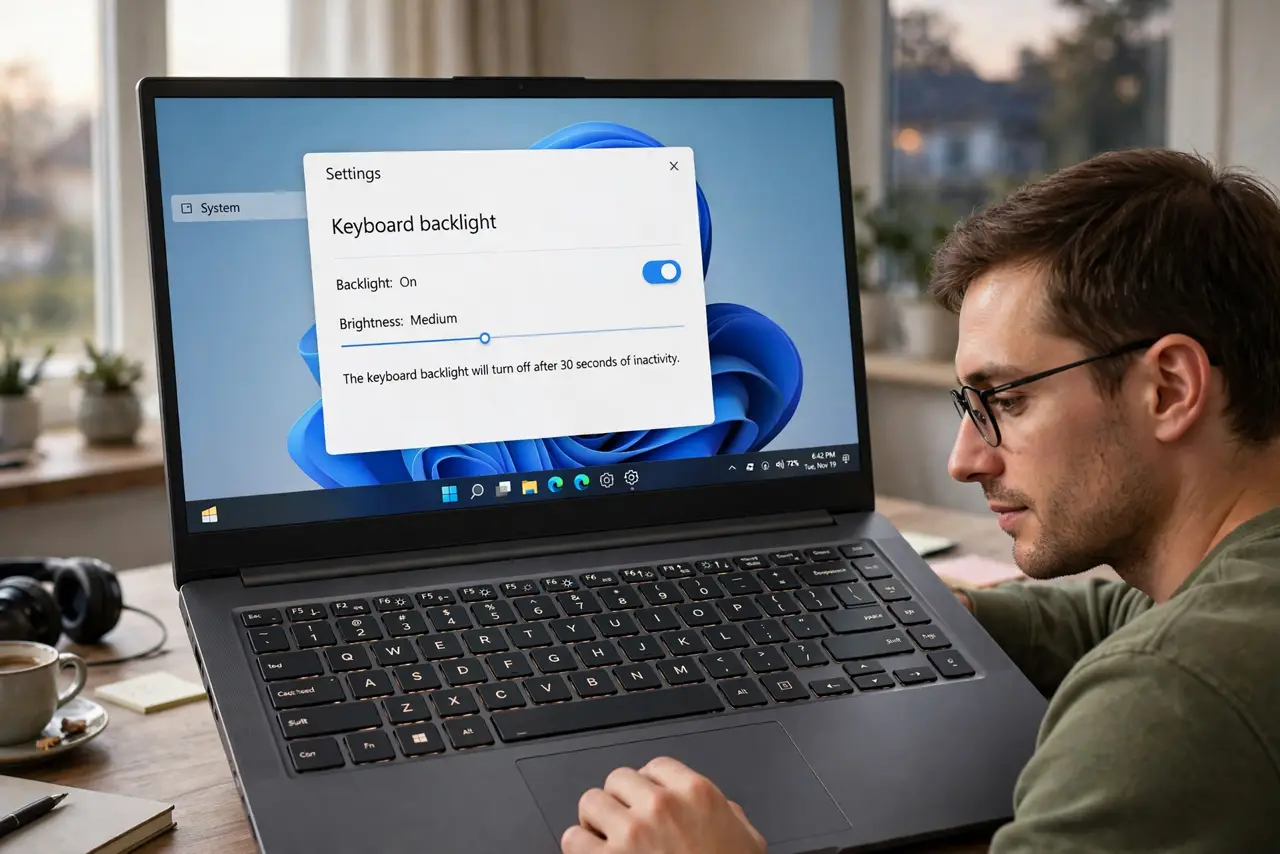
- Find the brightness control. Most laptops cycle the backlight with a function key (often Fn plus the icon key). Some control it in software — Windows Settings under Bluetooth and devices, or the maker's app. It is usually a separate control from screen brightness.
- Raise the auto-off timer. Many laptops dim the backlight after 10 to 30 seconds of no typing to save battery. If yours turns off too fast, the fix is in the BIOS or power settings: look for 'keyboard backlight timeout' and set it to a minute or more.
- Check the ambient light sensor. Some laptops tie the backlight to a light sensor and refuse to turn on in bright rooms — by design, since you cannot see it anyway. Cover the screen bezel sensor area or test in a dark room before assuming it is broken.
- Update the maker's control software. Backlight controls often run through the vendor's utility (not plain Windows), and a broken update can kill them. Reinstalling the keyboard or system-control driver from the maker's support page fixes most 'it just stopped' cases.
- Confirm it before buying a replacement. If you are shopping for a laptop and type in the dark, verify backlight in the written specs — marketing photos of glowing keyboards sometimes show a higher model. Ask the seller to confirm for the exact configuration.
What NOT to do
- Do not assume every laptop has a backlit keyboard. Budget models often skip it, and no software trick can add hardware that is not there.
- Do not set maximum brightness permanently. Full-bright backlight drains the battery noticeably — medium is enough in most dark rooms.
- Do not force the keys with a screwdriver if one is dark. Individual dark keys mean a failed LED strip — a repair job, not a settings problem.
- Do not disable the ambient sensor in a panic. It exists to save battery; adjust the timeout instead of fighting the sensor.
Frequently asked questions
Why does my backlight turn off while I am still typing?
The timer counts idle time between keystrokes, so slow typing or reading can trip it. Raising the timeout to a few minutes usually solves it.
Can I make the backlight stay on all the time?
On many laptops yes, by setting the timeout to 'never' — at the cost of battery life. On some models the option lives in the BIOS, not Windows.
My backlight never turns on at all — is it broken?
First check the function key, the sensor, and the maker's driver. If none of that works and the laptop is under warranty, that is a hardware defect worth a claim.