Laptop Battery Life? Basics
Your laptop promised ten hours and delivers four — the oldest disappointment in computing. Real battery life depends on screen brightness, background apps, and battery age far more than the marketing number. The good news: a handful of settings and habits can reclaim hours. Here is what actually moves the needle.

TL;DR / Quick Fix
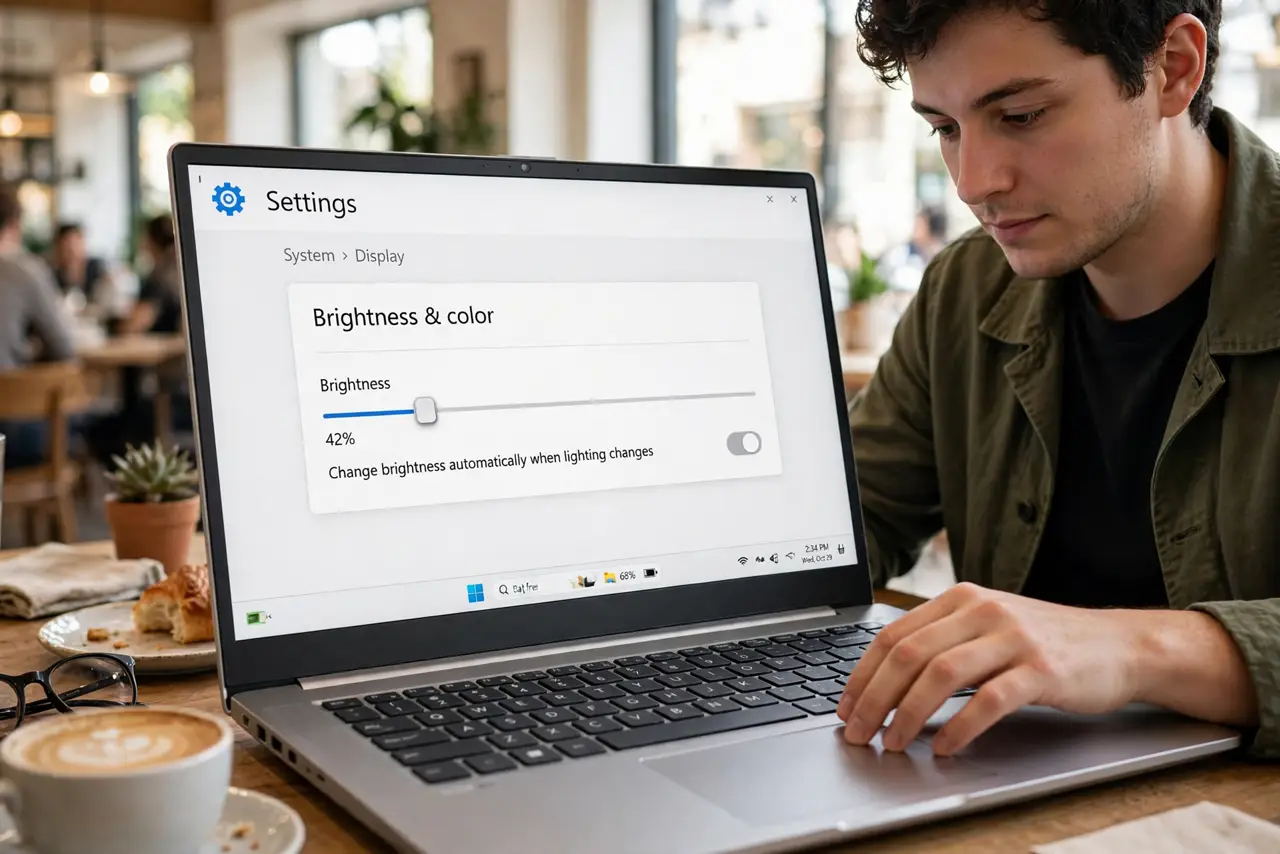
Quick fix: screen brightness is the biggest battery lever — lower it to a comfortable level and gain hours. Then close background hogs, enable battery saver, and keep the laptop cool. If a full charge still dies fast after these, the battery itself is aging.
Follow these steps
- Lower the screen brightness. The display is the hungriest component — dropping from 100% to 60-70% brightness can add an hour or more. This single change beats every other tweak combined. Auto-brightness helps if you let it work.
- Find the background hogs. Check the battery usage screen (both Windows and macOS have one) to see which apps drain power. A browser with forty tabs or a cloud sync running wild are the usual suspects — close or tame them.
- Enable battery saver. The built-in battery saver modes throttle background activity and visuals for meaningful gains. Turn it on manually below 40%, or set it to engage automatically — see battery saver kicking in early if it triggers oddly.
- Keep it cool. Heat accelerates battery drain and long-term wear. Do not bake the laptop on a bed — hard surfaces and ventilation help the battery as well as the processor.
- Manage sleep, not just shutdown. Modern sleep sips power; a laptop left 'sleeping' for days still drains. For multi-day gaps, shut down fully. And disable 'wake on' features that let the laptop party while you sleep.
- Know when the battery is the problem. Batteries wear out — after a few hundred cycles, capacity drops noticeably. Check the battery health report; if maximum capacity is under 80%, consider a charge limit to slow further wear or a replacement.
What NOT to do
- Do not run 100% brightness on battery. The screen is the biggest drain — full brightness on battery is burning hours.
- Do not leave forty browser tabs and sync apps running. Background hogs drain silently — check the battery usage screen.
- Do not bake the laptop on soft surfaces. Heat hurts both immediate runtime and long-term battery health.
- Do not ignore a swelling battery. If the trackpad or case bulges, stop using it and get service — swelling batteries are a safety issue.
Frequently asked questions
Why does my battery die at 20%?
The battery gauge is miscalibrated or the battery is worn — sudden drops mean the reported percentage no longer matches reality. See jumping battery percentage for the fix.
Does dark mode save battery?
On OLED screens, yes — black pixels use no power. On LCD screens (most laptops), barely — the backlight stays on regardless.
Should I keep it plugged in at 100%?
Modern laptops manage this well, but long-term full charges still stress the battery. A charge limit is the better habit for desk-bound machines.