Laptop Stands? Basics
A laptop stand lifts your screen closer to eye level, which is the cheapest fix for the neck-craning hunch that laptop work creates. Some stands also improve airflow and cooling; others are just a pretty angle. This guide covers what actually matters — height, stability, and whether you need cooling — before you buy.
TL;DR / Quick Fix
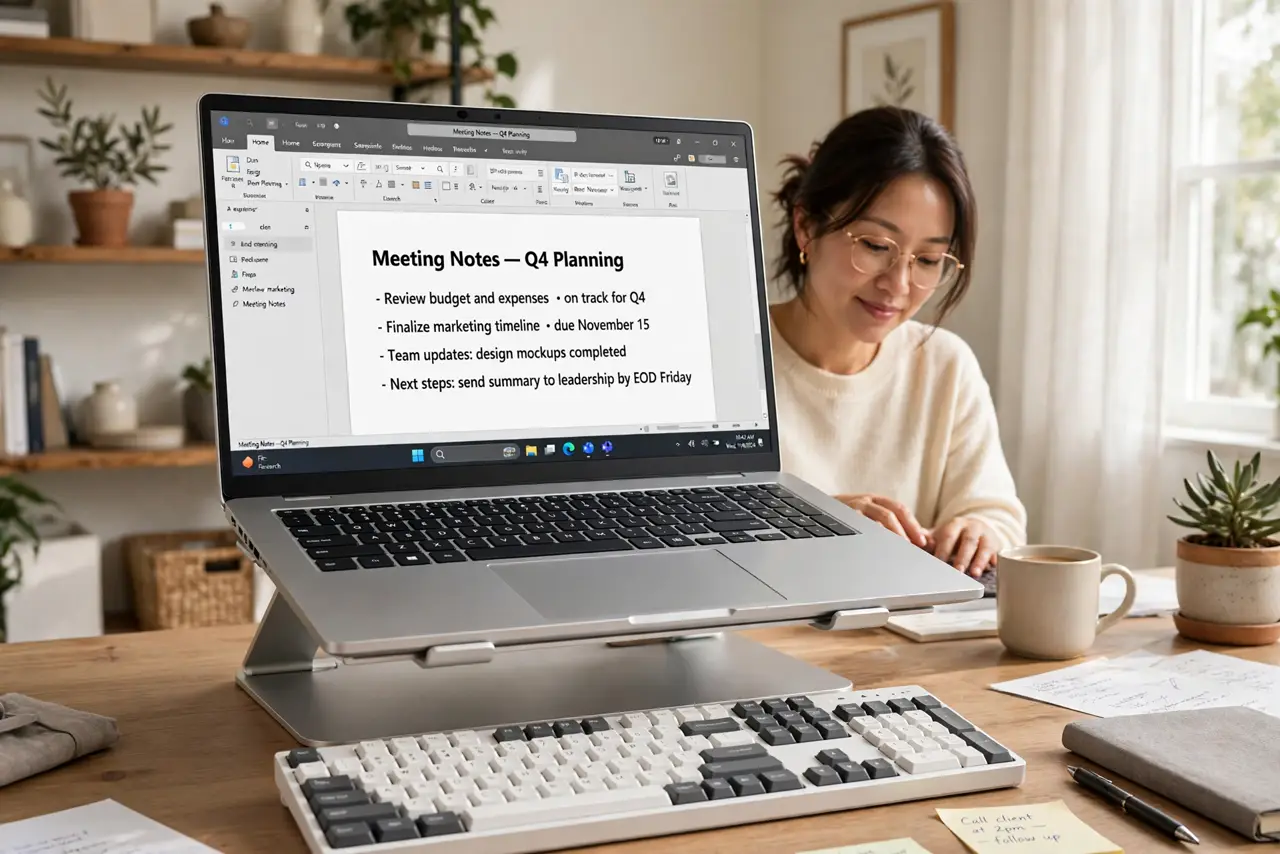
Quick fix: a laptop stand raises your screen toward eye level and ends the neck-hunch of laptop work. Pick one that is stable, holds your laptop's weight, and lifts high enough. Pair it with an external keyboard and mouse. Cooling gains are real but modest.
Follow these steps
- Decide if you need one. If you work at a laptop for hours with no external monitor, a stand is the single cheapest ergonomic upgrade. If you already use a monitor with the laptop closed, you do not need one.
- Pick the right height. The goal: the top of the screen at or just below eye level. Adjustable stands let you dial this in; fixed stands are fine if the height matches your desk and chair.
- Check stability and weight rating. A wobbly stand is worse than none — typing shakes the screen. Check the weight rating against your laptop, and read reviews specifically about wobble.
- Plan for keyboard and mouse. A raised laptop means its keyboard is unusable — budget for an external keyboard and mouse. This is not optional; reaching up to type defeats the ergonomic point.
- Consider airflow. Stands with open designs let heat escape from the laptop's underside, which can lower temperatures a few degrees. See the heat and airflow benefits for realistic expectations.
- Test your full setup for a week. Live with the stand, keyboard, and mouse for a week. If your neck feels better and the desk still works for everything else, it is a keeper.

What NOT to do
- Do not buy a stand without planning for an external keyboard. Typing on a raised laptop keyboard strains wrists and shoulders — the stand only works as part of the pair.
- Do not expect a stand to fix a hot, throttled laptop. Airflow helps modestly, but a clogged fan or dried thermal paste needs real maintenance.
- Do not choose by looks alone. A beautiful stand that wobbles or sits too low will end up in a closet — stability and height come first.
- Do not forget port access. Some stands block side ports or the charging cable — check that your cables still reach comfortably.
Frequently asked questions
Do laptop stands really help posture?
Yes, when paired with an external keyboard and mouse. Raising the screen to eye level removes the downward neck bend that causes most laptop-related aches.
Will a stand keep my laptop cooler?
Somewhat — open designs improve underside airflow by a few degrees. It helps; it does not replace cleaning the fans.
Can I use a stand with a docking station?
Yes, and it is a great combo: the dock handles cables while the stand holds the laptop at eye level as a second screen.