Monitor Arms? Worth It?
Your monitor sits on the stand it came with, hogging desk space, stuck at one height, and your neck aches by 3 PM. A monitor arm clamps to the desk edge and holds the screen floating — adjustable in every direction, with the desk surface freed underneath. For anyone at a desk all day, it is one of the cheapest ergonomic upgrades. Here is how to choose and set one up.
TL;DR / Quick Fix
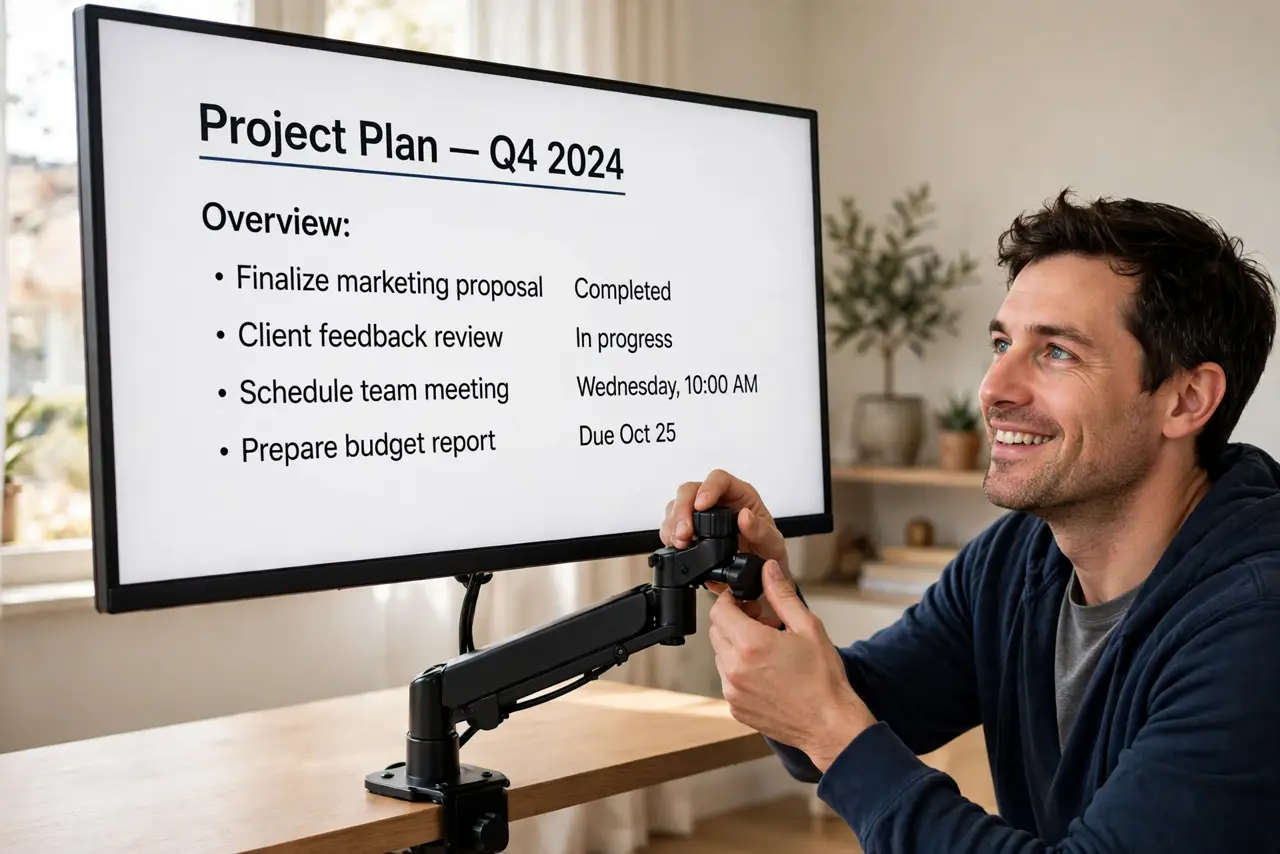
Quick fix: a monitor arm replaces the stand, clamping to your desk to free space and set the screen at eye level. Check your monitor's VESA holes and weight against the arm's rating. Top of screen at or below eye level, an arm's length away — your neck will notice.
Follow these steps
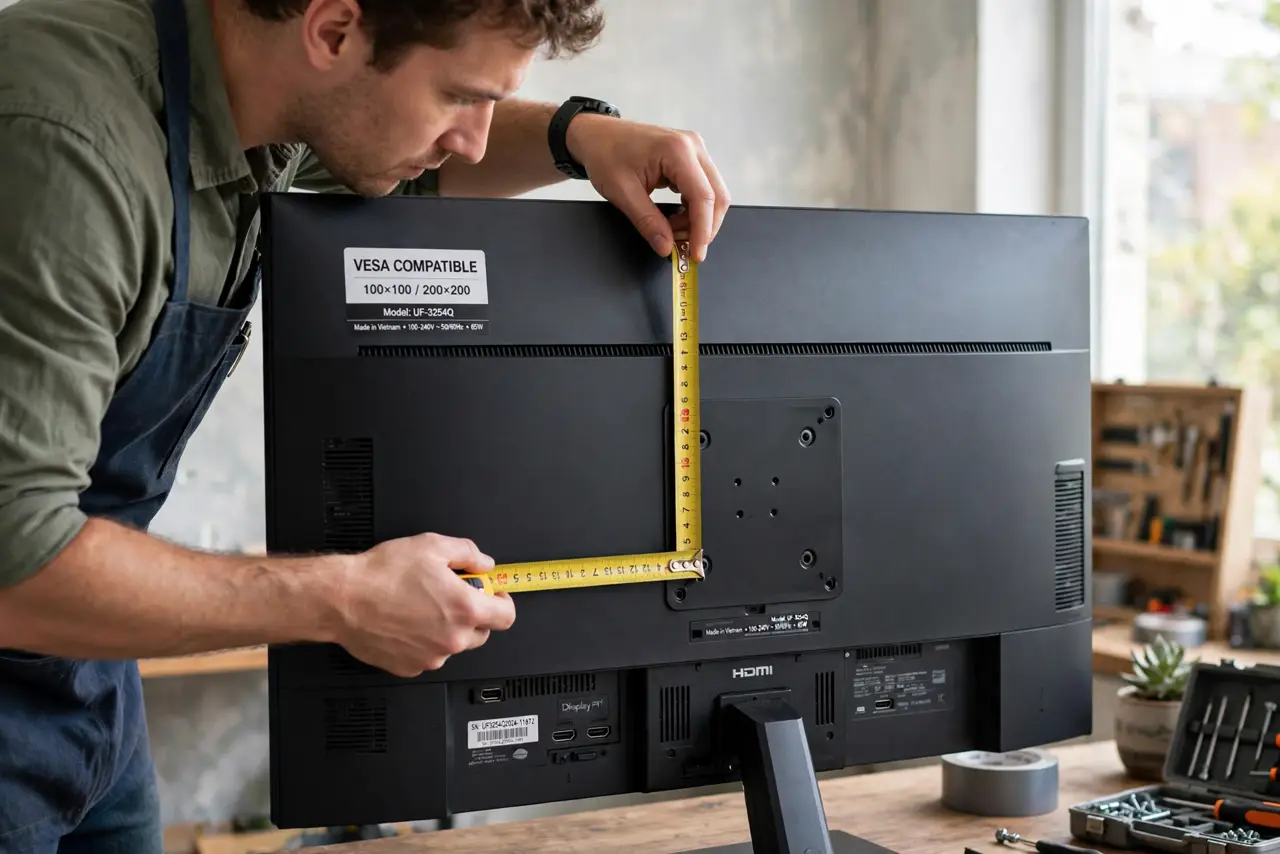
- Check VESA compatibility. Look at the back of your monitor for four screw holes in a square — usually 75x75 or 100x100 mm. That is the VESA mount. Nearly all arms fit these; some monitors (notably certain Apple displays) need an adapter or lack holes entirely.
- Match the weight rating. Every arm lists a weight range — your monitor must fall inside it. Too heavy and the arm droops; too light and a gas-spring arm floats upward. Weigh the monitor without its stand if you are unsure.
- Choose clamp versus grommet. Clamp mounts grip the desk edge — no drilling, removable. Grommet mounts bolt through a cable hole for maximum rigidity. Glass desks and very thin desktops may need a reinforcement plate; check the arm's requirements.
- Decide single versus multi-arm. One arm per monitor is simplest; dual arms on one pole suit side-by-side setups. For stacked or ultrawide-plus-vertical arrangements, check each arm's reach and tilt range. The height ergonomics guide covers positioning for each layout.
- Set the ergonomics right. Top of the screen at or slightly below eye level, about an arm's length away, tilted slightly back. Your neck stays neutral instead of craning down at a low stand. This single adjustment fixes most desk-related neck ache.
- Route the cables. Most arms include cable clips along the arm — use them. Slack the cables enough for full movement range. A floating monitor with dangling cables ruins the clean look you just paid for.
What NOT to do
- Do not buy before checking VESA holes and weight. An incompatible arm is an expensive paperweight.
- Do not overtighten the clamp on a glass or thin desk. Cracked desktops are a real and expensive failure — use a reinforcement plate.
- Do not set the monitor too high. Above eye level forces your neck back — top of screen at or below eye level is the rule.
- Do not ignore the arm's movement range. A cheap arm that barely tilts is only marginally better than the stock stand.
Frequently asked questions
Are monitor arms worth it for one monitor?
Yes — the ergonomic positioning and freed desk space pay off even solo. The worth-it breakdown agrees: it is among the cheapest meaningful desk upgrades.
Will an arm damage my desk?
Clamp arms can dent soft wood over time; a small protective pad or plate prevents it. Properly installed on a solid desk, they are safe for years.
Gas spring or mechanical arm?
Gas spring adjusts effortlessly and holds position — worth the premium for frequent repositioning. Mechanical (fixed-tension) arms are cheaper and fine if you set position once.