Paper Jam? Clear It Safely
The printer grinds, the error light blinks, and somewhere inside is a crumpled sheet mocking you. Paper jams are the most common printer failure and the most mishandled — yanking the paper the wrong way tears it and leaves scraps that cause the next five jams. Slow, methodical clearing wins every time.
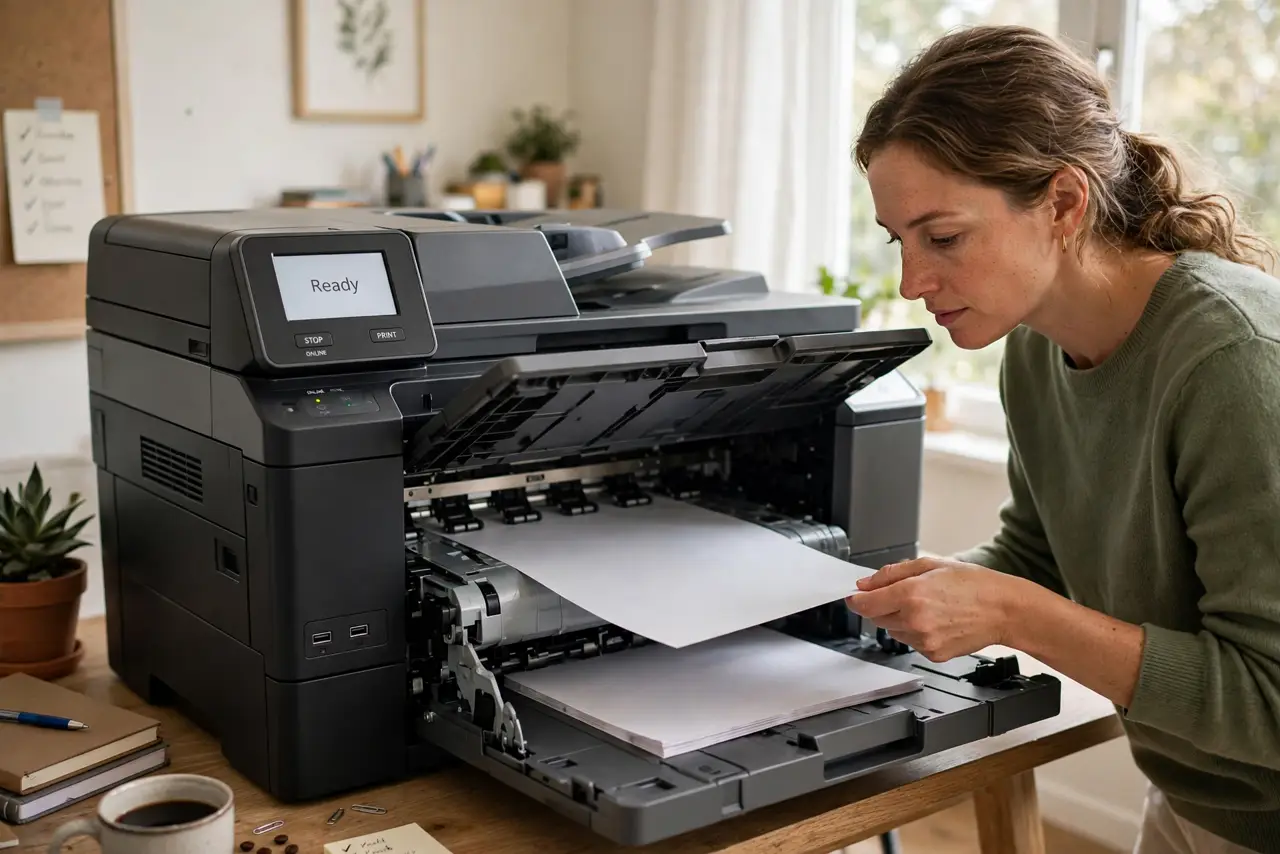
TL;DR / Quick Fix
Quick fix: turn the printer off, open all access panels, and pull jammed paper slowly in the direction it normally travels. Remove every scrap — torn bits cause repeat jams. Fan the paper stack and do not overfill the tray to prevent the next one.
Follow these steps
- Turn the printer off first. Power down before reaching inside. Printers have hot parts and pinch points — the general printer troubleshooting starts here too. Unplug it if the jam is deep.
- Open every access panel. Rear door, front cover, duplexer — open them all. Jams hide around corners; the sheet you see is often not the whole story.
- Pull with the paper path, not against it. Pull slowly in the direction the paper was traveling. Yanking backward tears the sheet and wedges scraps into rollers — the cause of most 'it keeps jamming' sagas.
- Remove every scrap. Shine a light inside and pick out torn corners and shreds with tweezers. One thumbnail-sized scrap is enough to trigger the sensor again.
- Fan the stack and lighten the tray. Fan paper before loading to separate sheets, and never fill past the max line. Overfilled trays and stuck-together sheets are the top preventable causes.
- Check the rollers. Worn or dusty pickup rollers slip and misfeed. A wipe with a damp lint-free cloth restores grip — if rollers look shiny-smooth, they are worn.
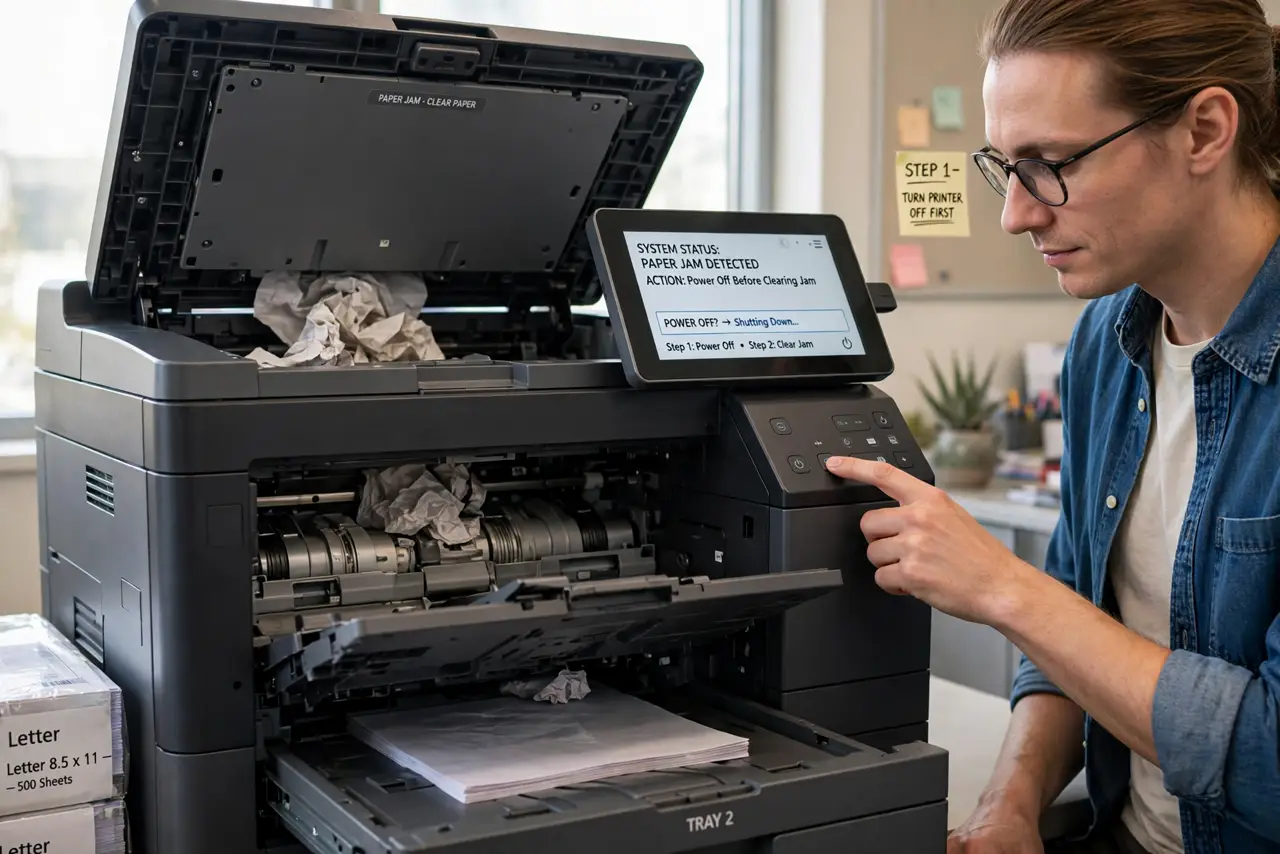
What NOT to do
- Do not yank the paper out forcefully. Fast pulling tears the sheet and leaves fragments that guarantee a repeat jam within days.
- Do not reach in while it is powered on. Fusers get hot enough to burn and mechanisms can pinch — power off first, always.
- Do not use sharp tools inside. Screwdrivers and knives near rollers and sensors cause damage that dwarfs the original jam.
- Do not ignore the third jam in a week. Recurring jams signal worn rollers or a foreign object — clearing the symptom stops working eventually.
Frequently asked questions
Why does it keep jamming in the same spot?
Something is still in there — a scrap, a label that peeled off, or a worn roller at that exact point. Inspect that spot specifically with a flashlight.
Can humid paper cause jams?
Yes — damp paper sticks together and misfeeds constantly. Store paper sealed and dry; a fresh ream often 'fixes' a chronic jammer.
The printer says jammed but I see no paper. Now what?
A sensor is dirty or a tiny scrap is hiding. Power-cycle the printer, check every panel again with light, and clean the paper-path sensors with a dry cloth.