Uninstall an App That Will Not Uninstall
An old app that refuses to uninstall usually has a missing uninstaller file, a program still running in the background, or a damaged install entry. Work from the safest method upward, and stop before anything that risks other programs. Patience beats force here.
TL;DR / Quick Fix
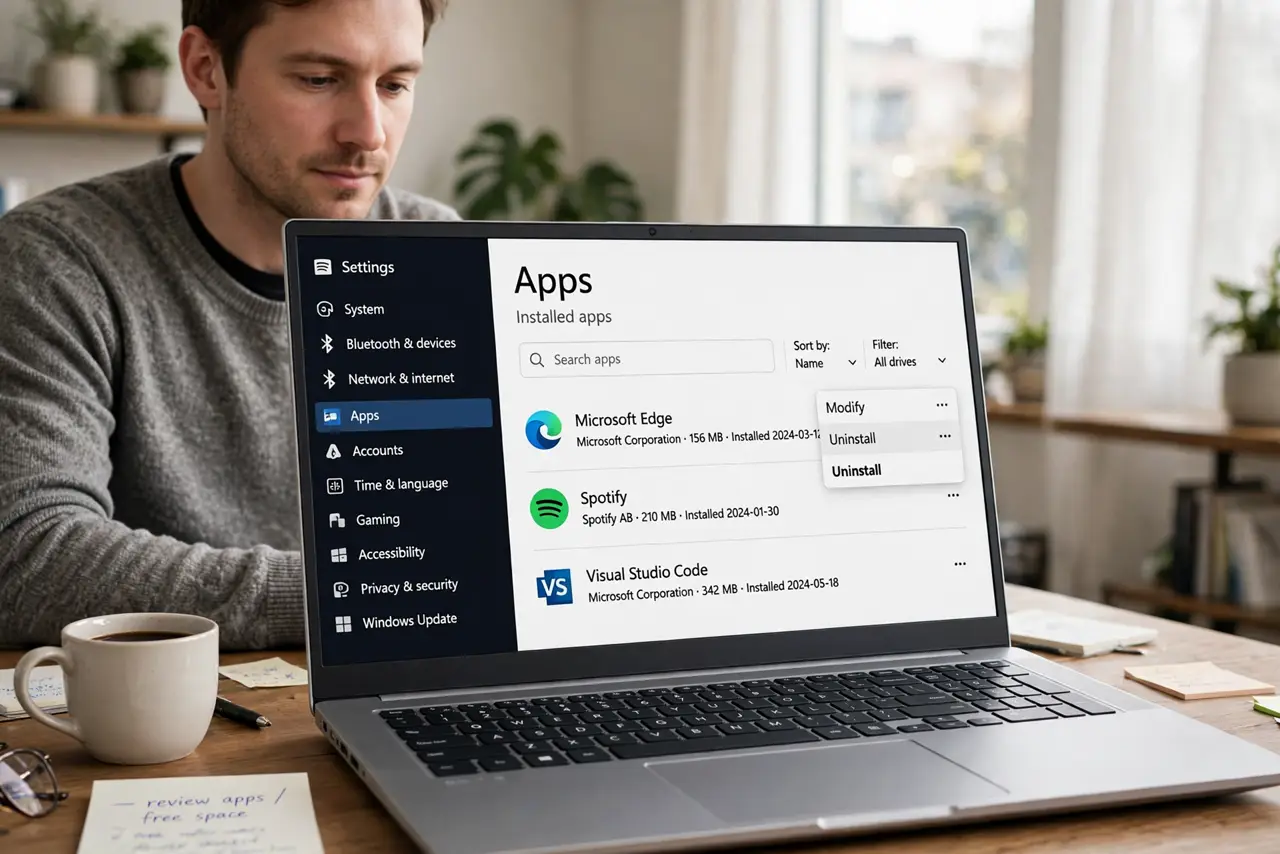
Quick fix: close the app fully, restart the computer, and try Settings, then Apps, then Installed apps again. If that fails, look for the app's own uninstaller in its Start menu folder. Only if both fail should you check the app maker's official removal guidance for that app.
Follow these steps
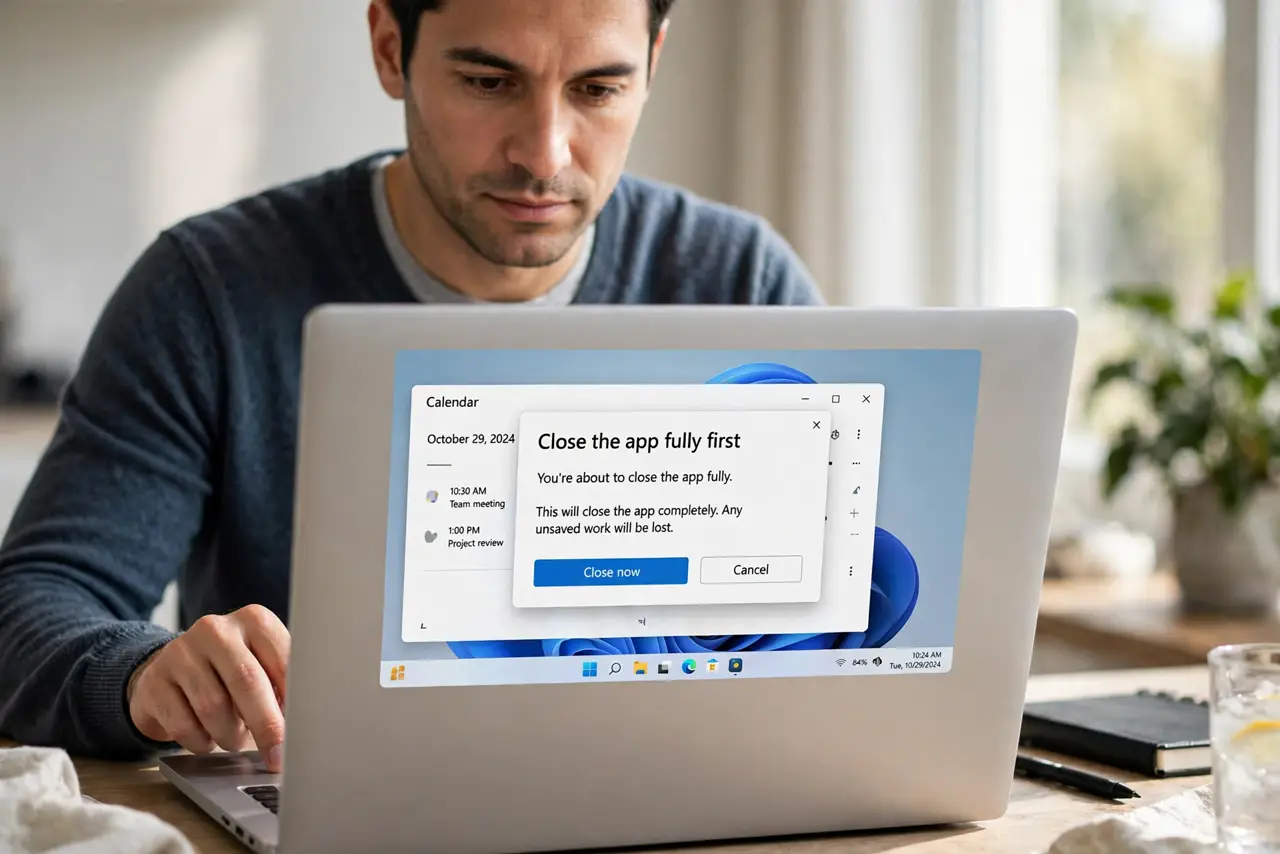
- Close the app fully first. Close the app window, then check the system tray for its icon and quit it there too. An app that is still running will often refuse to uninstall.
- Restart and try Settings again. Restart the computer, then open Settings, then Apps, then Installed apps, find the app, and choose Uninstall. A restart clears locked files from an earlier failed attempt.
- Use the app's own uninstaller. Open the Start menu, find the app's folder, and look for an Uninstall entry. The maker's own uninstaller knows which files and entries belong to that app.
- Check for a second copy running at startup. If the app returns after uninstalling, check Startup apps in Task Manager and turn off any entry for it, then restart and check Installed apps again.
- Install the latest version, then uninstall it. If the uninstaller file is missing, installing the same version over the old one can restore the uninstaller. Then uninstall it straight away through Settings.
- Ask the maker's support page for removal help. If nothing above works, search the app maker's official support site for removal steps for that exact app. Follow only official guidance for stubborn cases.
What NOT to do
- Do not delete the app's folder and assume it is gone. The install entry, startup items, and shared settings remain and can cause errors later.
- Do not edit the registry to remove the app. A wrong registry change can break Windows or other programs, and it is hard to undo.
- Do not use a random force-uninstaller from an ad. These tools can remove shared files and add unwanted software of their own.
- Do not keep clicking Uninstall rapidly. Repeated failed attempts can lock files further, so restart between attempts instead.
Frequently asked questions
Why does uninstall fail with no error?
The app is often still running, its uninstaller file is missing, or the install entry is damaged, so Windows cannot complete the removal.
Does deleting the folder free the space?
It frees disk space but leaves the install entry and startup items behind, so Windows still thinks the app is installed.
What if the app came with the computer?
Some preinstalled apps can only be removed by the maker's guidance. Check the computer maker's support page before forcing anything.