Kick Devices Off Your Wi-Fi
There is a device on your network that should not be there — the neighbor's TV, an ex's phone, a gadget you sold. You want it gone now, not after a lecture on network theory. Here are the three ways to remove a device, from the gentle tap to the nuclear password change.
TL;DR / Quick Fix
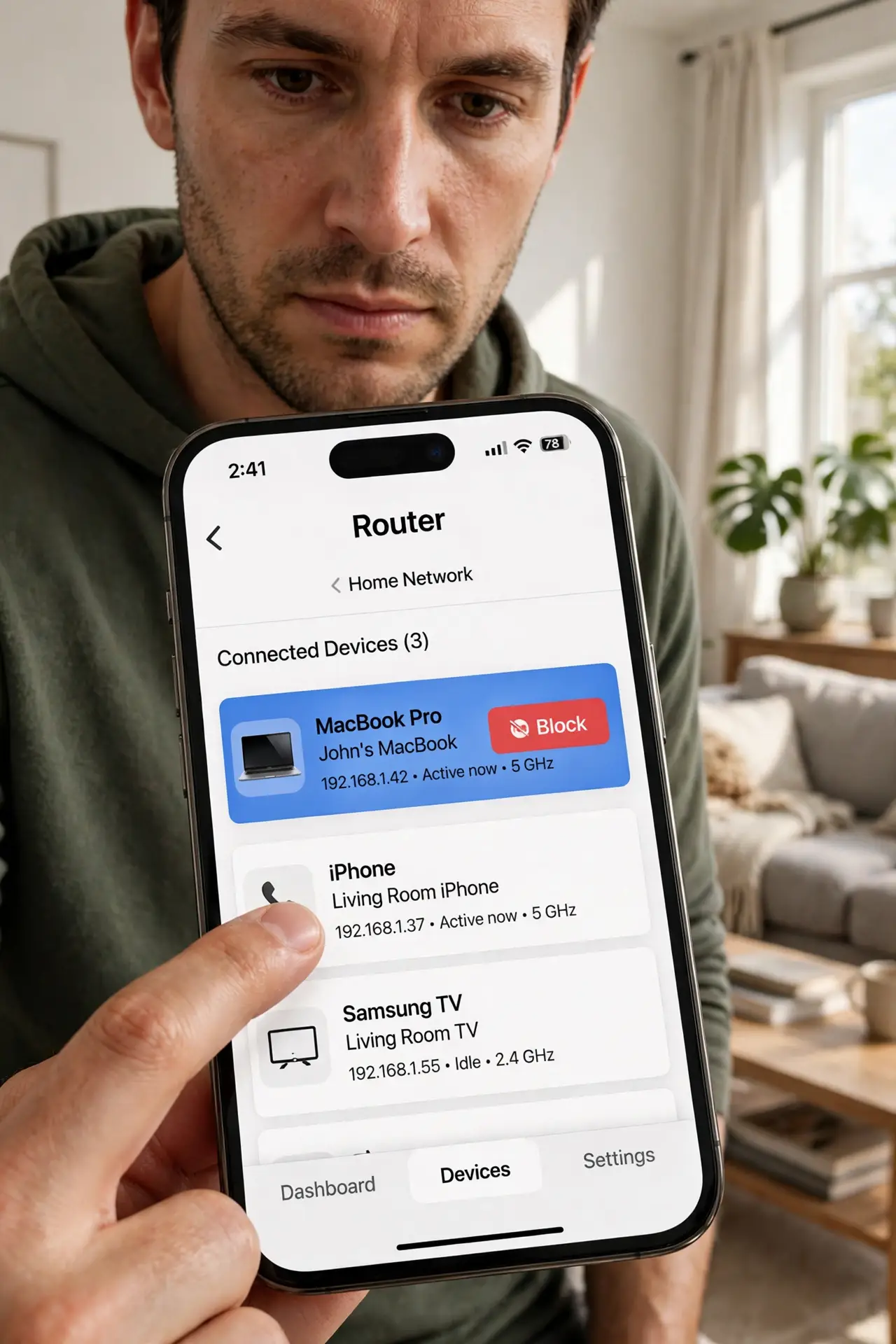
Quick fix: the fastest reliable eviction is changing your Wi-Fi password — every device must re-authenticate and only yours know the new one. For a single device, many router apps offer a block or pause button. Disable WPS afterward so the device can't sneak back in.
Follow these steps
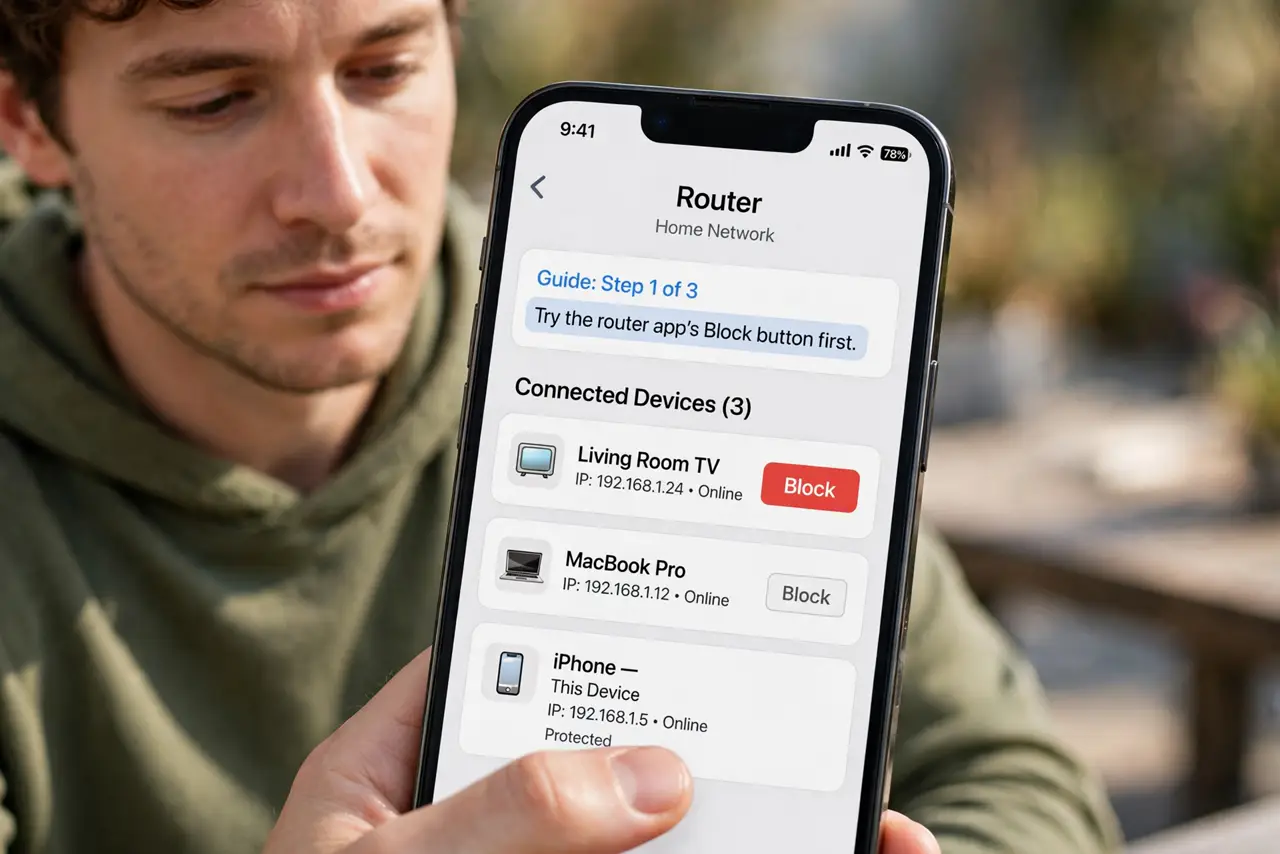
- Try the router app's block button first. Most modern router apps let you tap a device and block or pause it. Quick, targeted, and reversible — perfect for a kid's tablet at bedtime or a one-off freeloader.
- Understand blocking is not bulletproof. A blocked device can sometimes reconnect with a changed MAC address. For a determined freeloader, blocking is a speed bump, not a wall.
- Change the Wi-Fi password for a clean sweep. This is the nuclear option that actually works: every device drops, and only devices you re-authenticate return. See how to change it properly.
- Disable WPS on the router. WPS's PIN can be brute-forced, letting a kicked device waltz back in. Turn WPS off in the router settings — you do not need it.
- Check for the device's friends. Where there is one freeloader there are often two — after evicting, check the full device list to make sure the network is clean.
- Set up a guest network going forward. Future visitors go on the isolated guest network, which you can wipe without touching your main password — see the guest setup.
What NOT to do
- Do not rely on MAC filtering alone. It feels like security, but MAC addresses are trivially spoofed — treat it as labeling, not locking.
- Do not block your own smart devices by accident. Double-check the device name before tapping block — the 'unknown' gadget might be your doorbell.
- Do not skip the password change for a persistent intruder. Blocking buys hours; a new password buys peace.
- Do not forget to update your own devices after a password change. The classic aftermath is a 'broken' printer that just needs the new password.
Frequently asked questions
Will the kicked device know it was kicked?
It will just see the network reject it — no notification names you. A password change looks like routine maintenance from outside.
Can a blocked device still see my files?
While connected it could try, which is why eviction matters. After removal, also check shared folders were not left wide open.
What's the difference between block and pause?
Pause is temporary — great for parental controls. Block is meant to be permanent, though a password change enforces it better.