Streaming Buffers but Speed's Fine? Fix
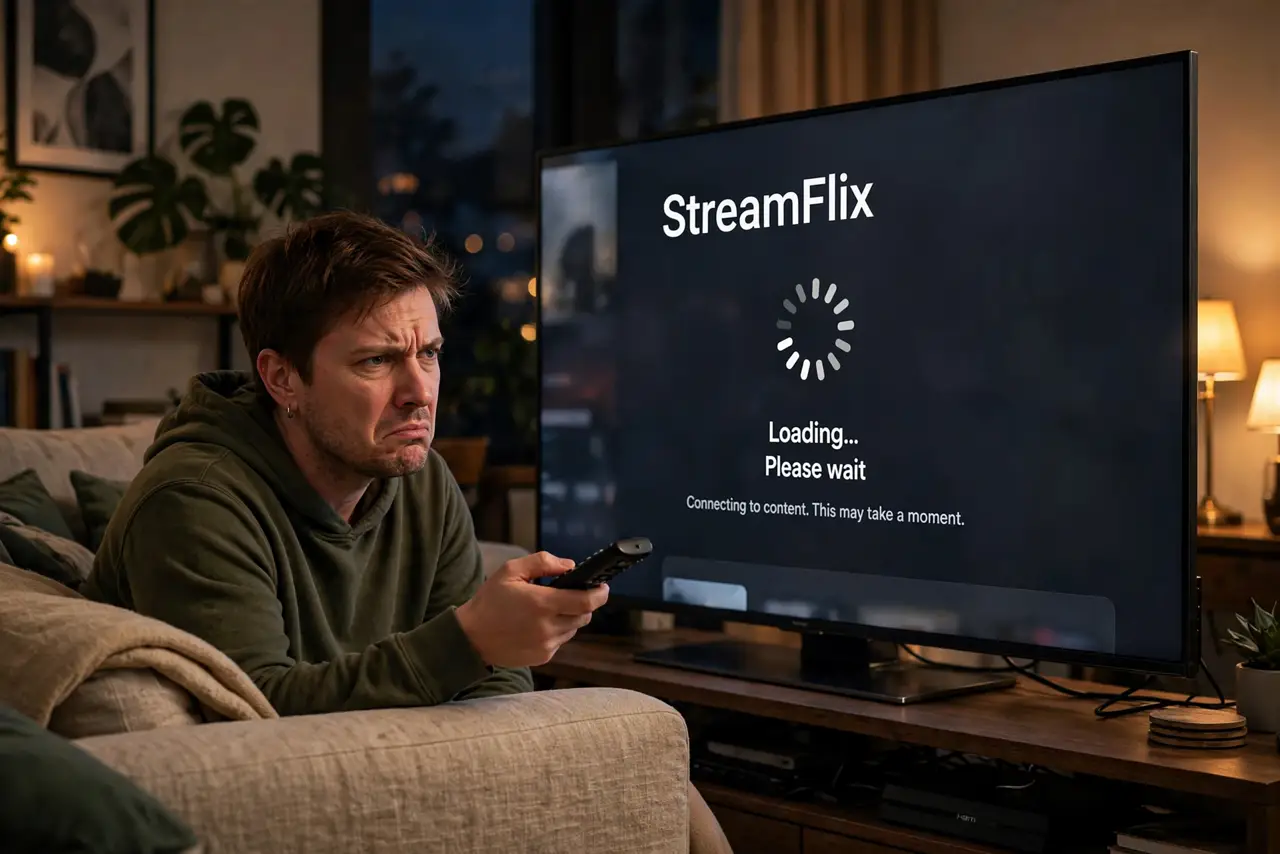
The speed test says 200 Mbps, yet the movie spins its loading wheel every ten minutes. Infuriating — and almost never actually about your plan's speed. Buffering with a fast connection usually means Wi-Fi trouble between the router and the TV, evening congestion, or an app hiccup. Run this checklist before calling the ISP or upgrading your plan.
TL;DR / Quick Fix
Quick fix: buffering on a fast plan usually means Wi-Fi trouble or congestion, not your speed. Restart the streaming device and router, move closer or plug in ethernet, and lower the quality one notch. If it buffers only at night, your ISP's network is congested — a VPN sometimes helps.
Follow these steps
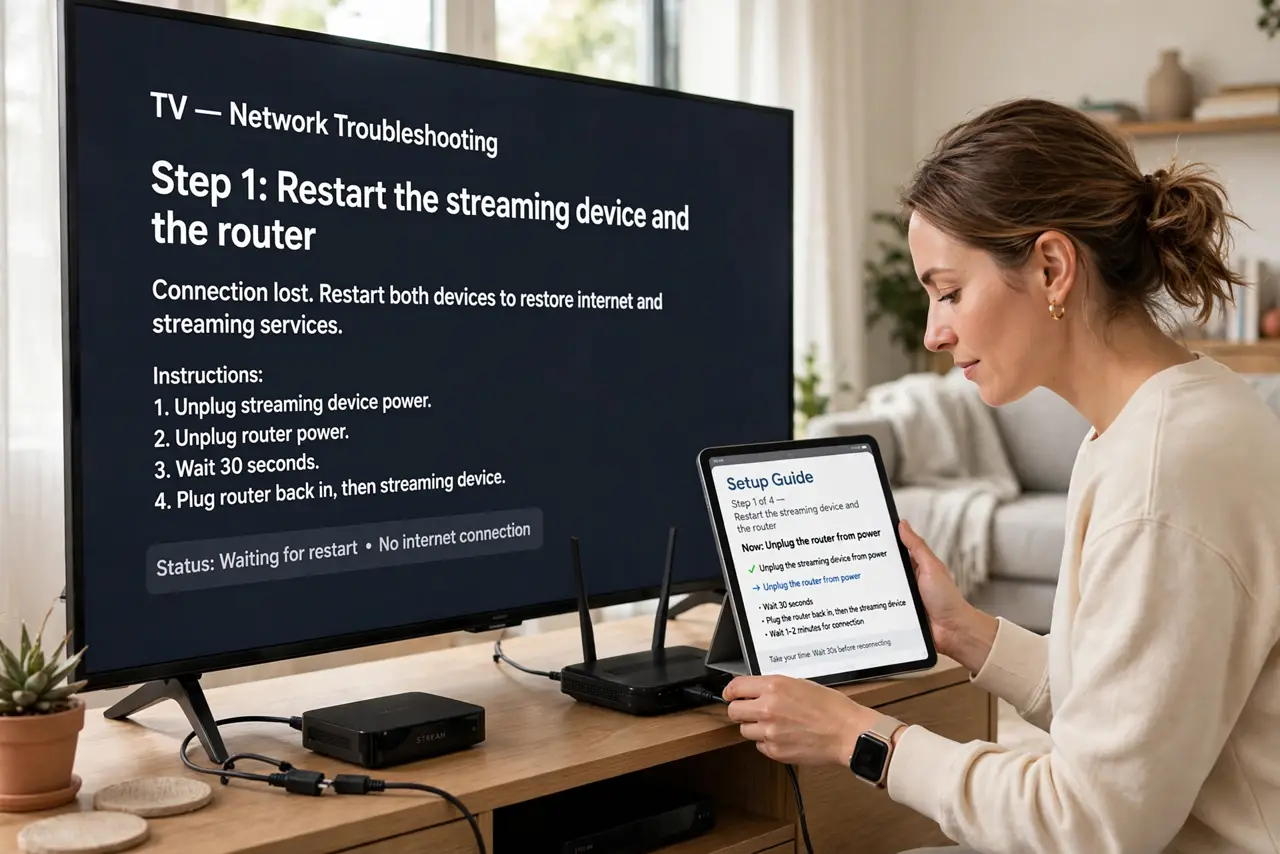
- Restart the streaming device and the router. Unplug both for 30 seconds, then power up the router first. This clears more buffering issues than any setting — stale sessions and overheated radios are common culprits.
- Move the TV closer to good signal — or wire it. Streaming sticks behind TVs get terrible Wi-Fi. An ethernet cable to the TV is the single best upgrade; second best is moving the router into the open. See how often a router reboot schedule helps.
- Drop the quality one notch. 4K needs roughly four times the steady bandwidth of HD. If 4K stutters, HD looks nearly as good on most screens and buffers far less.
- Test at off-peak hours. If everything is smooth at noon but stutters at 9 p.m., your neighborhood node is congested — a plan upgrade will not fix shared congestion.
- Try a different streaming app. If one app buffers while others play fine, the problem is that app's servers, not your connection. Reinstalling the app often clears it.
- Check for bandwidth hogs. Cloud backups, game downloads, and video calls on other devices eat the steady stream video needs. Pause them during movie night.
What NOT to do
- Do not upgrade your plan over buffering alone. A faster plan does not fix Wi-Fi dead spots or evening congestion.
- Do not hide the router behind the TV. That metal-and-glass slab is a Wi-Fi killer for the streaming stick inches away.
- Do not run a VPN constantly for streaming unless testing. VPNs can dodge congestion but usually add their own slowdown.
- Do not ignore the app itself. Reinstalling a misbehaving streaming app takes two minutes and fixes a surprising share of 'internet' problems.
Frequently asked questions
Why does the speed test look fine but video buffers?
Speed tests measure bursts; video needs a steady stream. Wi-Fi hiccups and congestion hurt steadiness while leaving burst numbers pretty.
Does 4K really need that much more bandwidth?
Yes — roughly four times HD. Marginal connections that handle HD fine will choke on 4K, especially over Wi-Fi.
Can my neighbor's Wi-Fi cause my buffering?
It can add interference on crowded channels. If you are in an apartment, switching your router's Wi-Fi channel sometimes helps — see change the Wi-Fi channel.