Run a Real Ping Test?
Your video calls stutter but speed tests look fine, and nobody can tell you why. A ping test measures the delay — latency — between your device and a server, which is the number that actually decides whether calls and games feel snappy. It takes thirty seconds and no special tools. Here is how to run one properly and read the result.
TL;DR / Quick Fix
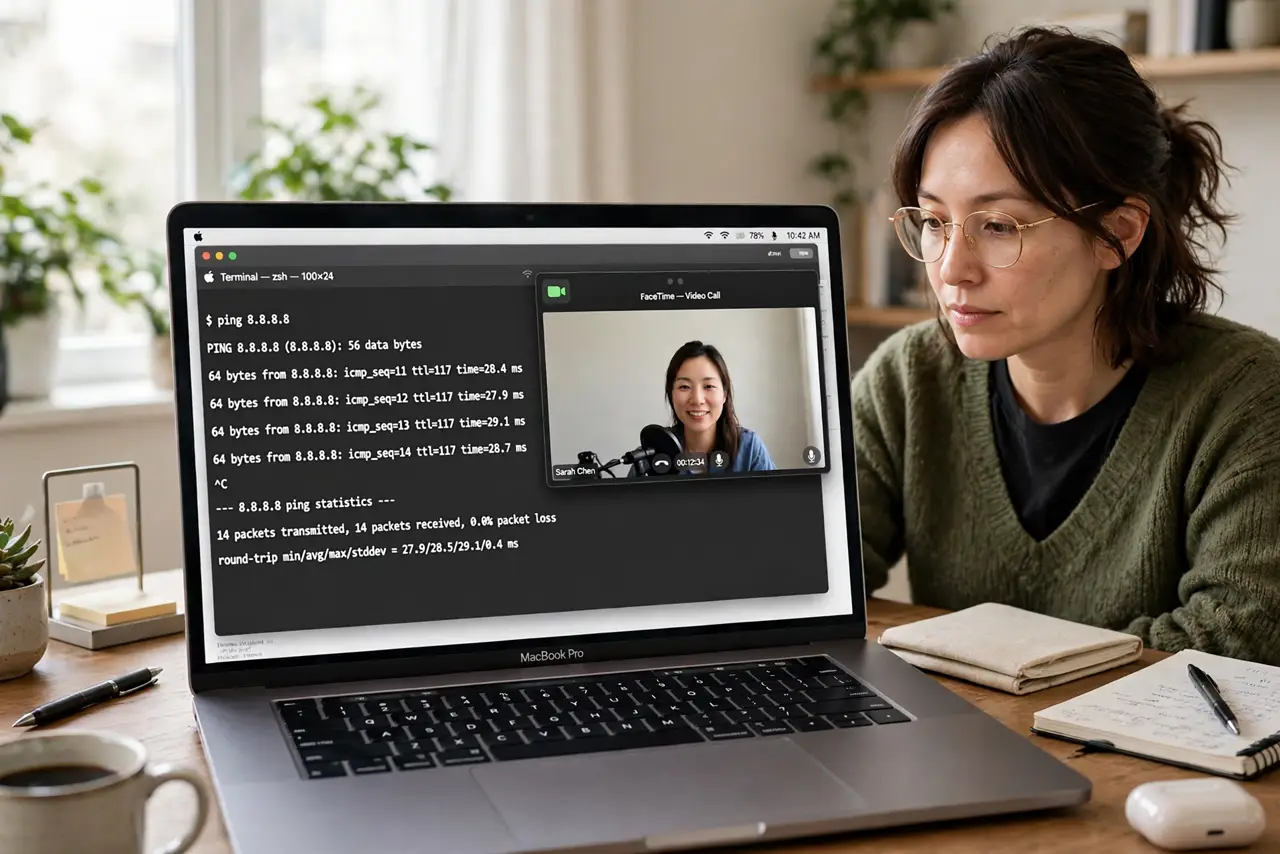
Quick fix: on Windows open Command Prompt and type ping google.com; on Mac open Terminal and do the same. Under 50 ms is fine for calls and gaming; over 150 ms feels laggy. If ping looks fine but everything feels slow, the problem is bandwidth, not latency.
Follow these steps
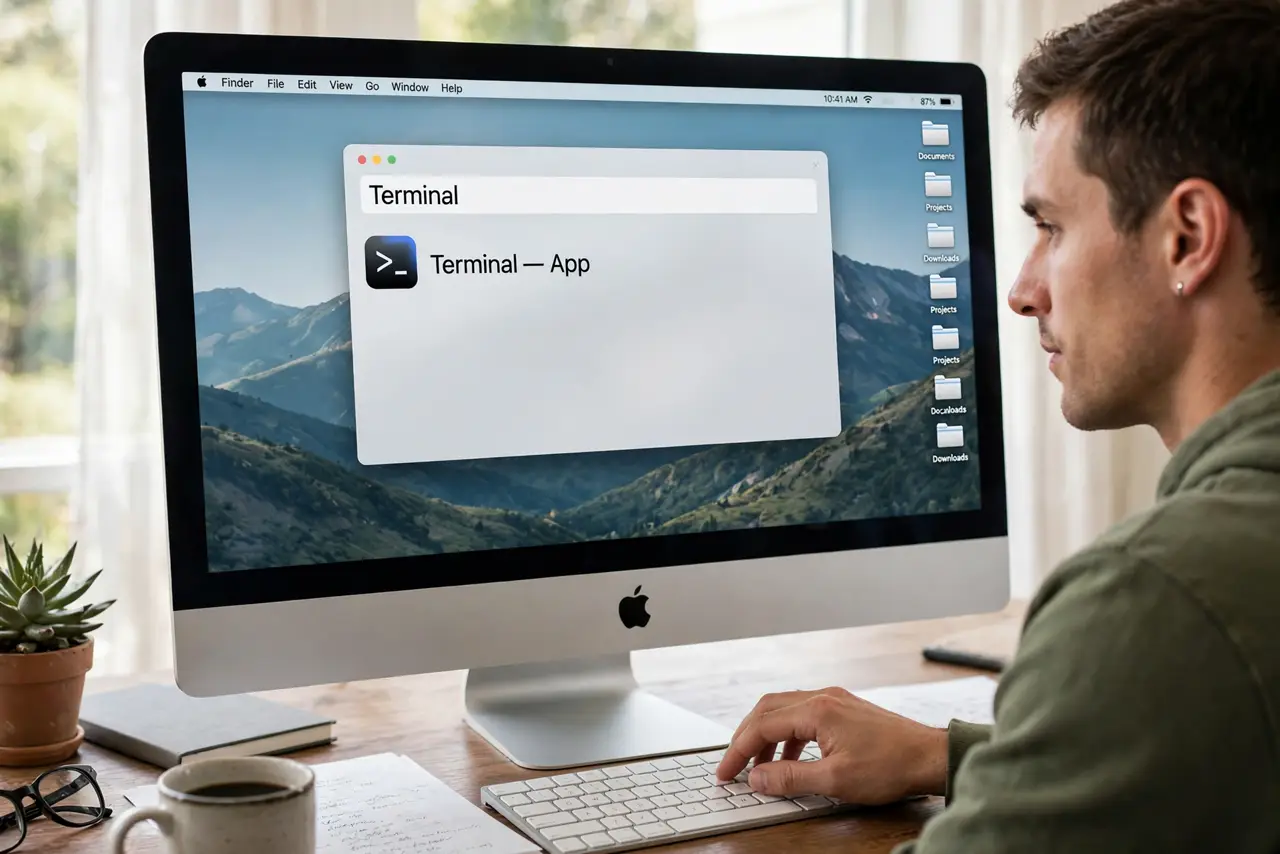
- Open a command line. On Windows, press Windows key, type cmd, and open Command Prompt. On Mac, open Terminal from Applications then Utilities. No app to install — ping is built into every computer.
- Ping a reliable server. Type ping google.com (or ping 8.8.8.8) and press Enter. Let it run for about 20 replies, then stop it with Ctrl+C. The summary shows minimum, average, and maximum times.
- Read the average, not the best. One fast reply means nothing — the average tells you the real story. Under 50 ms is good, 50 to 100 is acceptable, and over 150 ms means calls and games will feel sluggish.
- Watch for spikes and packet loss. If some replies take ten times longer than others, you have jitter — see the spike patterns guide. Any packet loss percentage above zero is worth investigating.
- Test wired and Wi-Fi separately. Run the test on Wi-Fi, then plug in with an Ethernet cable and run it again. If wired ping is clean and Wi-Fi is not, the problem is your wireless, not your internet plan.
- Compare against a speed test. Run a speed test right after. High ping with fine speed points at routing or congestion; fine ping with low speed points at bandwidth — different fixes.
What NOT to do
- Do not ping once and declare victory. Latency varies minute to minute — a proper test needs dozens of replies, not one.
- Do not test while streaming or downloading. Background traffic inflates ping and makes a healthy connection look sick.
- Do not confuse ping with speed. A 10 ms ping on a slow plan still buffers video; a 200 ms ping on a fast plan still lags calls.
- Do not ping a game server and blame your ISP instantly. The server itself may be far away or overloaded — test a nearby server too.
Frequently asked questions
What is a good ping for gaming?
Under 50 ms is good, under 30 is great. Consistency matters more than the number — steady 60 ms beats jumpy 20 ms.
Why is my ping high only in the evening?
Peak-hour congestion — your neighbors are all streaming. Wired connections suffer less; Wi-Fi suffers most. This is normal on shared cable lines.
Can a VPN lower my ping?
Rarely — it usually adds delay. A VPN only helps if your ISP's route to a server is unusually bad, which is uncommon.