QoS on Your Router? Basics
Your video calls stutter every time someone starts a download, even though your plan is fast. QoS — Quality of Service — tells your router which traffic matters most, so calls and games get priority over background downloads. It is the single most underused router setting, and it takes five minutes. Here is the plain version.
TL;DR / Quick Fix
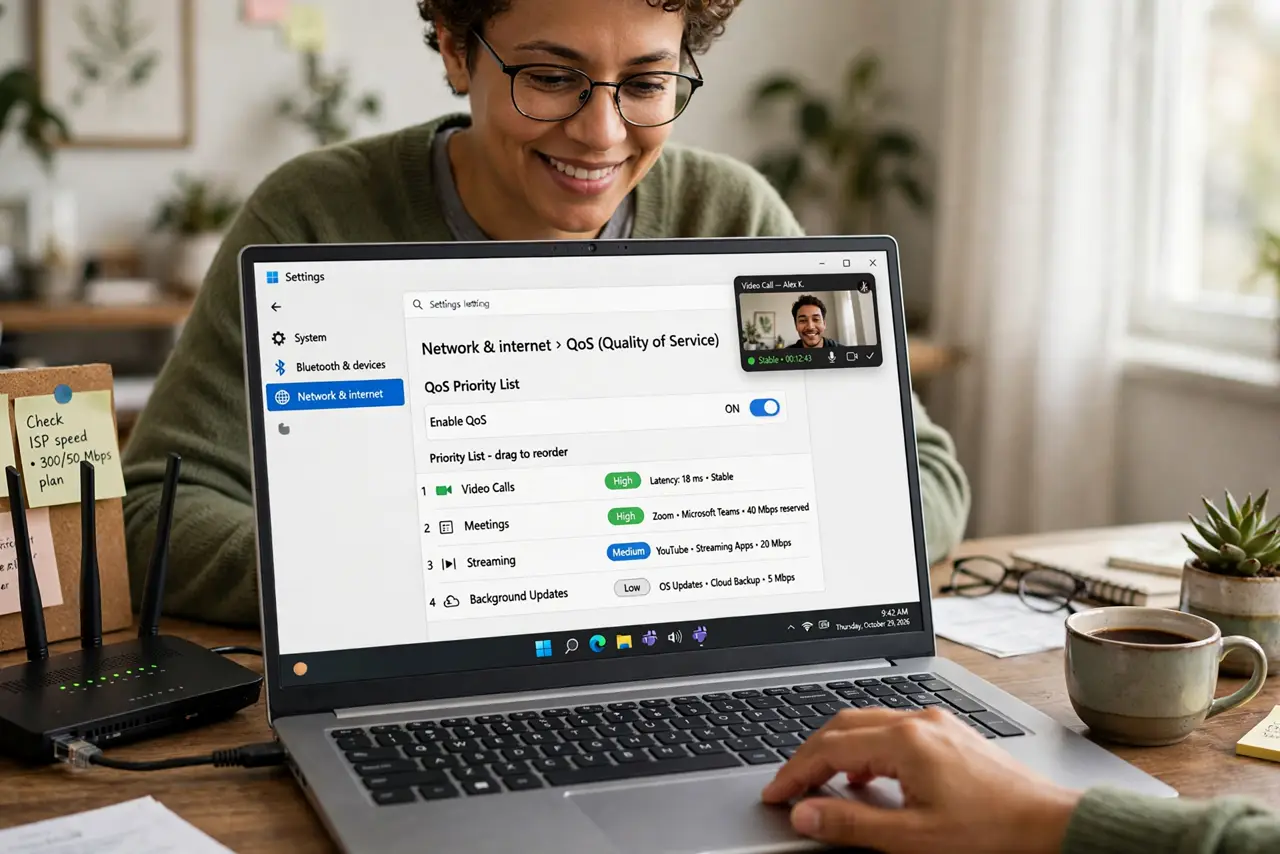
Quick fix: log into your router (usually 192.168.1.1), find QoS or Traffic Prioritization, and turn it on. Prioritize video calls and gaming, or prioritize by device — your work laptop first. Save and restart the router. Test with a call running while someone streams.
Follow these steps
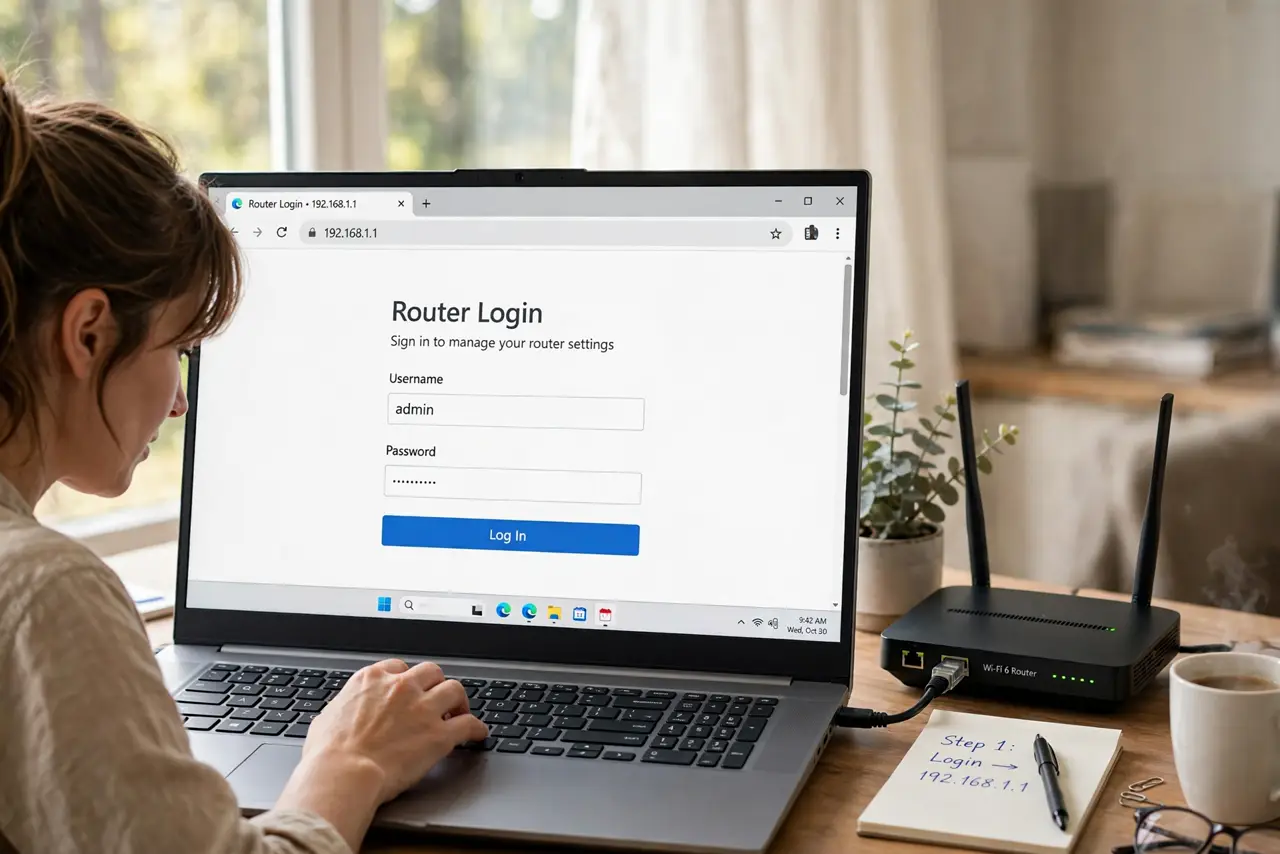
- Log into your router. Open a browser and go to your router's address — usually 192.168.1.1 or 192.168.0.1, printed on the router's sticker. Log in with the admin password, not the Wi-Fi password.
- Find the QoS settings. Look for QoS, Quality of Service, Traffic Control, or Media Prioritization in advanced settings. The name varies by maker, but the idea is identical: rank your traffic.
- Prioritize what matters. Put video calls, voice calls, and gaming at the top; bulk downloads and cloud backups at the bottom. Some routers let you prioritize by device — your work laptop outranks the smart TV.
- Learn from real setups. A work-calls-first configuration is the classic example: calls stay smooth while the rest of the house streams. Gamers have their own tuning approach.
- Save and restart the router. QoS rules apply after a save and usually a reboot. Change one thing, restart, and test — do not stack five changes and guess which worked.
- Test under load. Start a video call, then have someone stream 4K video. If the call stays smooth where it used to stutter, QoS is doing its job.
What NOT to do
- Do not prioritize everything. If every device is 'highest priority,' nothing is — QoS only works when most traffic stays normal.
- Do not expect miracles on a tiny plan. QoS manages congestion; it cannot create bandwidth that is not there.
- Do not forget QoS is per-router. A mesh node or second access point may need its own settings — check each one.
- Do not leave default passwords on the router. Anyone on your network could undo your QoS — change the admin password first.
Frequently asked questions
Will QoS slow down my other devices?
Slightly, during congestion — that is the point. Off-peak, everything runs full speed; QoS only intervenes when traffic competes.
Is QoS the same as SQM?
Related but different. QoS prioritizes by rules you set; SQM automatically keeps latency low for everything. Many modern routers offer both.
Why can't I find QoS on my router?
ISP-provided gateways often hide it. Look under Advanced, or consider that your model simply lacks it — SQM-capable routers are the upgrade path.