Router QoS to Prioritize Your Work Calls
QoS is the router setting that decides whose traffic goes first when the connection gets crowded. Set it once, and your work calls stay smooth even while someone else streams or backs up photos.

TL;DR / Quick Fix
Quick fix: log into your router, find the QoS or traffic priority setting, and put your work device or video-call app at the top. Save, restart the router, and test with a real call while someone else uses the network heavily.
Follow these steps
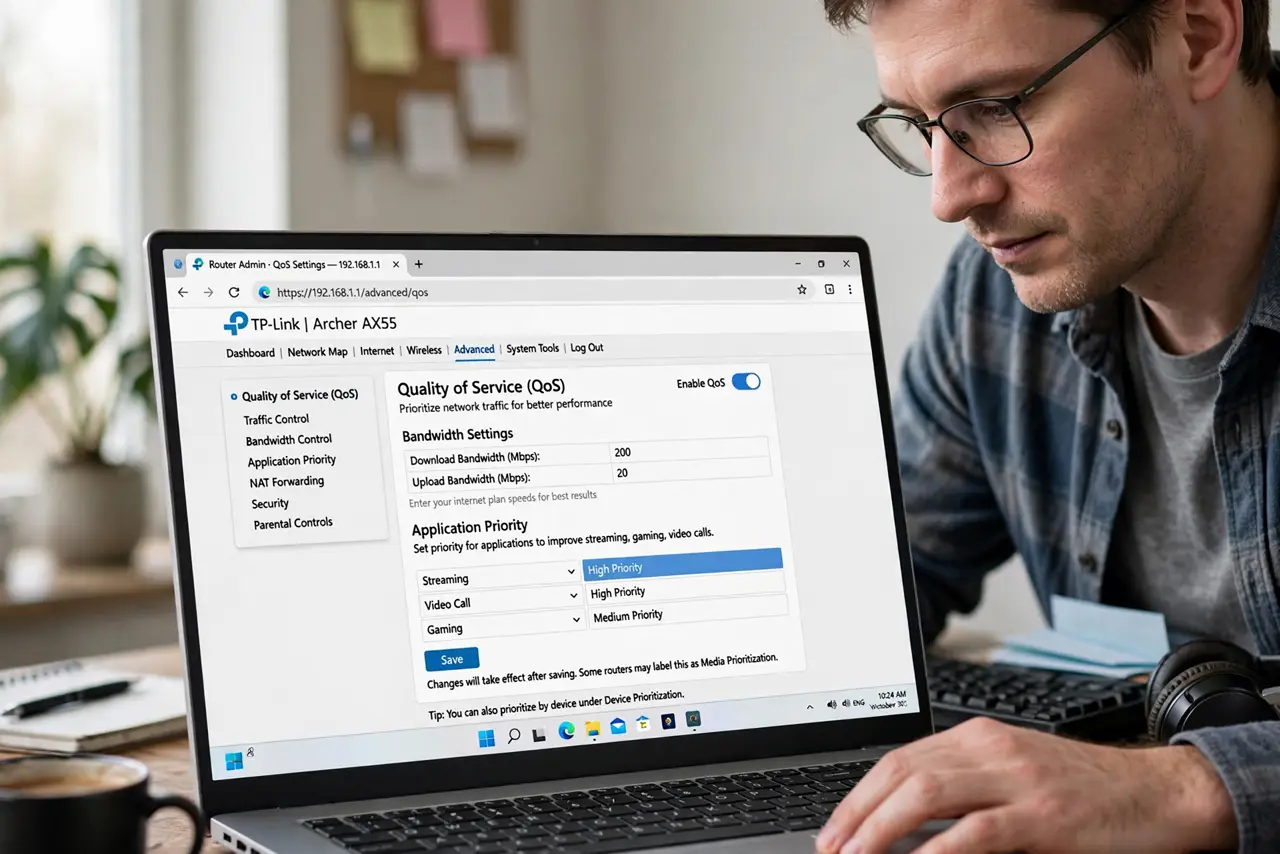
- Find the QoS setting in your router. Log into the admin page and look for QoS, traffic control, or media prioritization. It usually sits under advanced settings, and some routers call it application priority instead.
- Prioritize your work device first. The simplest QoS rule names your work laptop or phone as the top-priority device. Device-based rules are easier to get right than app-based ones on most home routers.
- Put video calls above streaming and backups. If the router allows app priorities, rank video calling above streaming video and cloud backup. Calls break up with tiny delays, while a stream can buffer through them.
- Do not starve everything else. Give the top device priority, not the entire connection. Leaving some room for other devices avoids turning one smooth call into a house full of complaints.
- Restart the router after saving. QoS rules often need a restart to take effect. Save the settings, reboot, and confirm the priority list still shows your choices afterwards.
- Test during a real busy moment. Start a call while someone streams video or a backup saturates the upload. A call that stays clear under load proves the rule works better than any settings screen.
What NOT to do
- Do not expect QoS to create speed you do not have. It divides a crowded connection fairly, but it cannot make a slow plan fast.
- Do not prioritize every device as high. When everything is top priority, nothing is, and the router is back to guessing.
- Do not set QoS once and forget it for years. New devices join the house and old rules go stale, so review the list when call quality slips again.
- Do not confuse QoS with a speed boost app. Phone apps that claim to prioritize traffic cannot overrule the router, which is where the real queue lives.
Frequently asked questions
Will QoS fix my slow internet?
No. It manages a crowded connection so calls stay smooth, but the total speed still comes from your plan.
Device or app priority — which is better?
Device priority is simpler and works on most routers. Use app priority only if your router does it well and you understand its list.
Why do calls still stutter with QoS on?
The rule may target the wrong device, the router may need a restart, or the plan itself may be too slow for calls plus everything else.