Log In to Your Router?
You want to change your Wi-Fi password, pick a better channel, or see who is on your network — and all of that lives behind your router's admin login. Every router has a settings page on your local network, usually protected by a password printed on the router itself. Getting in takes two minutes once you know the address. Here is the reliable way in.
TL;DR / Quick Fix
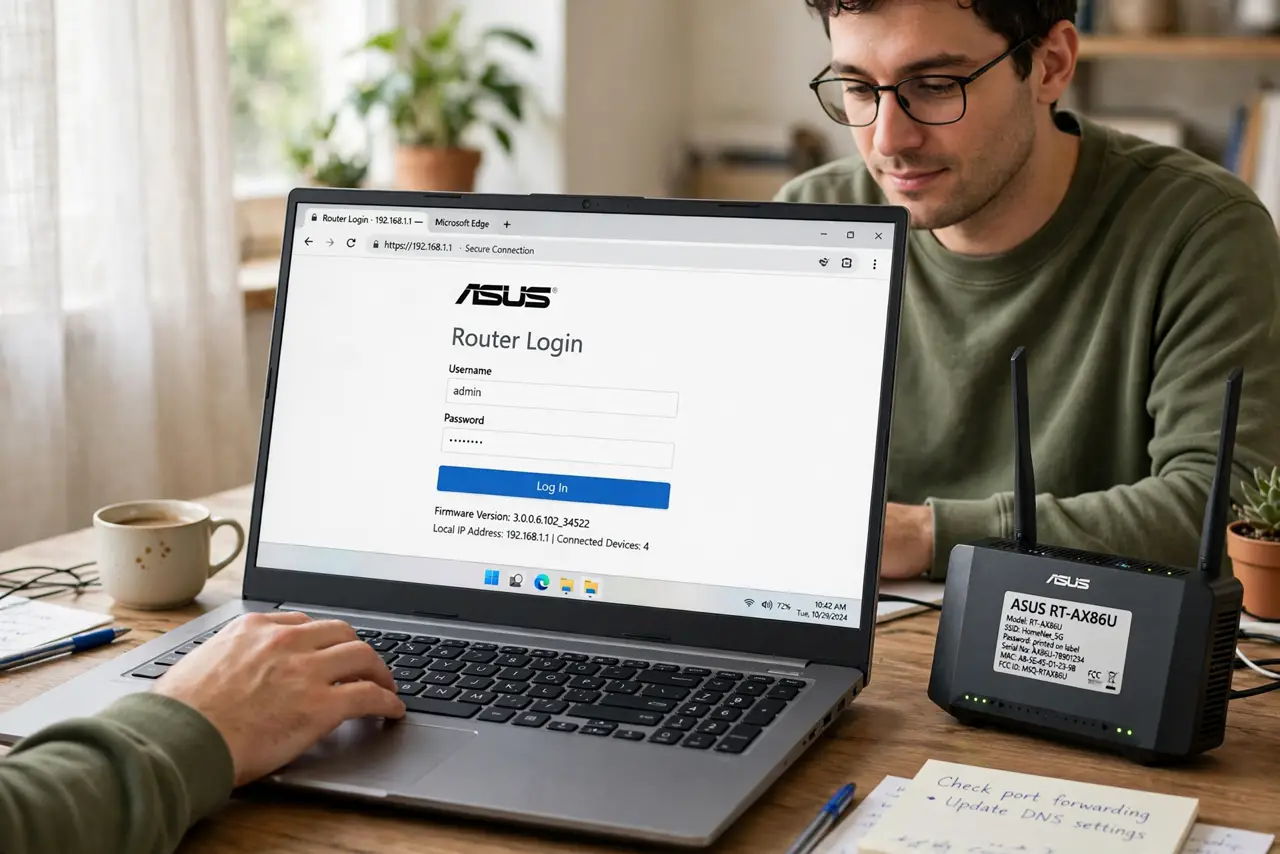
Quick fix: find the router's IP (usually 192.168.1.1 or 192.168.0.1) on the sticker underneath, type it into your browser while connected to the router's Wi-Fi, and log in with the admin password on the same sticker. Never do this over someone else's network — only your own.
Follow these steps
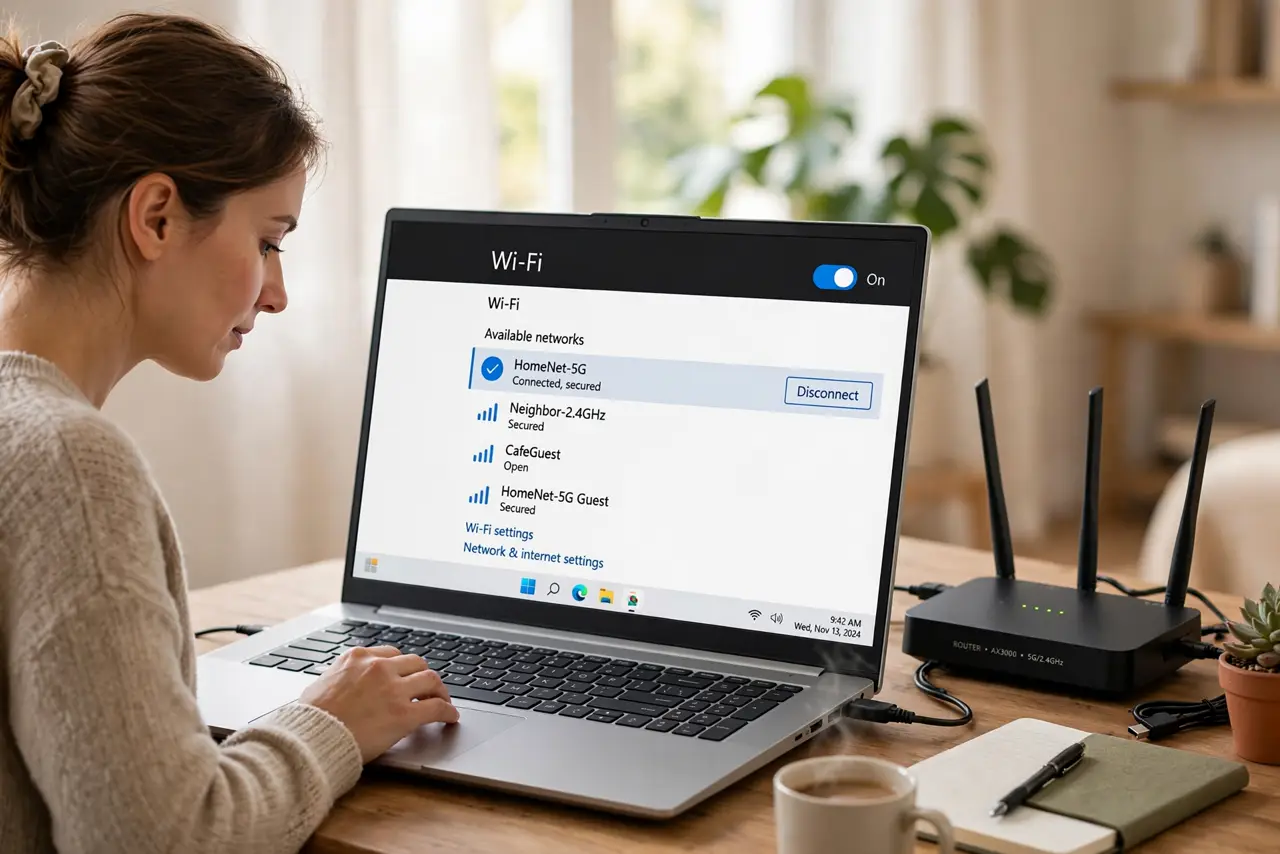
- Connect to your own network first. Join your router's Wi-Fi (or plug in with Ethernet) — the admin page only exists on the local network. You cannot reach your router's settings from a café or over mobile data.
- Find the router's address. Check the sticker on the router for the admin address — usually 192.168.1.1 or 192.168.0.1, sometimes a name like routerlogin.net. On Windows, ipconfig shows it as the Default Gateway; on Mac, check Network settings.
- Log in with the sticker credentials. Use the admin username and password printed on the router — often 'admin' plus a unique password. If a previous owner changed them and you do not know the new ones, a factory reset (pinhole button, 10 seconds) restores the sticker defaults.
- Change the admin password immediately. The sticker password is the same on thousands of routers. Once inside, set a strong unique admin password first — before you touch Wi-Fi settings. This is the single most important step on this page.
- Make your Wi-Fi changes. Now change the Wi-Fi name and password, pick channels (see our guides to DFS channels and 160 MHz width), or review connected devices. Save each section — routers often need a reboot to apply changes.
- Log out when done. Close the admin session when finished, especially on a shared computer. An open router admin page is an open door to your whole network.
What NOT to do
- Do not log in to your router from someone else's network. Admin pages are local-only for a reason — remote access attempts are a red flag.
- Do not leave the default admin password. It is printed on the router and guessable — change it the first time you log in.
- Do not factory-reset casually. Resetting wipes your Wi-Fi name, password, and ISP settings — only reset when you have the ISP details to reconfigure.
- Do not change settings you do not understand. DHCP ranges, DNS, and firewall rules can kill your internet — change one thing at a time and note what you changed.
Frequently asked questions
I forgot my router password — now what?
If you mean the Wi-Fi password, it is on the sticker or in the admin page. If you mean the admin password and it was changed, factory-reset with the pinhole button, then log in with the sticker credentials.
Is the admin page the same as my ISP account?
No. The router admin page controls your local network; your ISP account controls your plan and billing. Different logins, different websites.
Can I access my router admin remotely?
Most routers offer a remote-access or app option, but it expands your attack surface. Keep remote admin off unless you genuinely need it.