Smart Bulb Won't Connect? Fix It
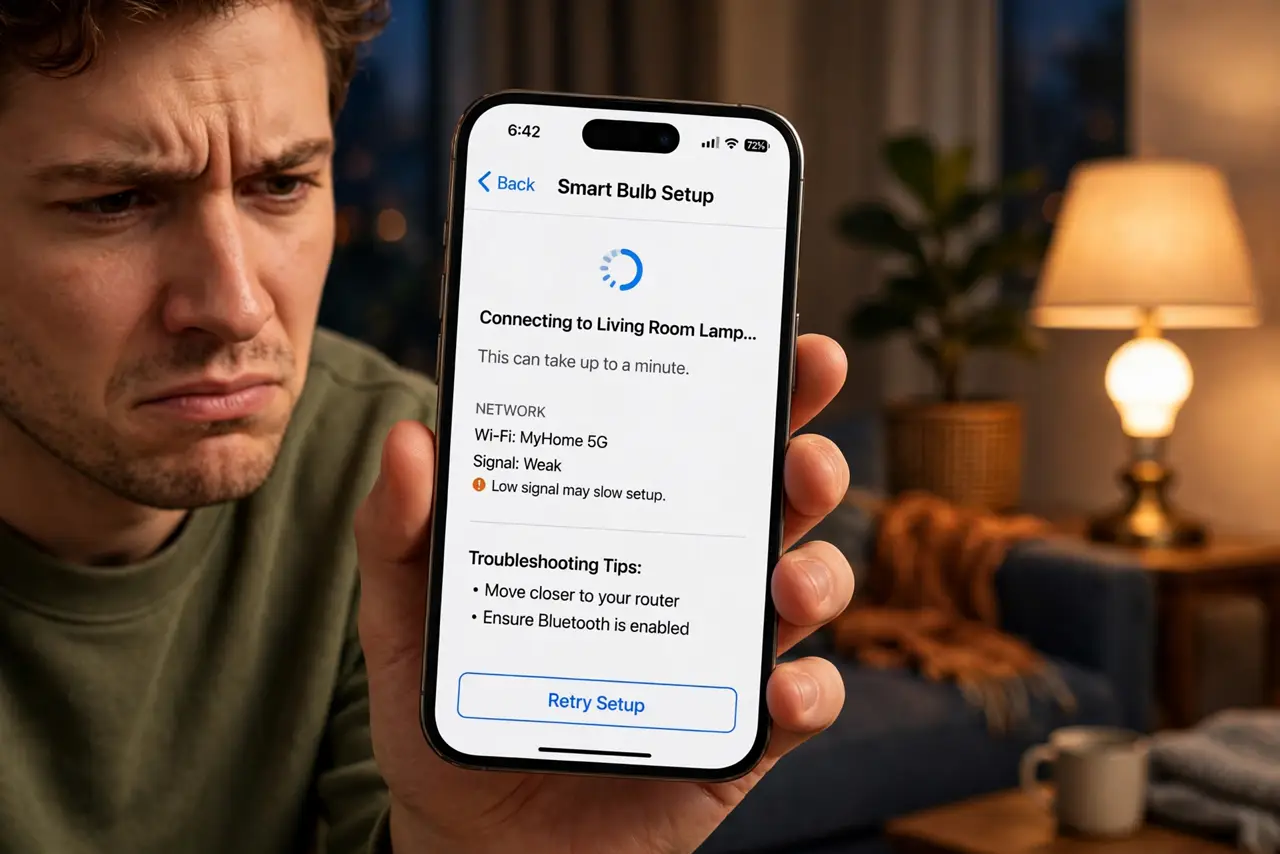
The new smart bulb blinks, the app spins, and setup fails at the last step — again. Smart bulbs are famously picky about Wi-Fi: most only speak the older 2.4 GHz band, and modern routers that merge both bands into one name confuse them completely. The fix is a five-minute router tweak, not a new bulb.
TL;DR / Quick Fix
Quick fix: most smart bulbs only use 2.4 GHz Wi-Fi, and routers that merge both bands confuse them. In your router app, temporarily split out a 2.4 GHz network and connect the bulb to it. Also confirm the bulb is screwed in, powered on, and within range of the router.
Follow these steps
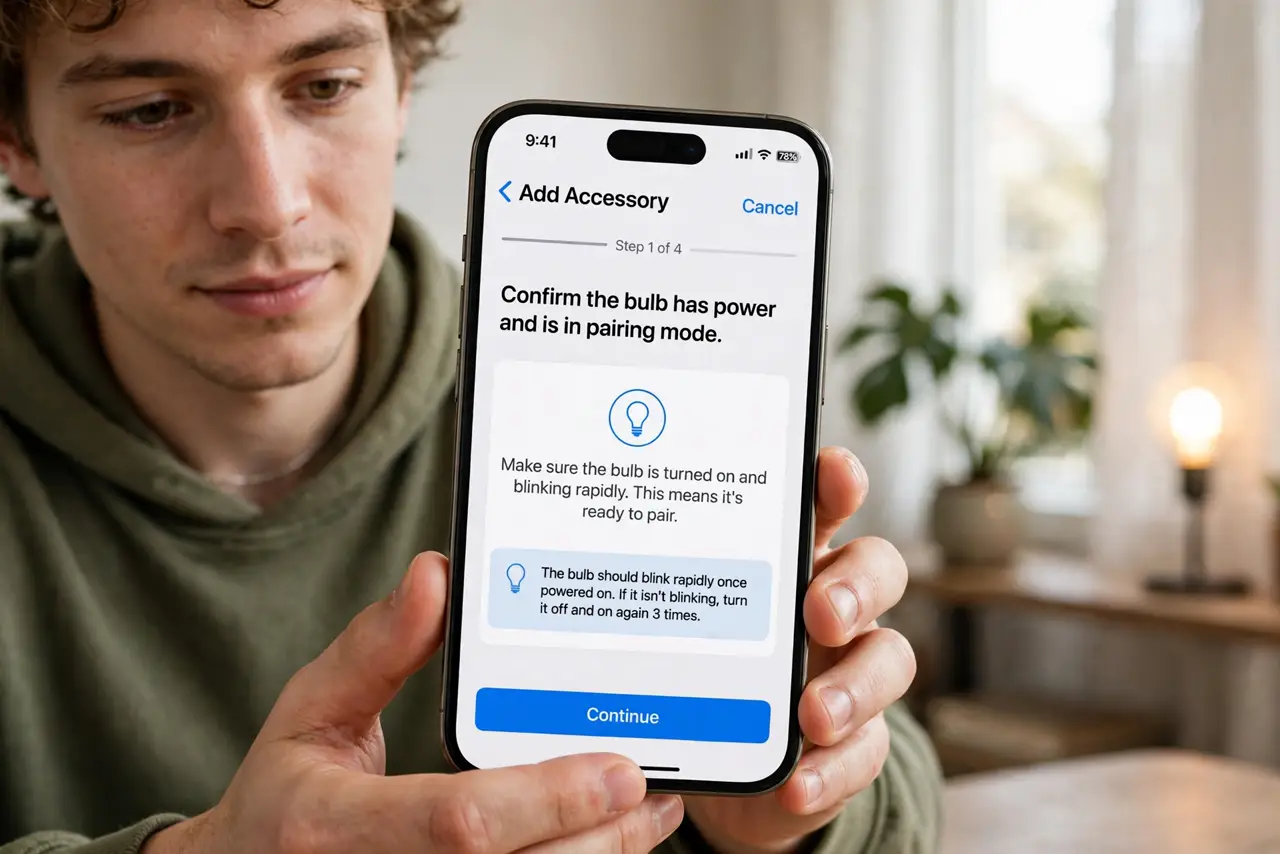
- Confirm the bulb has power and is in pairing mode. Screw it in firmly, flip the switch on, and check it blinks or pulses as the manual describes. Most bulbs enter pairing mode by toggling power three times.
- Split out a 2.4 GHz network temporarily. In your router's app or settings, enable a separate 2.4 GHz network name. Bulbs that only speak 2.4 GHz fail on merged networks because the phone tries to hand them the 5 GHz details.
- Connect your phone to that 2.4 GHz network. Setup apps pass your phone's current Wi-Fi details to the bulb. If the phone is on 5 GHz, the bulb gets credentials it cannot use — match the bands.
- Move closer to the router for setup. Bulbs pair best with a strong signal. Do the setup near the router, then screw the bulb into its final spot afterward.
- Reset the bulb if it half-paired. A bulb stuck between networks needs a factory reset — usually rapid power toggles until it blinks differently. Then start setup fresh.
- Re-merge the bands after success. Once connected, the bulb stays on 2.4 GHz happily even if you recombine the network names. The split is only needed for the handshake.
What NOT to do
- Do not return the bulb as defective after one failed setup. Band mismatch causes the vast majority of 'dead' smart bulbs.
- Do not set up the bulb with the phone on 5 GHz. The app hands the bulb the wrong band's credentials every time.
- Do not place the bulb at the far edge of Wi-Fi range. Weak signal during pairing fails silently — set up close, then relocate.
- Do not factory-reset the router over a bulb. The router is fine; the bulb just needs its 2.4 GHz handshake.
Frequently asked questions
Why do smart bulbs only use 2.4 GHz?
Range and cost — 2.4 GHz reaches farther through walls and the chips are cheaper. A bulb sends tiny commands, so it never needs 5 GHz speed.
Can I control the bulb when I'm away?
Yes, once it is on your Wi-Fi — the maker's app reaches it through their cloud. No extra setup needed.
The bulb worked for months, then dropped — why?
Usually a router update re-merged the bands or changed the password. Re-run setup; the bulb itself rarely dies.