Smart Gadgets Need 2.4 GHz? Why
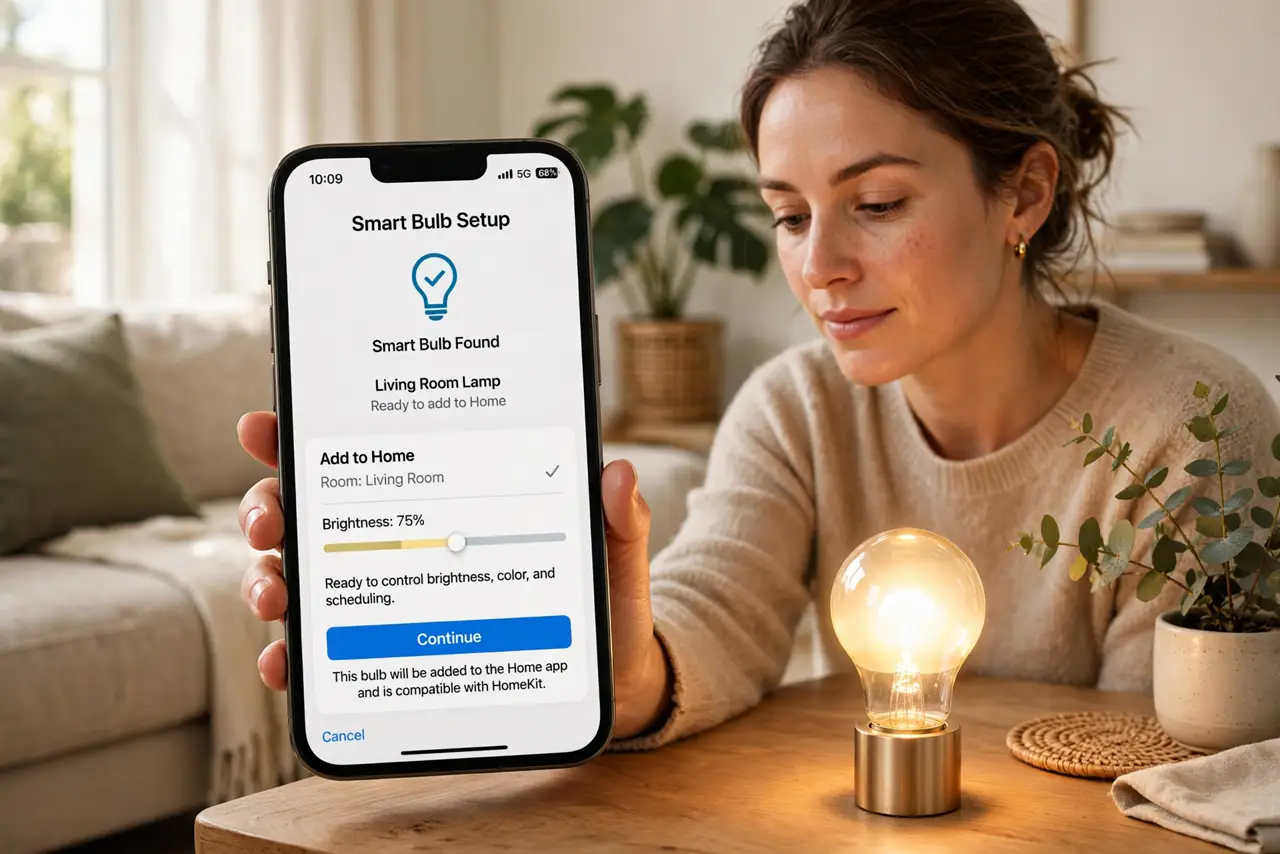
The smart bulb pairs fine at the store's demo, then refuses to connect in your home — because your router steered your phone to 5 GHz mid-setup and the bulb only speaks 2.4. Nearly all cheap smart-home gadgets are 2.4 GHz-only, by design. Here is why, and the setup dance that makes pairing painless.
TL;DR / Quick Fix
Quick fix: most smart bulbs, plugs, and cameras use 2.4 GHz-only chips — cheaper, longer range, plenty fast for a lightbulb. During setup, keep your phone on the 2.4 GHz network. After pairing, the gadget stays on 2.4 happily while your phone roams back to 5 GHz.
Follow these steps
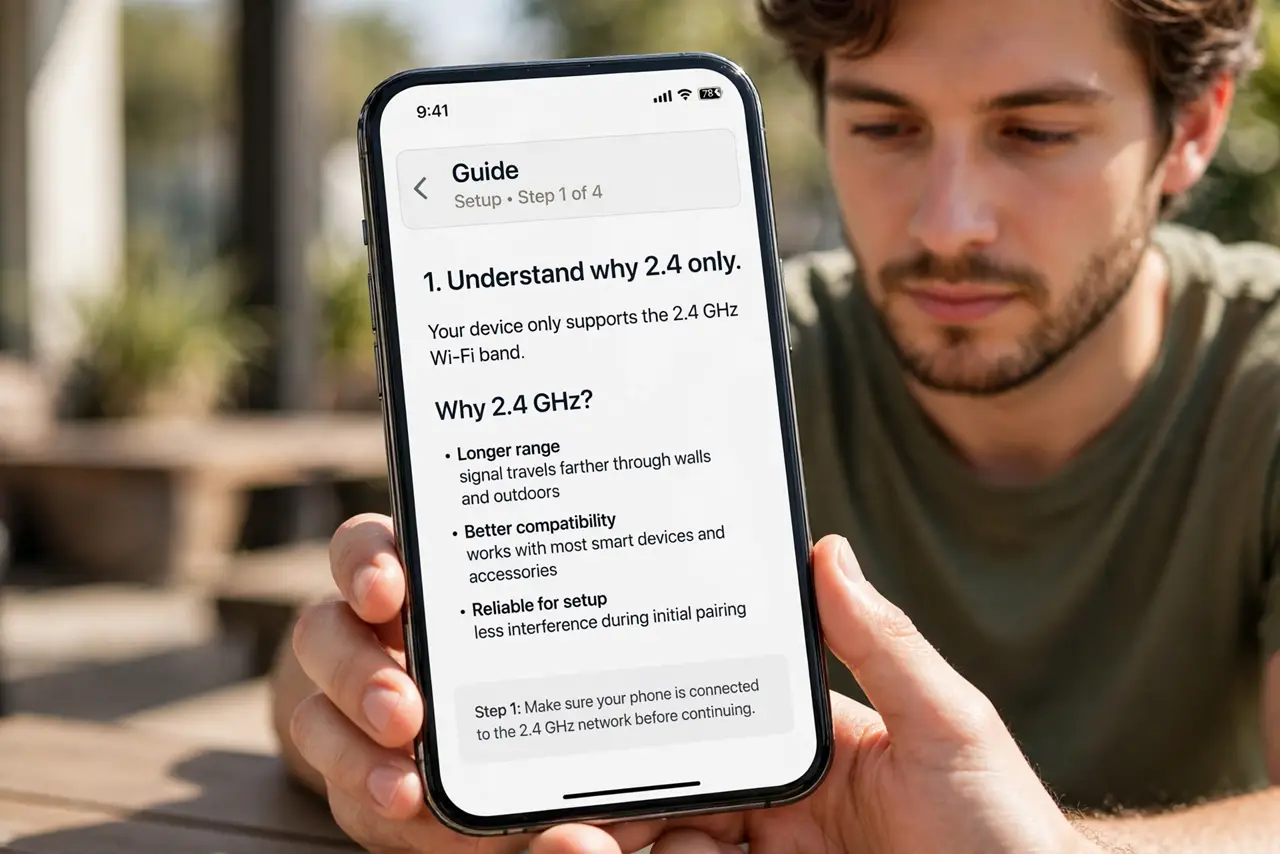
- Understand why 2.4 only. A bulb sends bytes, not gigabytes. 2.4 GHz chips cost pennies, sip power, and reach the far bedroom — everything a smart gadget needs, nothing it does not.
- Put your phone on 2.4 during setup. Most pairing flows pass the network credentials from phone to gadget. If the phone is on 5 GHz, the handoff confuses 2.4-only gadgets — the number one setup failure.
- Split bands temporarily if needed. If your router merges bands and setup keeps failing, separate them for ten minutes, pair everything, then merge back.
- Give smart gadgets a strong 2.4 signal. A bulb at the edge of coverage drops offline randomly. If gadgets flap, the fix is 2.4 coverage — a better-placed router or access point — not new bulbs.
- Keep 2.4 GHz enabled, always. Disabling 2.4 'to simplify' orphans every smart gadget at once. It costs nothing to leave on.
- Watch the microwave. Microwaves blast the 2.4 band while running — see microwave interference. A camera that drops at dinner time is not broken.
What NOT to do
- Do not return a 'defective' bulb that only failed pairing. Nine times in ten it is the 5 GHz phone problem, not the bulb.
- Do not disable 2.4 GHz after setup 'because everything is on 5 now.' Your gadgets live there permanently.
- Do not place the router where 2.4 cannot reach the gadgets. Smart-home reliability is 2.4 coverage reliability.
- Do not buy 5 GHz smart gadgets expecting better. They barely exist, cost more, and gain nothing — a bulb does not need 500 Mbps.
Frequently asked questions
Why don't makers just add 5 GHz?
Cost, power, and range. A 5 GHz radio costs more, drains more, and reaches less — all downsides for a device sending tiny commands.
My plug worked for months, now it's offline — why?
Usually a router change: new router, new band steering, or a renamed network. Re-pair it with the phone on 2.4.
Can too many gadgets slow my Wi-Fi?
Dozens of idle gadgets barely register. They sip tiny data — your video calls will never notice them.