Separate 2.4 and 5 GHz Networks?
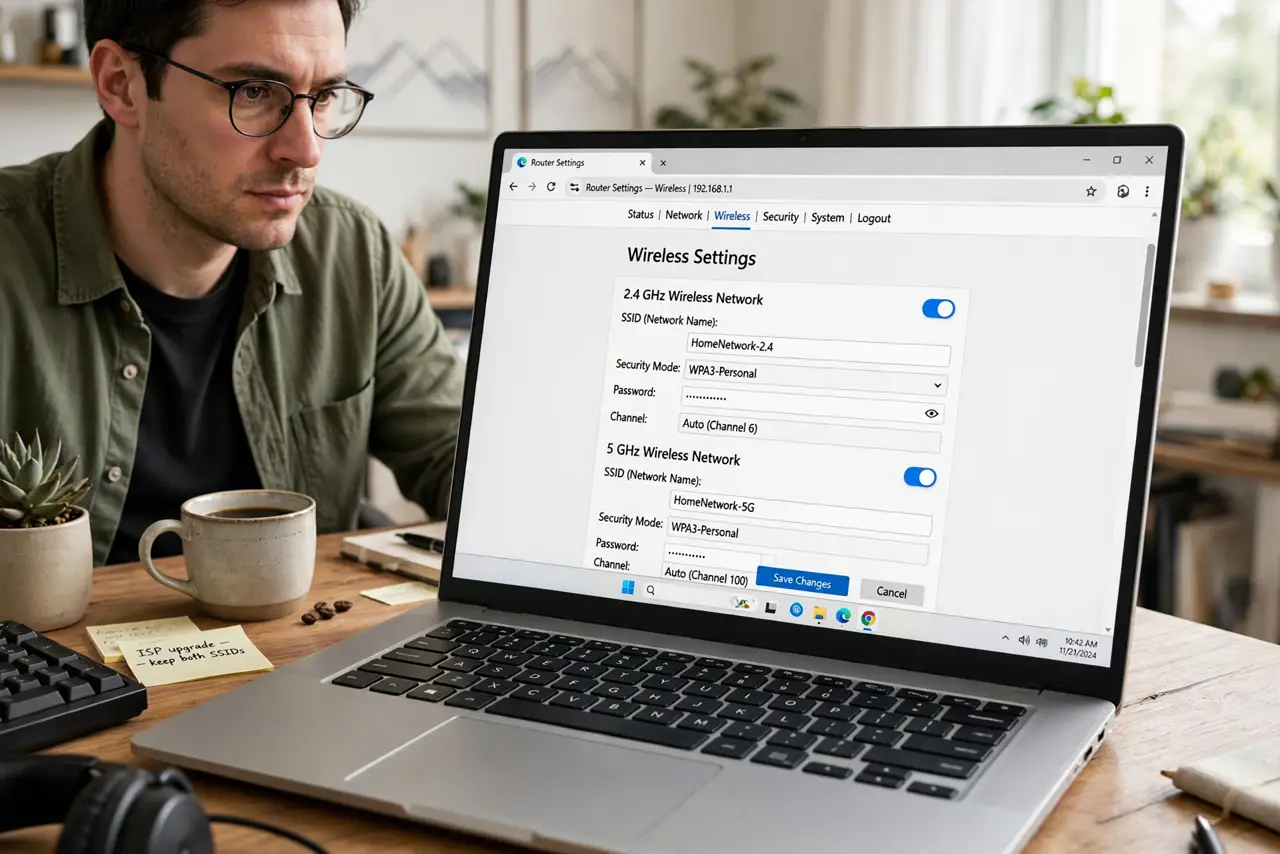
Your router offers one Wi-Fi name for both bands, and a smart plug refuses to set up because the phone is on 5 GHz during pairing. Or a laptop keeps landing on the slow band. Splitting the bands into two named networks — Home-2G and Home-5G — gives you manual control. Here is when splitting helps and how to do it cleanly.
TL;DR / Quick Fix
Quick fix: splitting bands helps when devices land on the wrong band or smart gadgets fail setup — give 2.4 and 5 GHz different names in the router's wireless settings. Put speed-hungry nearby devices on 5 GHz, everything distant on 2.4. You can always merge them back.
Follow these steps
- Understand what splitting does. Two names, two networks, your choice per device. The router stops deciding; you decide. Control in exchange for a little management.
- Split when smart-home setup fails. Many gadgets only see 2.4 GHz and get confused when the phone pairs from 5 GHz. A dedicated 2.4 name sidesteps the whole mess — see smart gadgets need 2.4.
- Split when a device lands wrong persistently. A laptop that clings to 2.4 GHz next to the router, despite band steering, can be manually parked on 5 GHz.
- Name them unambiguously. 'Home' and 'Home-5G' beats 'Home' and 'Home_5Ghz_EXT'. Future-you, setting up a gadget at midnight, will be grateful.
- Keep the password the same. Same password on both networks means devices roam between your two names without re-authentication headaches.
- Know you can merge back. Nothing is permanent. If manual management annoys you, re-enable the single name — the router resumes steering.
What NOT to do
- Do not split bands and then connect everything to 2.4 'for range.' You just rebuilt the congestion you were escaping — use 5 GHz where it reaches.
- Do not give the two networks different passwords unless you enjoy typing. Same password, less friction.
- Do not split on a mesh system without checking. Some mesh kits handle this poorly or hide the option — consult the app first.
- Do not assume splitting fixes slow internet. It fixes band placement; if the plan itself is slow, see paying for gigabit instead.
Frequently asked questions
Will splitting make my Wi-Fi faster?
Not by itself — but parking the right devices on the right band often does. The speed was there; the placement was wrong.
Should I split on a new router?
Try the merged name first. Split only if a specific device misbehaves — most households never need to.
Can devices on different bands still talk to each other?
Yes — 2.4 and 5 GHz are one local network with two doors. Your phone on 5 GHz still reaches the 2.4 GHz printer.