Read a Speed Test Right
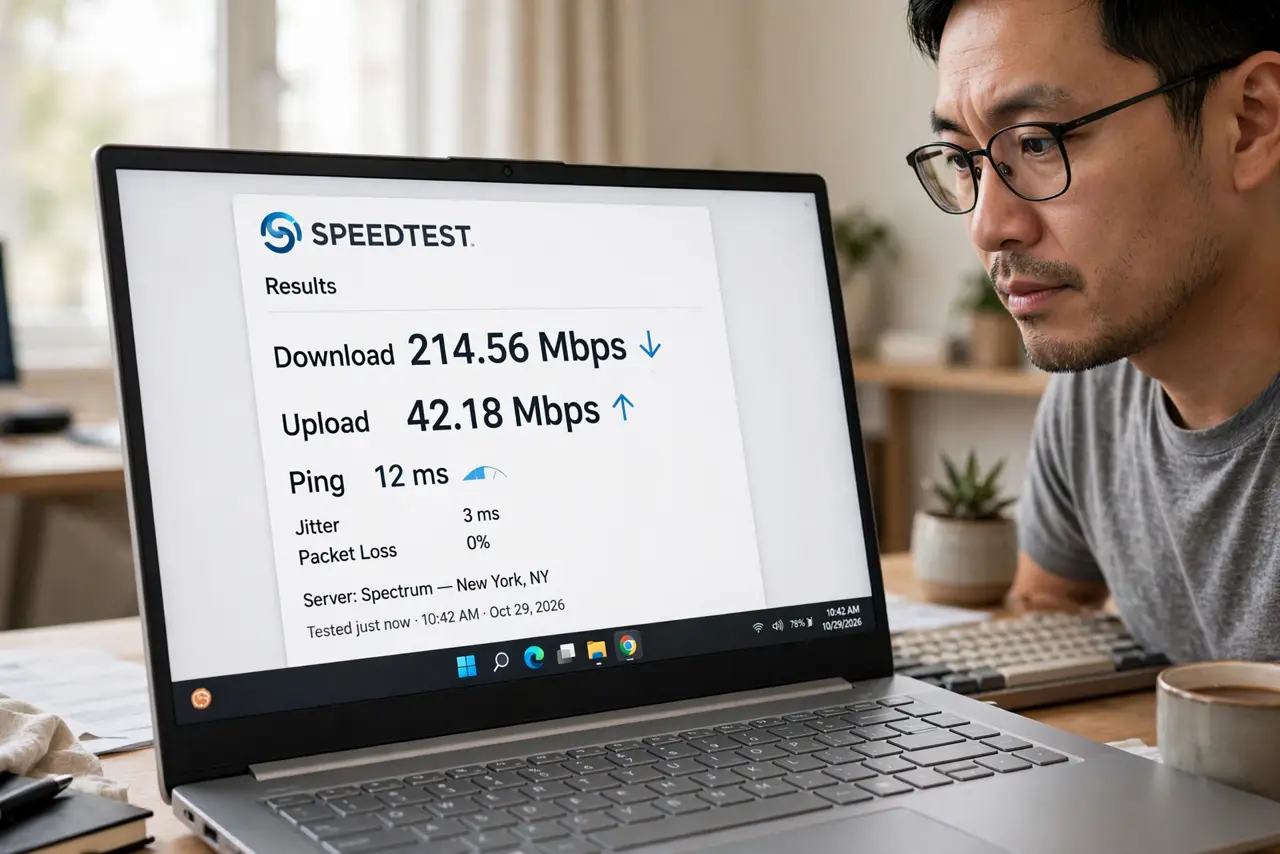
Everyone runs speed tests; almost nobody reads them correctly. The big download number gets all the attention while upload, ping, and jitter — the numbers that actually explain your problems — get ignored. Worse, a single test at the wrong moment tells you nothing. Here is how to run the test and read all four numbers like you mean it.
TL;DR / Quick Fix
Quick fix: a speed test reports download, upload, ping, and sometimes jitter — read all of them. Test wired, with other devices quiet, and repeat at different times of day. Compare results to what you pay for, using one test site consistently.
Follow these steps
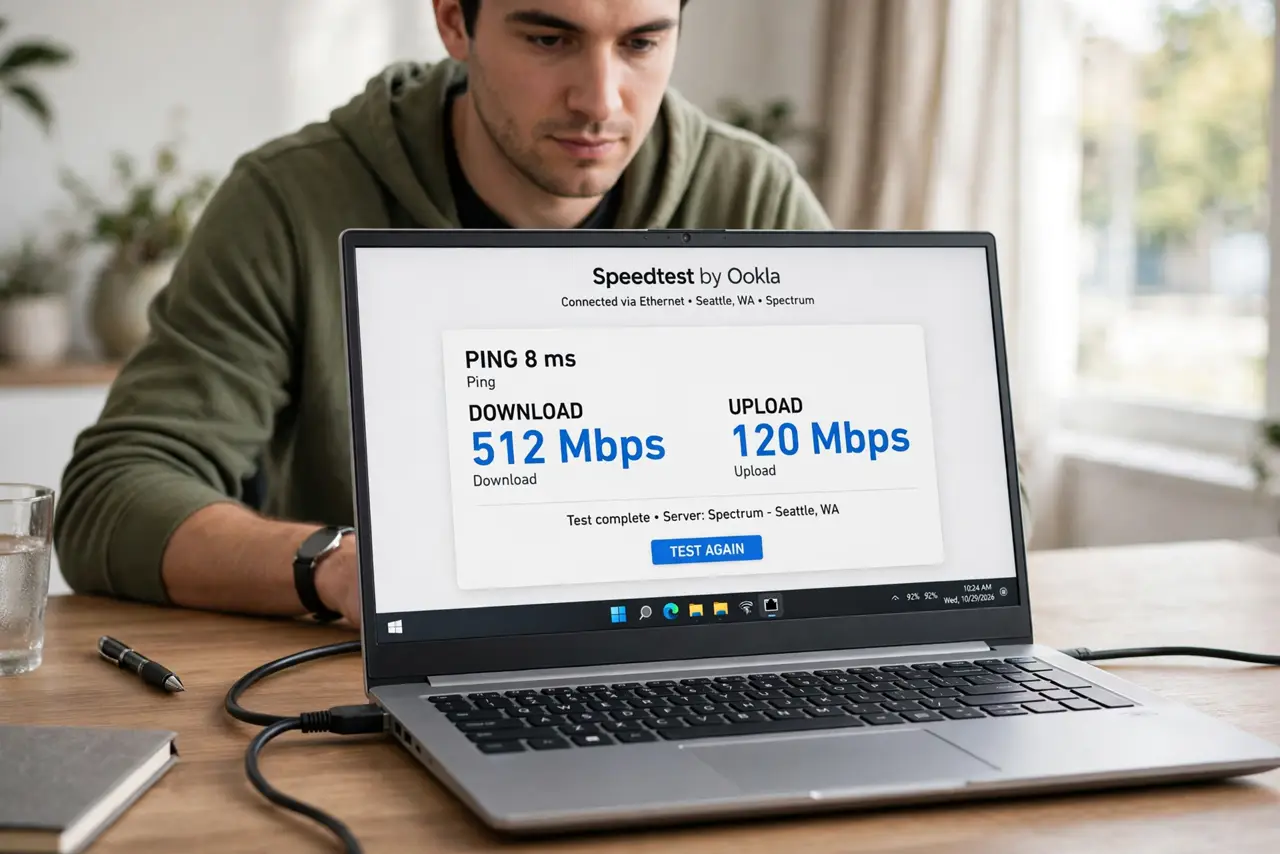
- Test under the right conditions. One device wired directly to the router, everything else quiet, no streaming or downloads running. A test run over busy Wi-Fi measures your Wi-Fi, not your internet — the site comparison explains why results vary.
- Read download second, not first. Download (Mbps) is the headline, but compare it to your plan: consistently getting far less than promised, wired and quiet, is the actual complaint to bring to the ISP.
- Read upload — it matters more than you think. Upload governs video calls, cloud backups, and sending files. Asymmetric plans (fast down, slow up) explain why downloads fly while Zoom stutters.
- Read ping and jitter. Ping (latency) under 30ms is great; jitter (variation) should stay low. High jitter means inconsistent responsiveness — the number behind 'fast but feels laggy.'
- Repeat across the day. Test morning, evening, and late night. Evening slowdowns point at congestion or throttling; constant slowness points at your line or equipment.
- Know when the numbers lie. Some ISPs prioritize speed-test traffic, inflating results. If tests look great but everything feels slow, the fast-but-buffering paradox explains the discrepancy.
What NOT to do
- Do not test over Wi-Fi and blame the ISP. Wi-Fi is the usual bottleneck — test wired before any complaint has standing.
- Do not run one test and declare a verdict. Networks vary minute to minute; a single datapoint is anecdote, not evidence.
- Do not ignore upload and ping. The download number is marketing; the other numbers are diagnostics — read the whole report.
- Do not compare different test sites naively. They use different servers and methods — pick one site and stick with it for trends.
Frequently asked questions
What speeds do I actually need?
25 Mbps down handles 4K streaming; 100+ suits busy households. Upload matters for calls and backups — 10+ Mbps up keeps video calls smooth.
Why do tests differ between sites?
Different test servers, routes, and measurement methods. Consistency within one site matters more than agreement across sites.
My test is fast but video still buffers. Why?
The classic paradox — test traffic may be prioritized, or the problem is the streaming service's route, not your line. The linked guide unpacks it fully.