Test Your Speed the Right Way
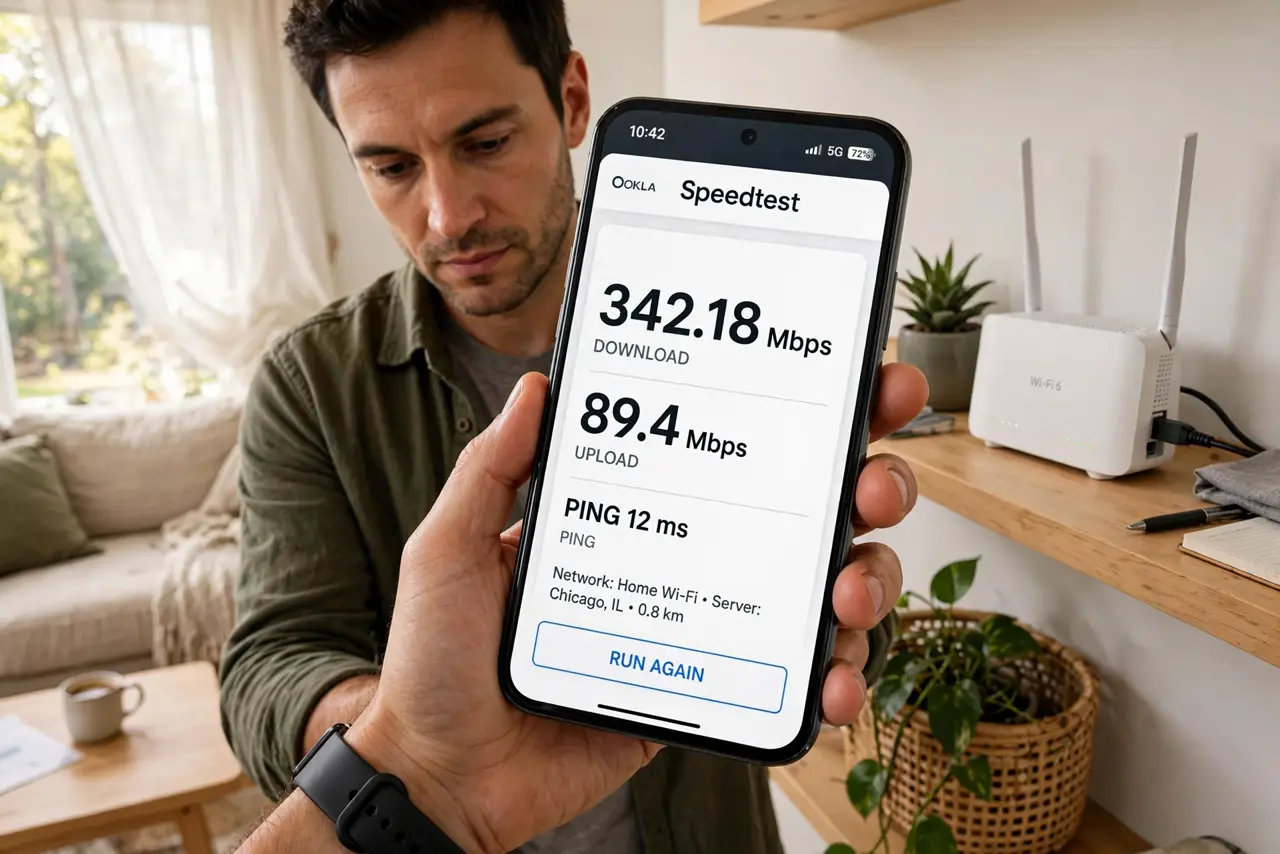
Your speed test says 400 Mbps but video still buffers — or three tests give three different numbers. Most speed tests are run wrong: over Wi-Fi, far from the router, with other devices streaming. A correct test takes five minutes and tells you whether to blame your provider or your own network.
TL;DR / Quick Fix
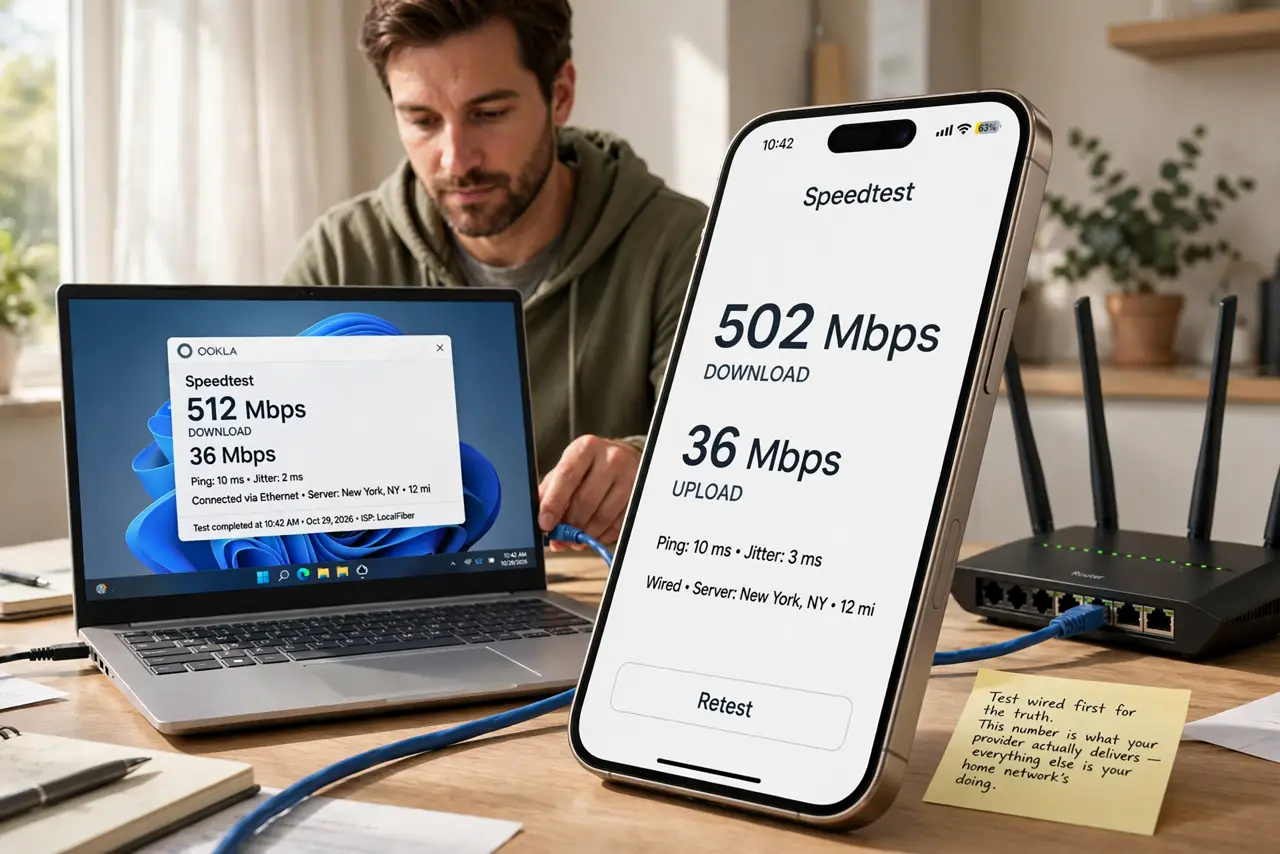
Quick fix: test wired directly to the router first — that measures what your provider delivers. Then test over Wi-Fi next to the router, then from your usual spot. The gaps between those three numbers reveal exactly where speed is being lost: provider, router, or distance.
Follow these steps
- Test wired first for the truth. Plug a laptop directly into the router with an Ethernet cable and run the test. This number is what your provider actually delivers — everything else is your home network's doing.
- Then test Wi-Fi next to the router. Run the same test on Wi-Fi standing beside the router. The drop from the wired number shows your router's Wi-Fi overhead — some loss is normal, huge loss is not.
- Then test from your usual spot. Test from the couch or desk where problems happen. A big drop here means distance or walls, not your provider — jitter and latency often matter more than raw speed for calls.
- Kill background usage during tests. Pause streams, downloads, cloud backups, and updates on all devices. One background 4K stream can steal 25 Mbps and make a good connection look broken.
- Run three tests and average. Speed varies minute to minute. Run the test three times and average the results — a single test is a snapshot, not a verdict. Learn to read what the numbers mean.
- Test at different times of day. Evening slowdowns point to neighborhood congestion (common on cable); constant slowness points to your line or equipment. The pattern tells you who to call.
What NOT to do
- Do not test only over Wi-Fi and blame the provider. Wi-Fi introduces its own losses — the wired test is the only fair measure of the plan.
- Do not test with a VPN on. VPNs reroute and slow traffic — results with a VPN measure the VPN, not your connection.
- Do not compare tests from different servers. Server distance and load change results — use the same test site for before-and-after comparisons.
- Do not obsess over one low result. Networks fluctuate; only consistent patterns across multiple tests at multiple times mean something.
Frequently asked questions
Why is my speed fine but video still buffers?
Buffering is often about latency and jitter, not raw speed — or the streaming service's own servers. Speed is only one of three numbers that matter.
What speeds do I actually need?
25 Mbps handles 4K streaming; video calls need 10-20 with low latency; gaming cares about ping more than speed. Most households are fine well below gigabit.
Should I use my provider's speed test?
It is useful as one data point, but it tests only to the provider's nearby server — flattering results. Use an independent test too for the full picture.