Who's on Your Wi-Fi? Check
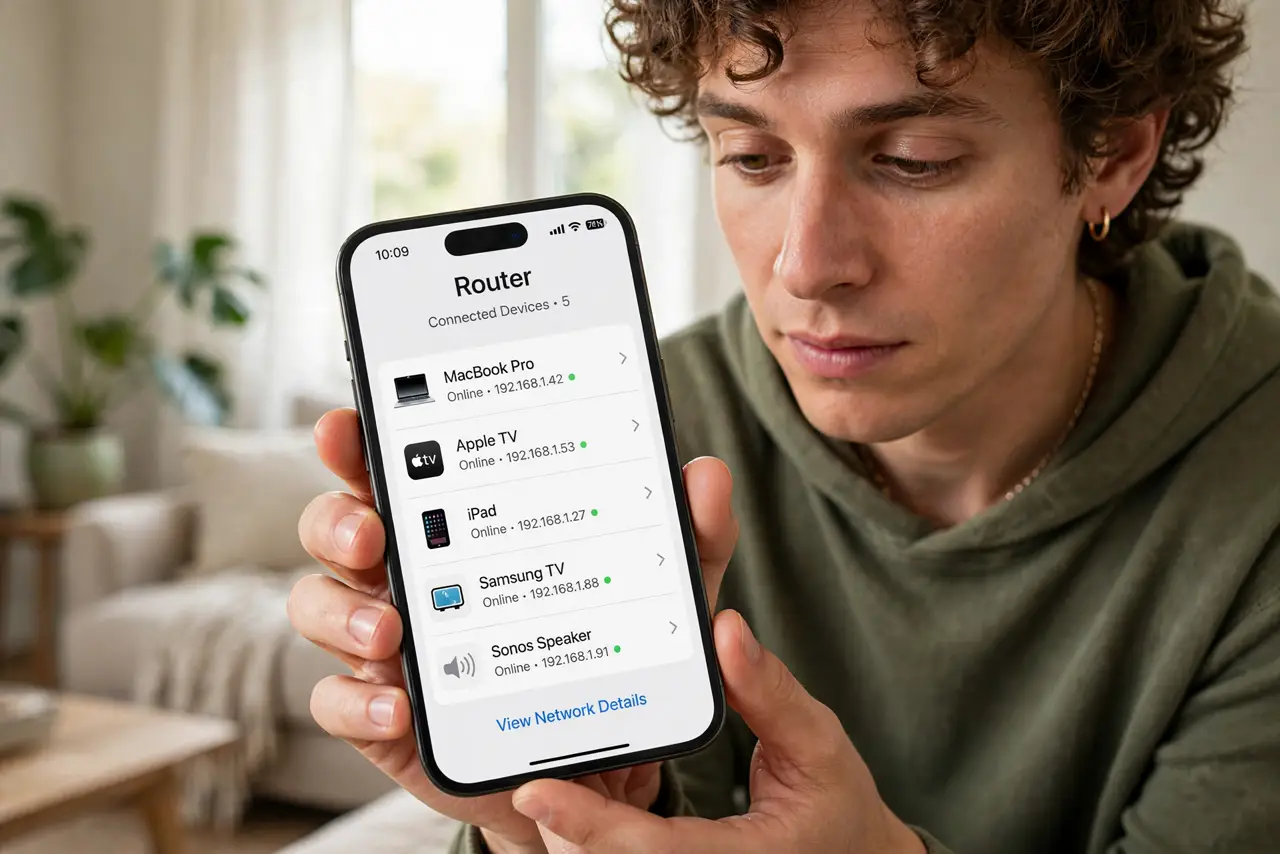
The internet slows every evening and you suspect the neighbor is freeloading — or you just want to know what all those smart gadgets are. Your router keeps a list of every connected device; reading it takes two minutes. Here is how to find the list, identify the strangers, and deal with them.
TL;DR / Quick Fix
Quick fix: open your router's app or settings and find the connected-devices list. Match each entry to your phones, TVs, and gadgets — anything you don't recognize is worth investigating. Change your Wi-Fi password to boot freeloaders, and set up a guest network for visitors going forward.
Follow these steps
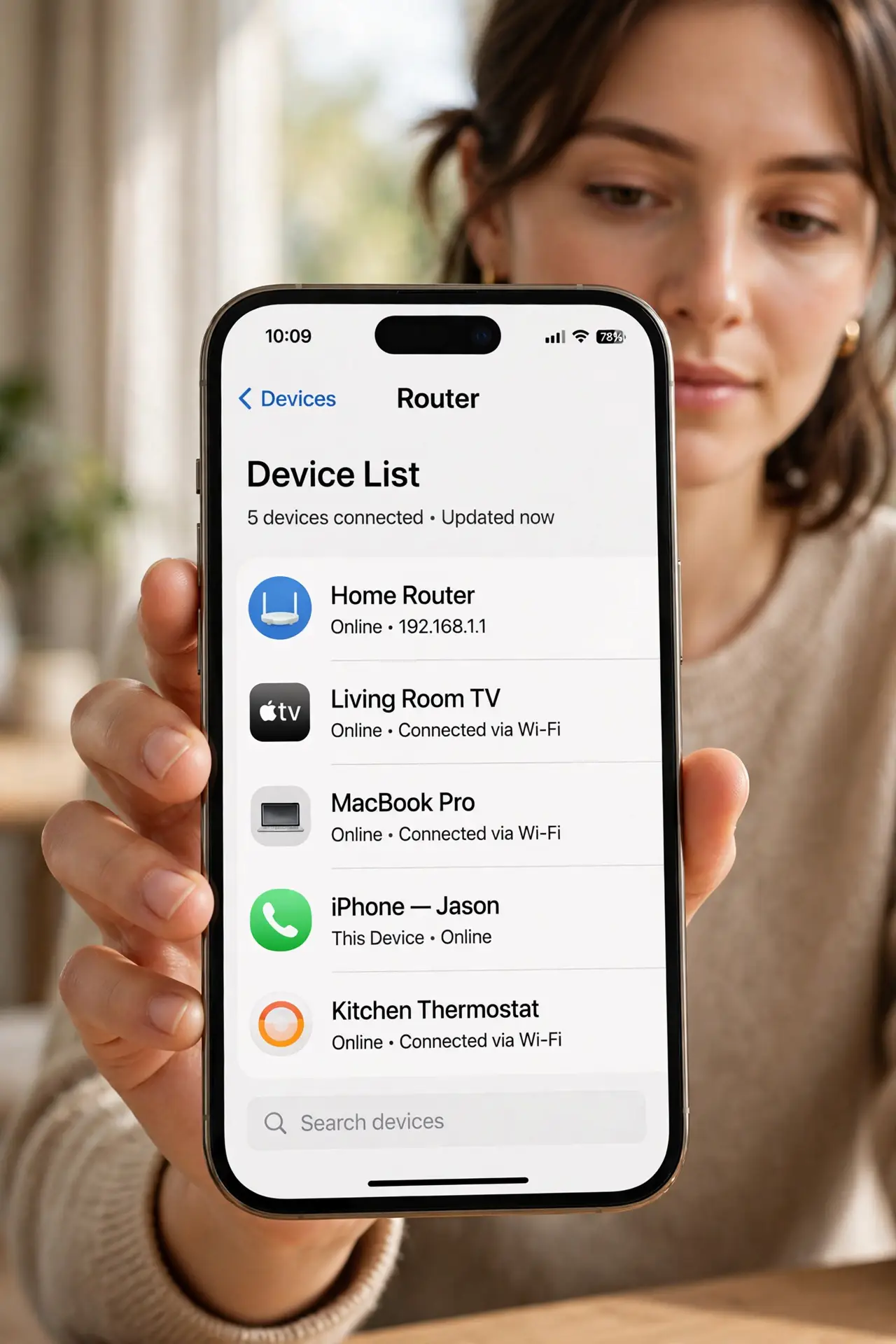
- Open the device list in your router's app. Most router apps show 'connected devices' on the home screen. No app? Log into the router's web settings — the list lives under LAN, DHCP, or client list.
- Identify your own devices first. Phones, laptops, TVs, speakers, bulbs, watches — count them up. Rename entries as you go; 'Unknown-4F' becomes 'Kid's tablet' and the list gets readable.
- Investigate the strangers. A device you cannot account for after counting everything deserves suspicion. Note its MAC address and connection time before acting.
- Boot freeloaders with a password change. Changing the Wi-Fi password disconnects everything unknown at once — the cleanest eviction there is.
- Set up a guest network for visitors. Guests on the main password become permanent mystery devices. A separate guest network keeps visitors visible and isolated — see the guest setup.
- Recheck monthly. A quick monthly glance catches new freeloaders early. It takes two minutes once your devices are labeled.
What NOT to do
- Do not block a device by MAC address as your only defense. MAC addresses can be spoofed — a password change is the real fix.
- Do not panic over every unknown name. Smart gadgets often report cryptic names; count your devices before assuming intrusion.
- Do not confront a neighbor without proof. A mystery device is not proof of who it belongs to — secure your network first.
- Do not share the main password with guests anymore. Every shared password becomes a permanent mystery device — guest network, always.
Frequently asked questions
Can I see what freeloaders are doing on my network?
You can see how much data devices use, but not their content — and that is fine. Your goal is eviction, not surveillance.
Why do device names look like gibberish?
Makers use MAC-based default names. Rename them in the router app once and the list stays readable.
Someone keeps coming back after a password change — how?
They may have WPS access or a device you forgot, like an old phone. Disable WPS and recount everything.