Update the Wi-Fi Adapter Driver
The Wi-Fi worked, then a Windows update landed — now speeds are halved, connections drop, or networks vanish from the list. The wireless driver is the translator between Windows and the Wi-Fi chip, and a bad or ancient one causes exactly these symptoms. Updating it is safe, quick, and fixes a surprising share of 'broken Wi-Fi.'
TL;DR / Quick Fix
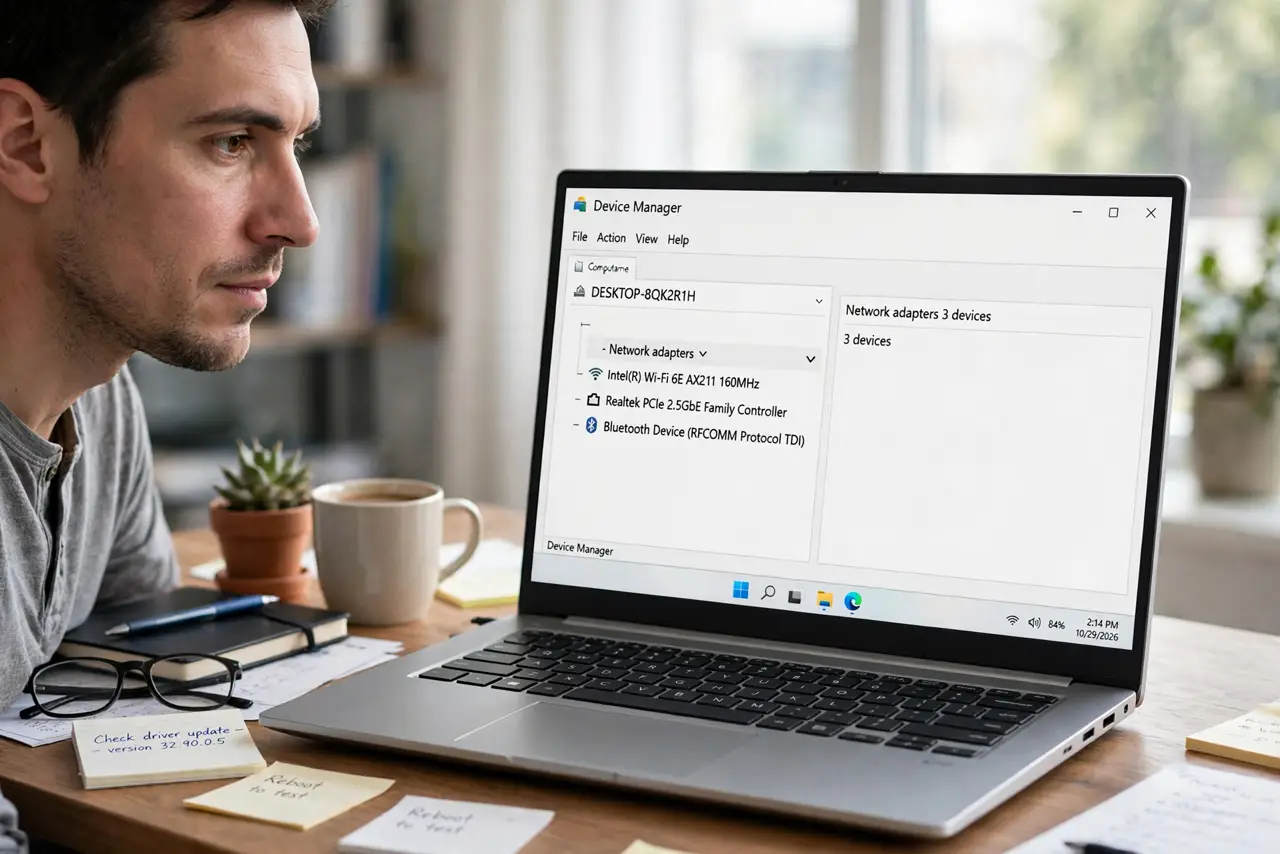
Quick fix: open Device Manager, expand Network adapters, right-click your Wi-Fi adapter, and choose Update driver, then Search automatically. If Windows finds nothing newer, download the driver from your laptop maker's support site for your exact model. Restart after installing and retest.
Follow these steps
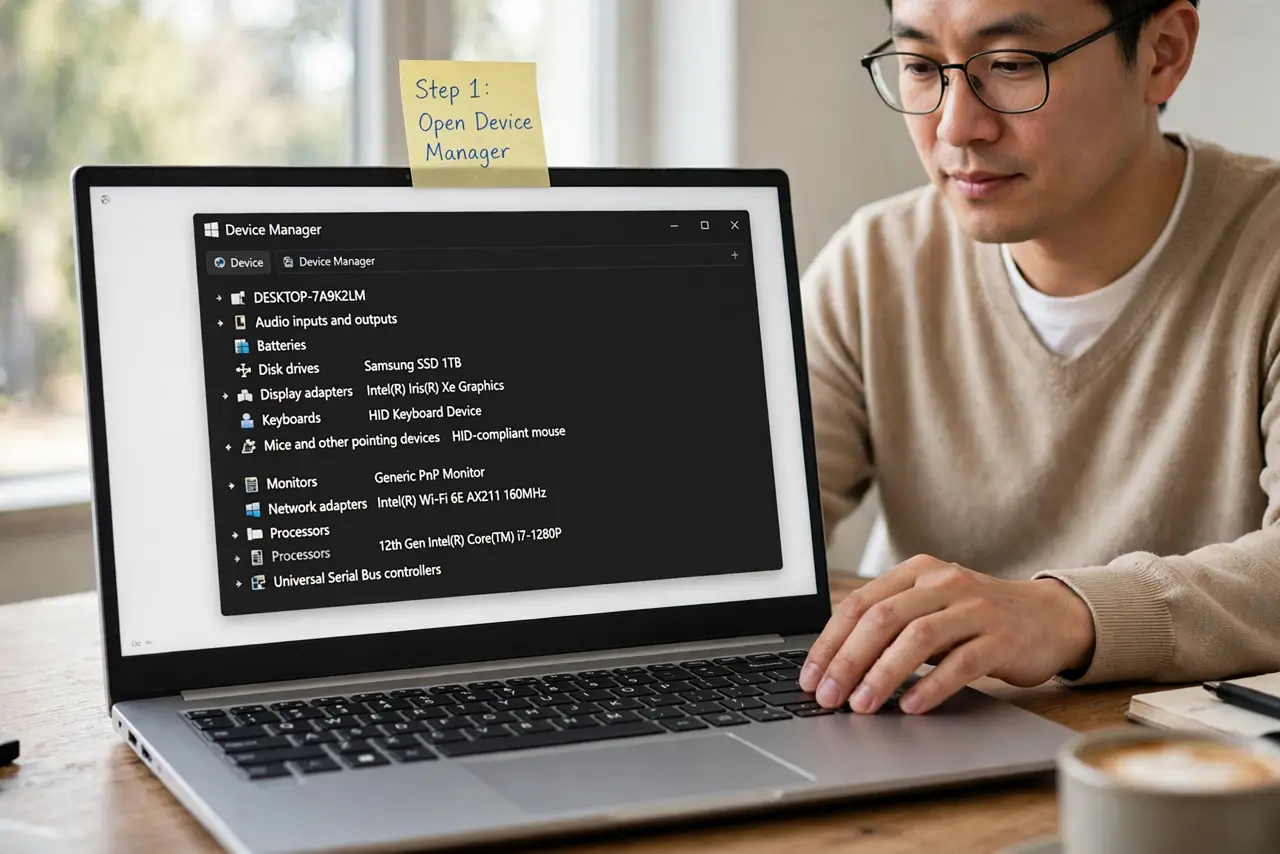
- Open Device Manager. Right-click Start, choose Device Manager, and expand Network adapters. Identify the Wi-Fi adapter — it usually says Wireless, Wi-Fi, or 802.11 in the name.
- Try the automatic update first. Right-click the adapter, Update driver, Search automatically for drivers. Quick and safe — this resolves it when Windows actually has something newer.
- Get the maker's driver when Windows shrugs. Laptop makers (Dell, HP, Lenovo) publish newer Wi-Fi drivers than Windows Update carries. Download from their support site using your exact model — never from random driver sites.
- Install and restart. Run the installer, then restart even if it does not ask. Drivers only fully take effect across a reboot.
- Roll back if an update caused it. If trouble started right after a driver update: Device Manager, adapter Properties, Driver tab, Roll Back Driver. See greyed-out rollback if the button is unavailable.
- Confirm the fix with a before/after test. Run a speed test before and after. Numbers beat feelings when judging whether the driver was the culprit.
What NOT to do
- Do not install 'driver updater' utilities. They bundle adware and install wrong drivers — get drivers from the laptop maker only.
- Do not update every driver in sight. Update the Wi-Fi driver for Wi-Fi problems; updating the GPU driver will not fix the network.
- Do not skip the restart. A driver installed but not restarted is half-installed — test only after rebooting.
- Do not download drivers over the broken Wi-Fi if you can avoid it. Use a phone as hotspot or a USB cable — a corrupted download mid-fix is miserable.
Frequently asked questions
How do I know the driver is the problem?
Symptoms appearing right after a Windows update, or Device Manager showing a warning icon on the adapter, point at the driver.
Can a driver really halve my speed?
Yes — buggy drivers mishandle modern Wi-Fi standards and silently fall back to slower modes. It is one of the most common hidden slowdowns.
Should I update drivers regularly?
For Wi-Fi: when there is a problem, or yearly. Unlike security updates, driver updates are 'if it ain't broke, don't fix it' territory.