A Wi-Fi Analyzer App? Basics
Your Wi-Fi is slow in one room and fine in another, and nobody can say why. A Wi-Fi analyzer app shows you the invisible: which channels your neighbors' networks crowd, where your signal dies, and which band to use. It turns guessing into measuring. This guide shows what to look at and what to change.
TL;DR / Quick Fix
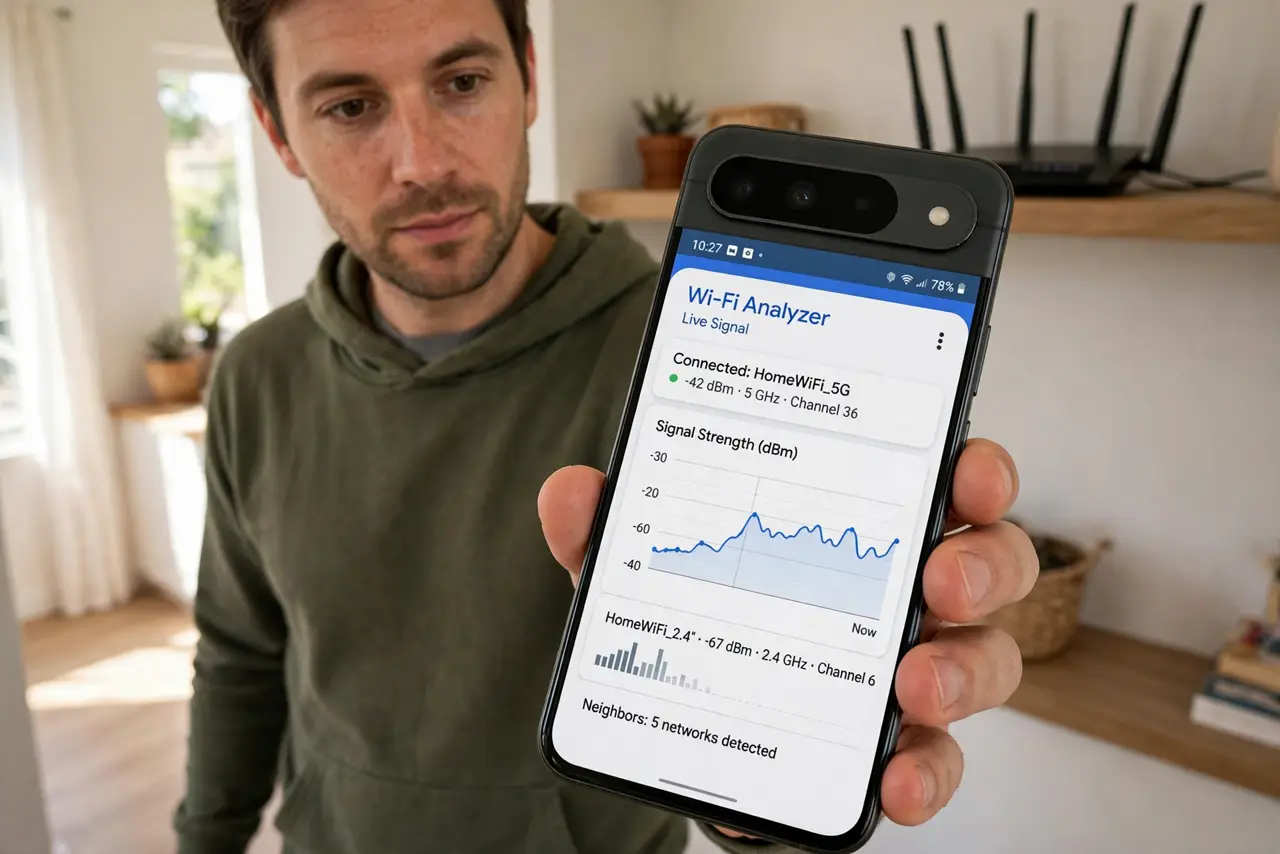
Quick fix: install a reputable Wi-Fi analyzer app and walk around your home watching the signal graph. Find the least crowded channel for your network and switch to it in the router settings. Move the router to a central, elevated spot. Recheck after changes — measuring beats guessing every time.
Follow these steps
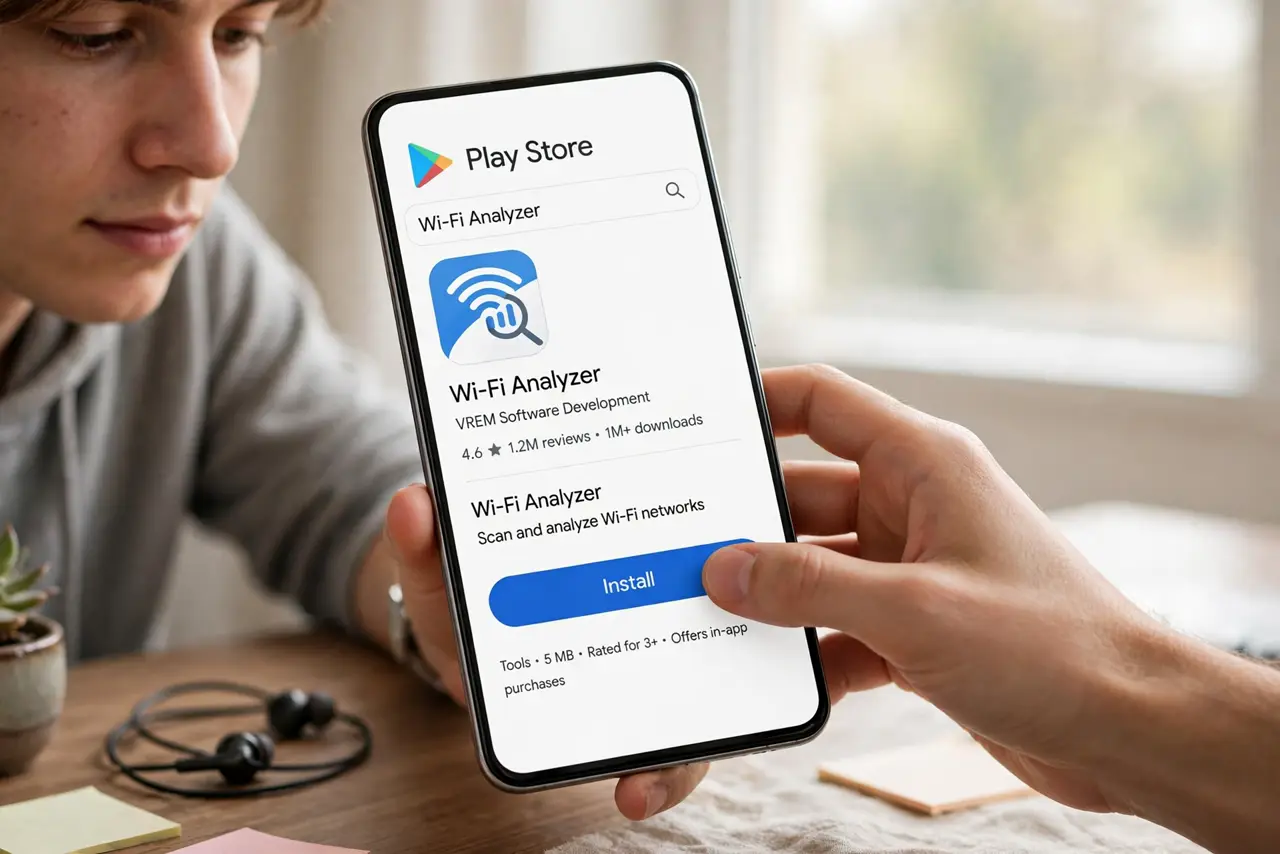
- Install a reputable analyzer. Pick a well-reviewed Wi-Fi analyzer from your official app store — free ones are fine. Avoid apps demanding excessive permissions; a signal scanner needs location access on Android but little else.
- Walk the signal map. Open the signal graph and walk room to room. Watch where your network's line dives — those dead zones are where extenders or a relocated router-style rethink pays off.
- Find the crowded channels. The channel graph shows every nearby network. If yours shares a channel with five neighbors, that is your slowdown — switch to the emptiest channel in the router settings, as the channel guide explains.
- Compare 2.4 GHz and 5 GHz. The analyzer shows both bands separately. 5 GHz is faster but shorter-range; 2.4 reaches further through walls. Connect each device to the band that fits its location.
- Recheck after changes. Change one thing — channel, band, or router position — then remeasure. The analyzer turns 'I think it's better' into a number you can trust.
- Mind overlapping neighbors. In apartments, channel overlap is the main enemy. Channels 1, 6, and 11 are the only non-overlapping choices on 2.4 GHz — pick the emptiest of the three.
What NOT to do
- Do not change three settings at once. One change, one remeasure — otherwise you never learn what actually helped.
- Do not chase the strongest signal blindly. A strong signal on a crowded channel loses to a weaker signal on an empty one.
- Do not install analyzer apps from outside the store. Sideloaded 'Wi-Fi boosters' are a classic malware vector — official store only.
- Do not expect the app to fix anything itself. Analyzers diagnose; you (or your router settings) apply the cure.
Frequently asked questions
Are Wi-Fi analyzer apps safe?
Reputable ones from official stores just read signal data. They cannot harm your network — they only observe it.
Why does my phone need location for Wi-Fi scanning?
Android requires location permission for Wi-Fi scans at the OS level. It is a platform rule, not the app being nosy — though still pick a reputable app.
Can an analyzer speed up my Wi-Fi directly?
No — it shows you what to change. The speed comes from switching to a clear channel or moving the router, which you do based on its data.