Invoice Template Currency Wrong? Fix It
An invoice in the wrong currency confuses clients, delays payment, and can mean you are paid the wrong amount entirely. Currency is usually a template default, a client setting, or a symbol that looks right but means something else.
TL;DR / Quick Fix
Quick fix: Check the template's default currency. Check the currency set for that client. Confirm the symbol matches the currency. Check converted amounts, not just symbols. Fix the template, then fix the draft invoice. Verify the total after changing currency.
Follow these steps
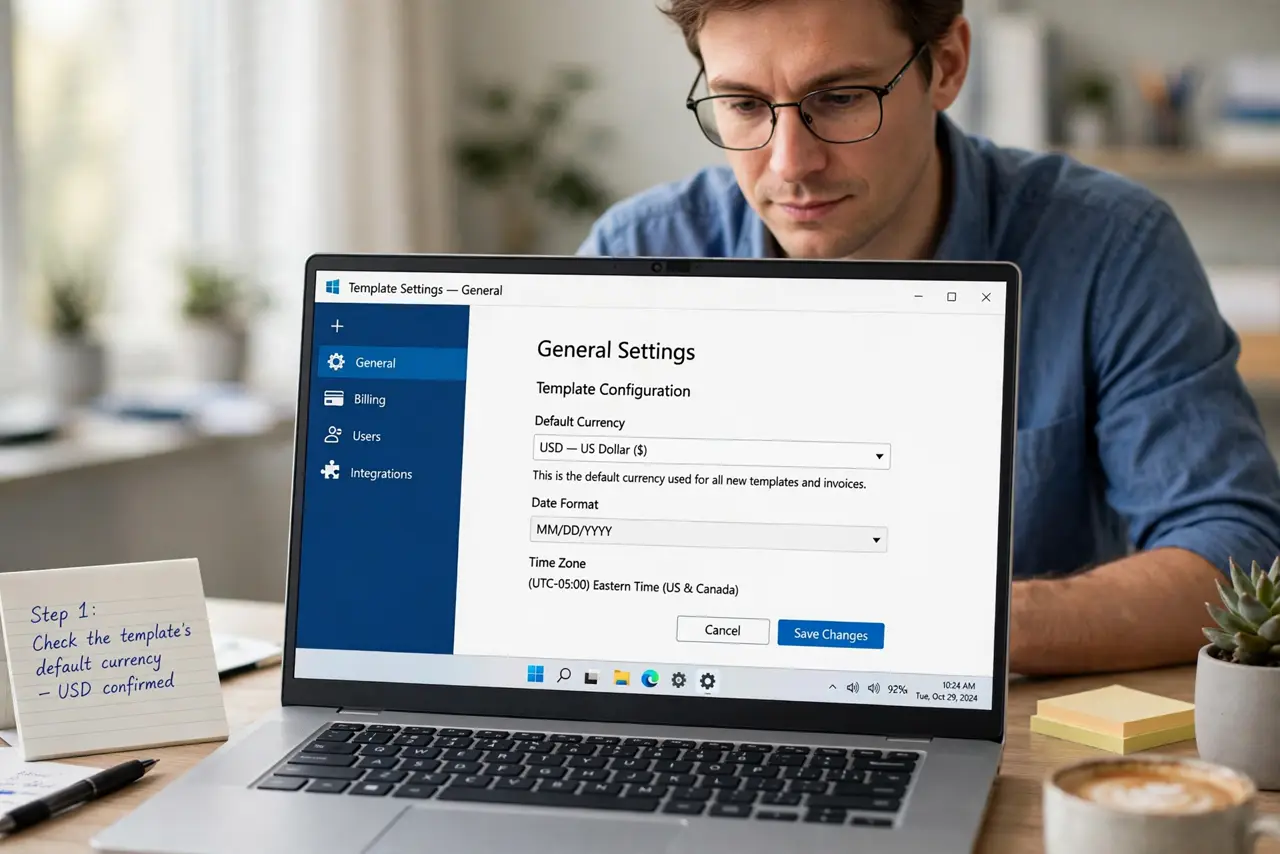
- Check the template's default currency. Open the template settings and read the default currency. A template copied from another business, or another country, often carries its old currency.
- Check the currency set for that client. Many systems let each client carry their own currency. If the client setting differs from the template, the client setting usually wins.
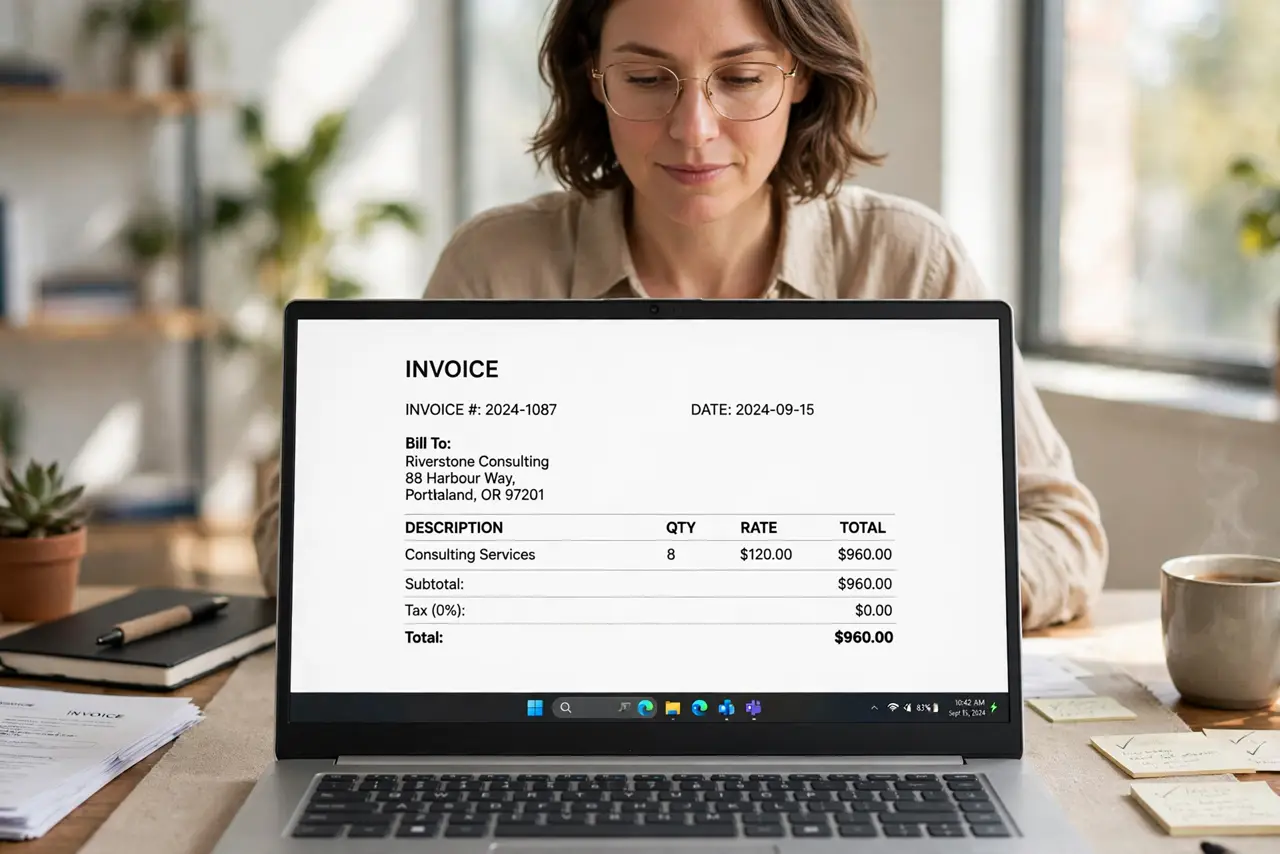
- Confirm the symbol matches the currency. A dollar sign can mean several currencies. Confirm the invoice names the currency in words or code, not just with a symbol.
- Check converted amounts, not just symbols. If amounts were converted from another currency, verify the converted figures. A right symbol over a wrongly converted amount still bills the wrong sum.
- Fix the template, then fix the draft invoice. Correct the template default and the client setting, then rebuild or correct the draft. Fixing only the draft leaves the next invoice wrong again.
- Verify the total after changing currency. Currency changes can interact with tax and rounding. Recheck the total line by line after any currency fix.
What NOT to do
- Do not rely on a currency symbol alone. Symbols are ambiguous; name the currency explicitly.
- Do not send an invoice in your currency when the client agreed another. Agreement first, invoice second.
- Do not fix only the draft and ignore the template. The next invoice will repeat the error.
- Do not guess at converted amounts. Verify conversions against the agreed rate or amount.
Frequently asked questions
Why is my invoice in the wrong currency?
Usually the template default or the client setting carries a currency from an earlier setup.
Is a dollar sign enough?
No. Several currencies use it, so name the currency in words or code as well.
What if I already sent the wrong currency?
Send a corrected invoice promptly with a short note, and void or credit the wrong one.