Tame the App Library
Apps vanish into the App Library and you can never find them again — or your home screens are a chaotic sprawl of everything you have ever installed. The App Library auto-sorts every app into folders and has real search; the trick is leaning on it instead of fighting it. Hide the clutter, search for the rest. Pair with hidden home pages and widget stacks.
TL;DR / Quick Fix
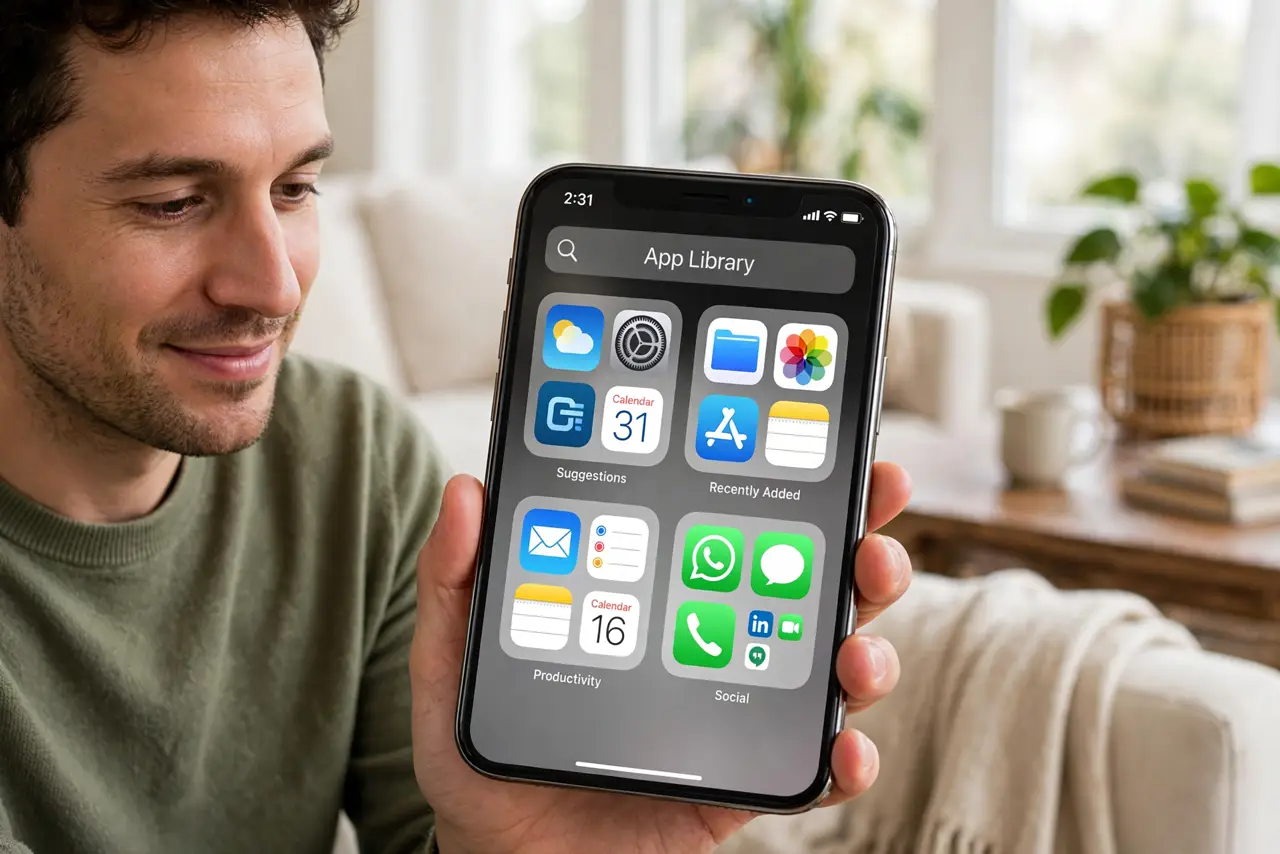
Quick fix: the App Library auto-sorts every iPhone app into folders, so stop hunting home screens — swipe left past your last page and use search at the top. Hide rarely used apps from the home screen without deleting them. Search beats scrolling every single time.
Follow these steps
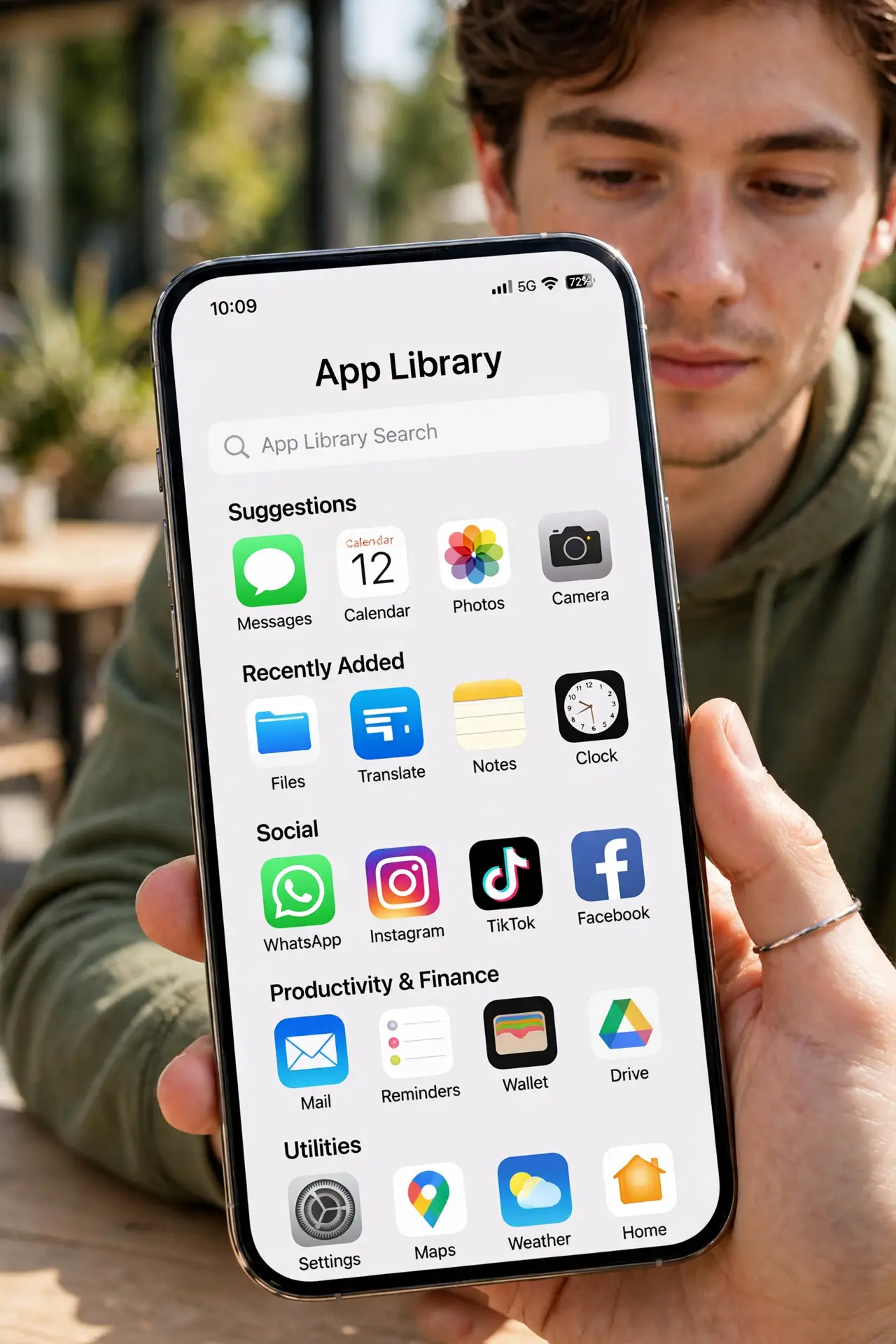
- Find the App Library. Swipe left past your last home screen page. Every installed app lives here, auto-sorted into category folders — nothing is ever truly lost.
- Search instead of scrolling. Pull down or tap the search bar at the top and type the app's name. This is the fastest way to open anything, every time.
- Remove apps from the home screen. Long-press an app and choose Remove from Home Screen — not Delete. The app stays installed in the Library, just off your pages.
- Hide entire home pages. Long-press the wallpaper, tap the page dots, and uncheck cluttered pages. Hidden pages' apps remain searchable in the Library.
- Use the folders lightly. The auto-sorted folders are decent but imperfect. Do not reorganize them obsessively — search makes folders nearly irrelevant.
- Keep one intentional home screen. Put your daily apps on a single clean page. Everything else lives in the Library, one swipe and one search away.
What NOT to do
- Do not delete apps to declutter. Removing from the home screen tidies without losing data or purchases.
- Do not create folders for everything manually. The Library already sorts — manual folders are a second system to maintain.
- Do not keep ten home pages. If a page is all apps you use monthly, hide the page, not the apps.
- Do not forget search exists. Most App Library frustration comes from scrolling folders instead of typing two letters.
Frequently asked questions
Where did my app go?
It is in the App Library — swipe left past your last page and search for it. It was likely removed from the home screen, not deleted.
Can I turn off the App Library?
No, but you can ignore it: keep your home screens tidy and the Library simply waits in the background.
Do new apps have to go to the home screen?
No — set new downloads to go to the App Library only, keeping home screens clean by default.