App Store Asks for Password Every Time
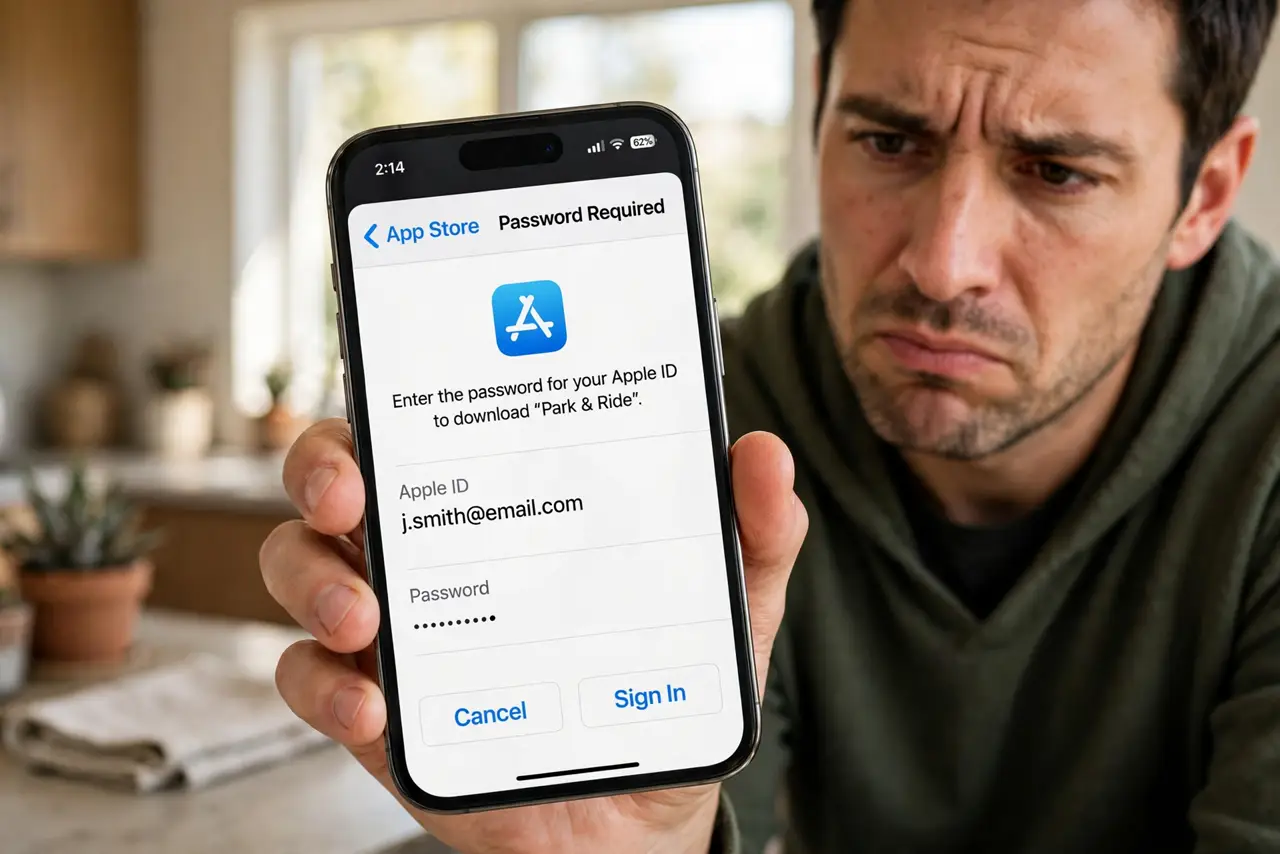
The App Store demands your password for every free download, even though it used to just use Face ID. A settings change, a Screen Time restriction, or a payment issue can all bring the password prompt back. This guide restores the quick Face ID flow — safely.
TL;DR / Quick Fix
Quick fix: check that Face ID is enabled for iTunes and App Store purchases in Face ID settings. In Media and Purchases settings, set free downloads to not require a password. If a payment method failed, update it — billing problems force password prompts for everything.
Follow these steps
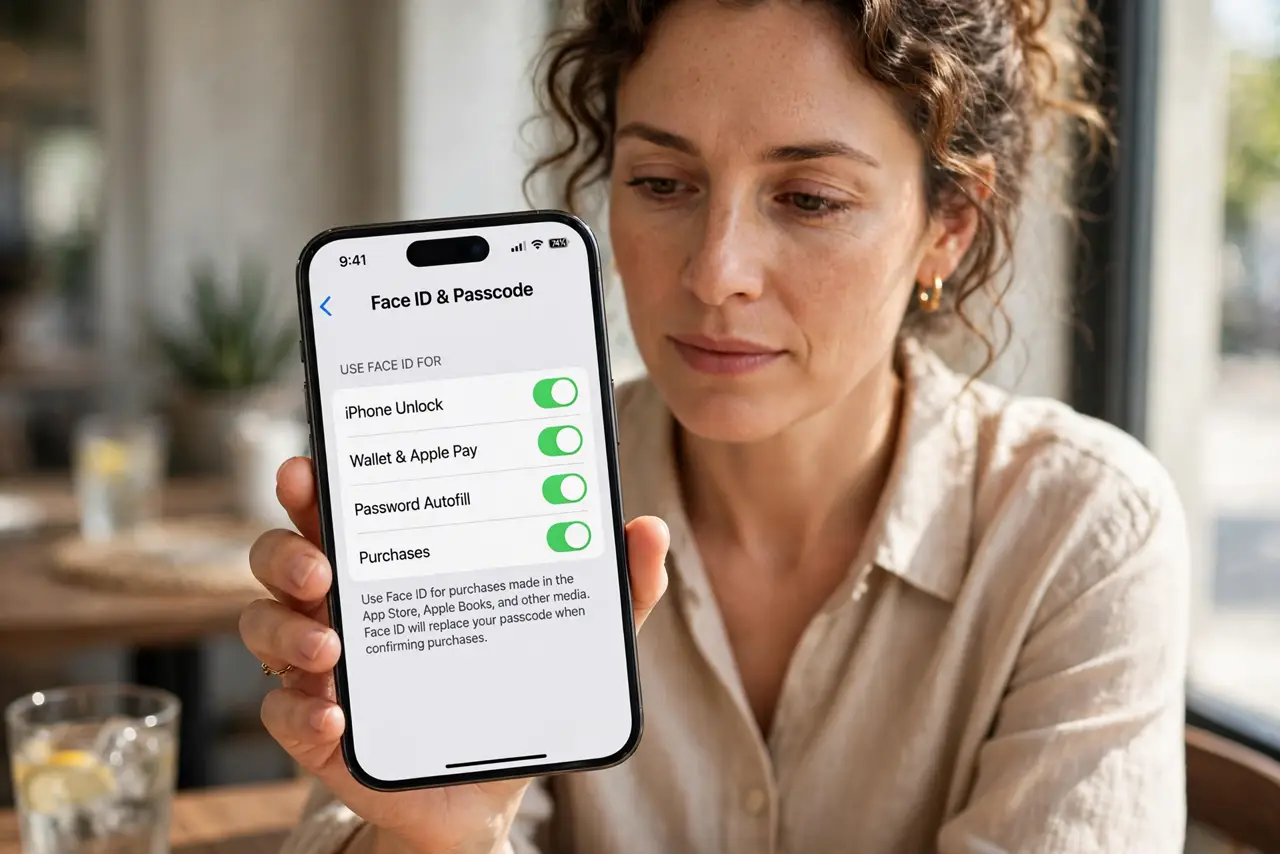
- Enable Face ID for purchases. In Face ID settings, confirm iTunes & App Store is toggled on. Without it, every purchase falls back to the typed password.
- Set free downloads to skip the password. In Media & Purchases password settings, set free downloads to not require a password. Paid purchases can still require authentication.
- Check Screen Time restrictions. A Screen Time restriction on purchases forces password prompts. Review Content & Privacy Restrictions if someone manages the device.
- Update the payment method. A declined card triggers password verification for everything. Update or remove the failing payment method in your Apple account.
- Sign out and back into the App Store. In Media & Purchases, sign out and sign back in. This refreshes the authentication state that controls the prompts.
- Restart the iPhone. If the settings are right but prompts persist, restart. Authentication glitches sometimes survive settings changes until a reboot.
What NOT to do
- Do not disable all purchase authentication to avoid typing. A single accidental tap can buy things — keep at least Face ID in the loop.
- Do not share your Apple ID password to 'fix' a family member's prompts. Use Family Sharing and Ask to Buy instead.
- Do not ignore the billing angle. Password loops are frequently a declined card in disguise.
- Do not enter your password on popups outside the App Store. Real prompts appear in context; random popups asking for your Apple ID are phishing.
Frequently asked questions
Why does the App Store ask for my password every time?
Face ID for purchases is off, free downloads are set to require a password, a Screen Time restriction applies, or a billing problem forces verification.
Is it safe to stop requiring a password for free apps?
Reasonably, with Face ID still on for paid purchases. Free apps cost nothing, so the risk is accidental downloads, not charges.
It still asks after I changed the settings — why?
A billing issue overrides the settings. Fix the payment method, then the prompts follow the settings again.