iPhone App Update Stuck? Fix It
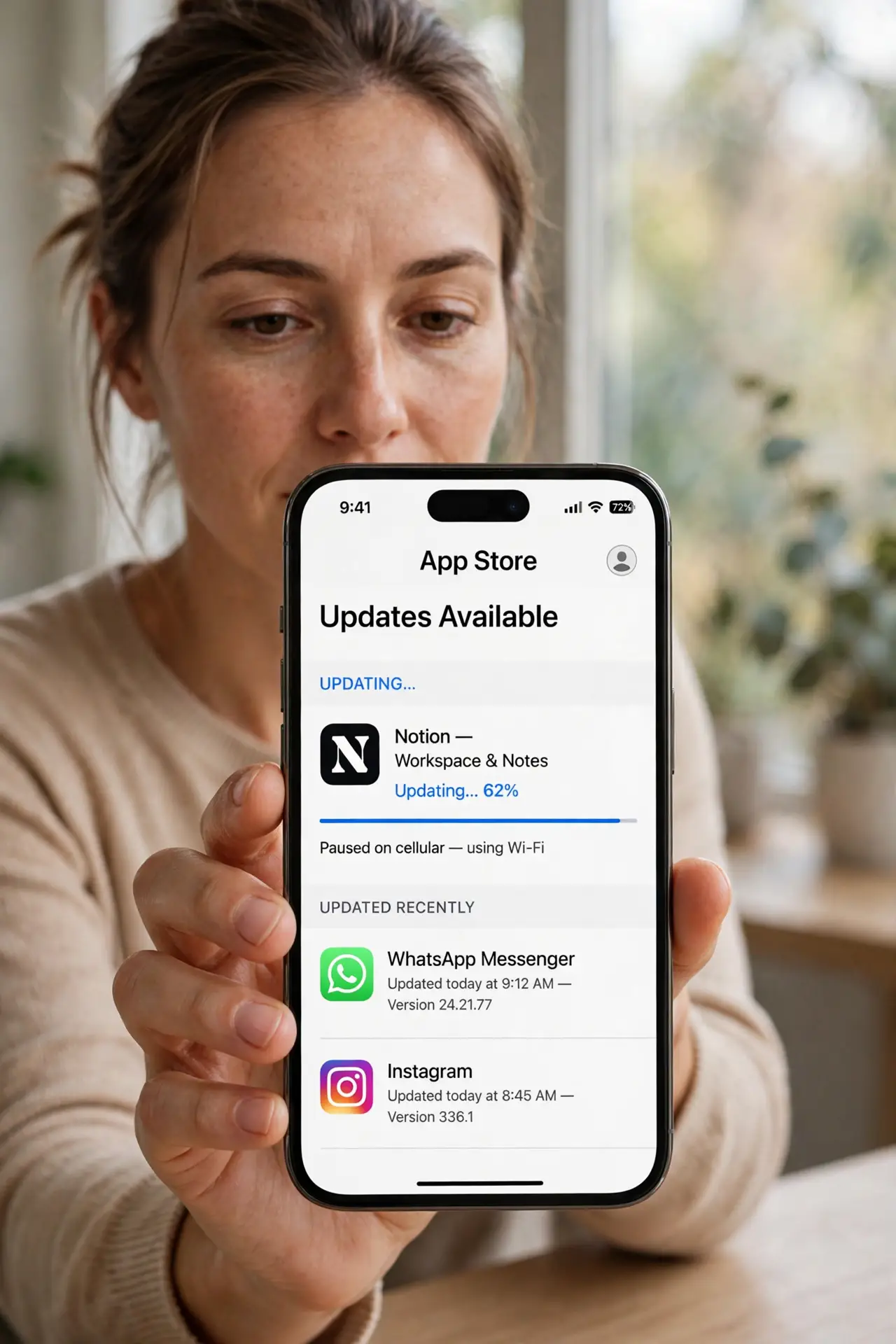
An app update sits at waiting or loading forever and never finishes. Stuck updates are usually a network hiccup, a storage squeeze, or a paused download, not a broken App Store account. The download side is closely related to an App Store download pending forever, which shares the same fixes.
TL;DR / Quick Fix
Quick fix: pause and resume the update, connect to stable Wi-Fi, free up storage, check the App Store account, restart the phone, and delete and reinstall only as a last resort. If it still fails, note exactly when it happens, then try again slowly once.
Follow these steps
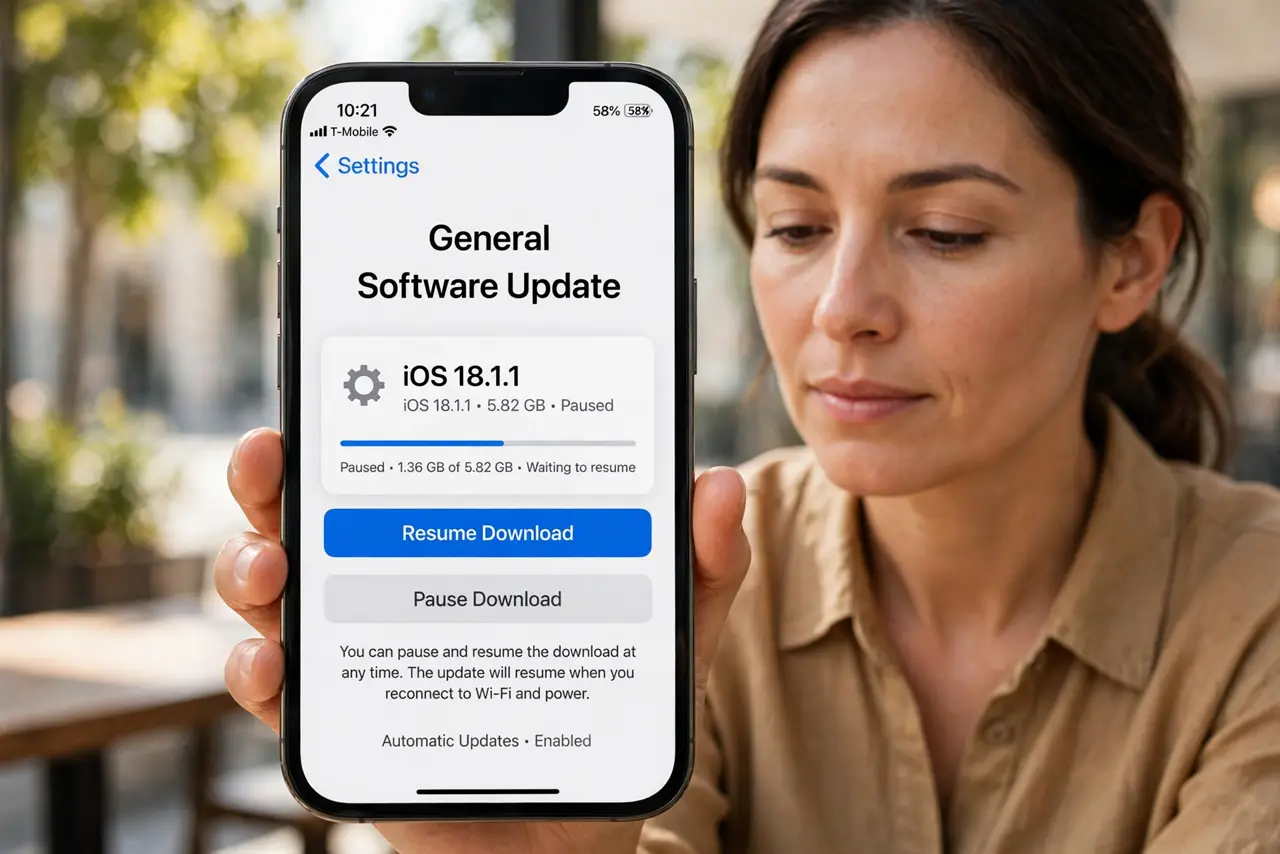
- Pause and resume the update. Press and hold the app icon on the home screen and tap Pause Download, then tap Resume. A paused download often restarts cleanly where it stalled.
- Connect to stable Wi-Fi. Move closer to the router or switch from mobile data to Wi-Fi. A weak connection stalls large updates, and the App Store may pause them on mobile data.
- Free up storage space. Open Settings, then General, then iPhone Storage, and free space if the phone is nearly full. Updates need room to download and install, not just the app size.
- Check the App Store account and payment. Open the App Store, tap your profile, and confirm you are signed in. An expired payment method can block even free updates until it is fixed.
- Restart the phone. Restart the iPhone and check the update again. A restart clears a stuck App Store queue that pausing alone cannot shift.
- Delete and reinstall as a last resort. If one app stays stuck, delete it and reinstall it fresh from the App Store. This replaces the stalled update, but check for unsaved in-app data first.
What NOT to do
- Do not tap the update repeatedly. Repeated taps can queue multiple attempts and make the stall worse, so pause once and wait.
- Do not sign out of the App Store as a first step. Signing out complicates the queue, so check network and storage first.
- Do not delete the app before checking storage. If storage is the cause, a fresh install will stall the same way.
- Do not use mobile data for a huge update without checking your plan. Large updates can eat a data allowance fast.
Frequently asked questions
Why is my update stuck on waiting?
Usually the download has not started because of network, storage, or a paused queue. Pause, resume, and check both.
Can an expired payment method block free updates?
Yes, sometimes. The App Store can hold all downloads until payment details are fixed.
Will deleting the app lose my data?
It can, if data is only inside the app. Check for account or cloud sync before deleting.