iCloud vs Computer Backup?
Your iPhone holds your photos, messages, and two-factor codes — losing it without a backup is a small disaster. Apple offers two backup paths: automatic iCloud backups and manual computer backups via Finder or iTunes. They differ in storage, speed, and what's included. Here is how to choose — and why many people should use both.
TL;DR / Quick Fix
Quick fix: iCloud backup is automatic and effortless but limited to your iCloud storage — upgrade the plan if it fills. Computer backup via Finder/iTunes is free, unlimited, and faster, but manual. Best practice: iCloud for daily automation, computer backup monthly before big updates. Check both actually completed.
Follow these steps
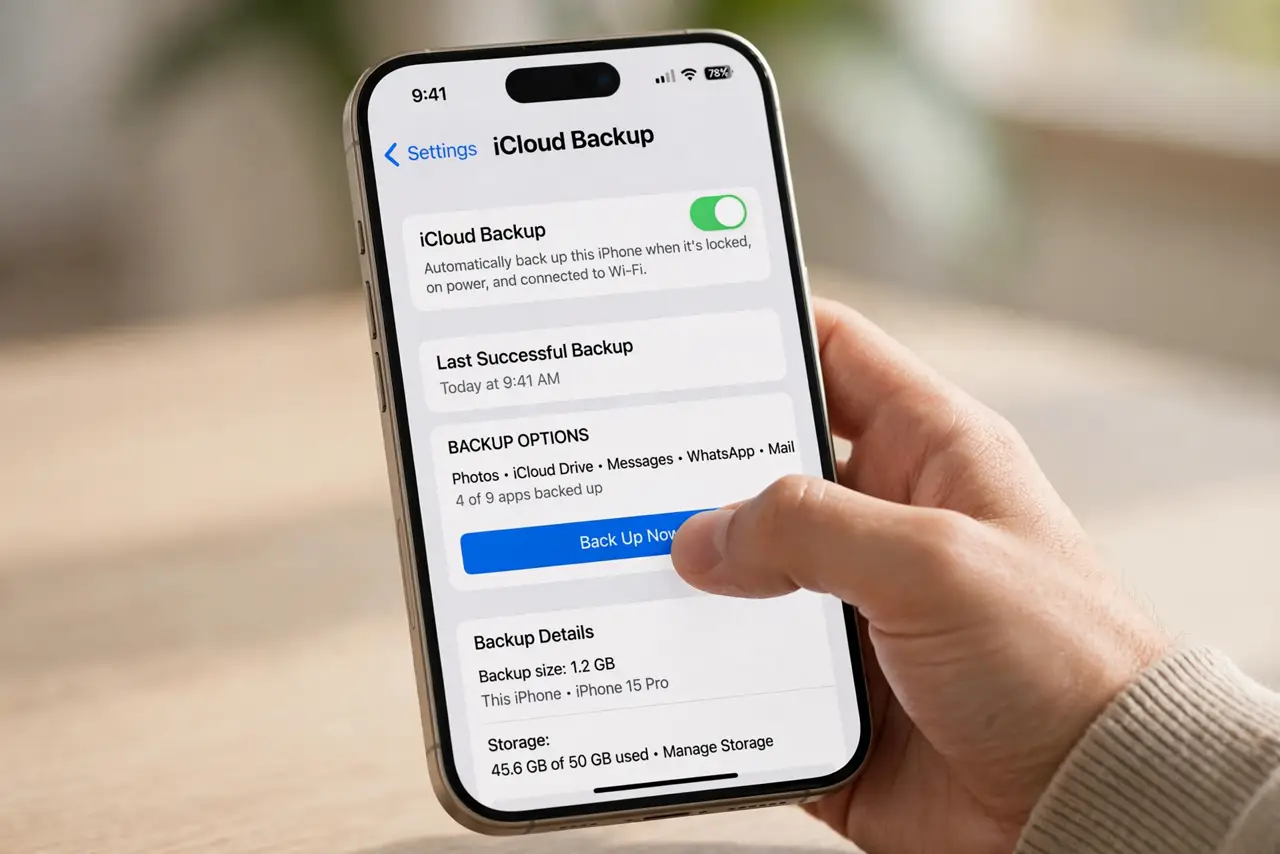
- Check your iCloud backup status. Settings → [your name] → iCloud → iCloud Backup — see the last successful backup date. If it's old or failing, you're unprotected right now. This screen is the single most important backup check on iPhone.
- Understand iCloud's limits. Free iCloud is 5 GB — a photo library alone exceeds that. iCloud Backup includes photos (unless iCloud Photos is on), messages, settings, and app data. If backups fail with 'not enough storage,' the fix is a bigger plan or trimming what's backed up.
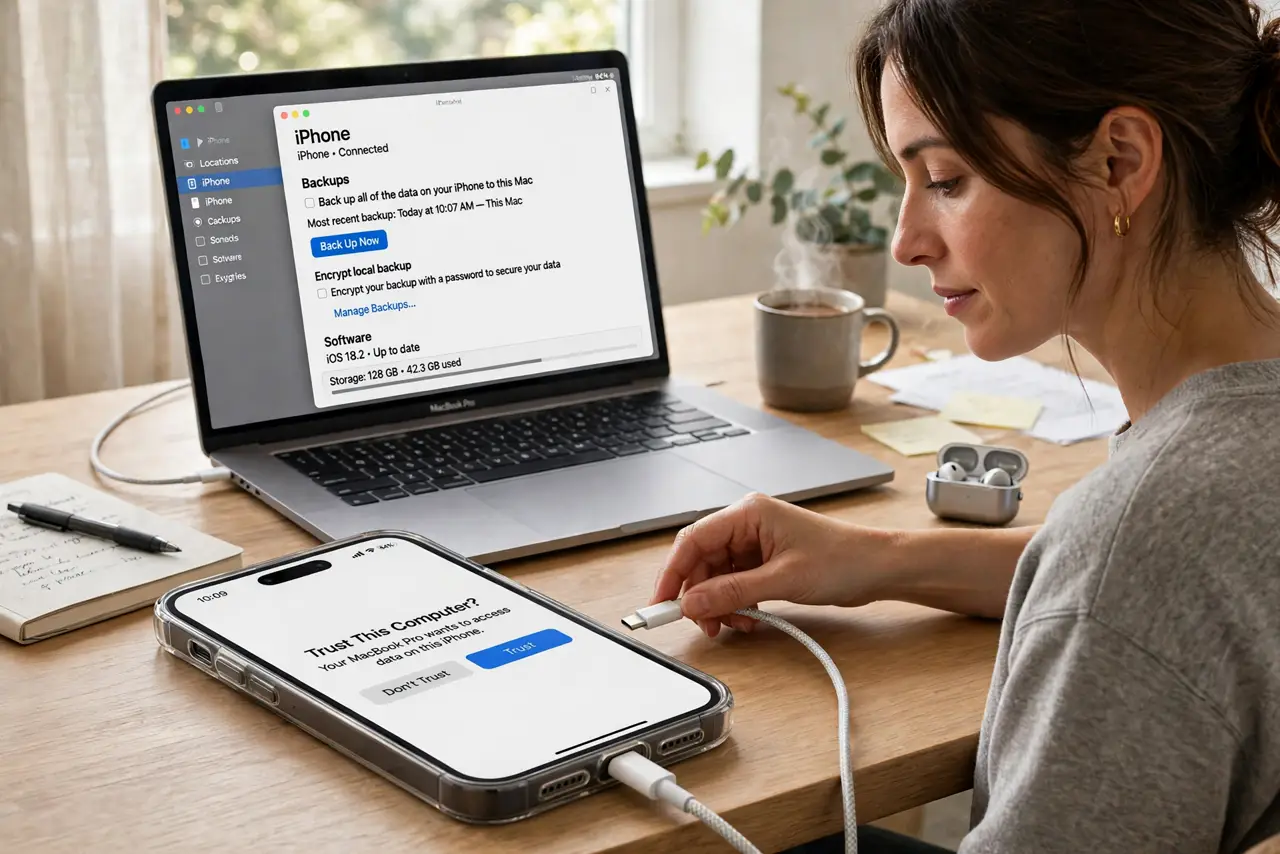
- Do a computer backup. Connect to Mac (Finder → select iPhone → Back Up Now) or PC (iTunes or Apple Devices app). It's free, fast over cable, and includes everything. Encrypt the backup when prompted — encrypted backups include passwords and health data; unencrypted ones don't.
- Encrypt — seriously. Always check 'Encrypt local backup' and save the password somewhere safe (a password manager). Without encryption, your saved passwords and Health data are excluded. Forgetting the encryption password locks you out of that backup's sensitive data.
- Set the routine. iCloud: leave automatic backup on — it runs nightly on Wi-Fi while charging. Computer: monthly, plus before every iOS update. The Find My and backup combo means a lost phone is an inconvenience, not a catastrophe.
- Verify restores work. A backup you can't restore is decoration. After a major backup, confirm the backup file exists and is recent. If you ever get a new iPhone, restore from the backup during setup — that's the real test.
What NOT to do
- Do not assume iCloud Photos equals a backup. Synced photos aren't a backup of everything else — messages, app data, and settings need the actual backup.
- Do not skip encryption on computer backups. Unencrypted backups silently omit passwords and health data — the things you'd miss most.
- Do not let iCloud storage fill up silently. A full iCloud means failed backups — check storage monthly or upgrade the plan.
- Do not start an iOS update without a fresh backup. Updates rarely fail, but 'rarely' is cold comfort without a restore point.
Frequently asked questions
Which is better: iCloud or computer?
Different strengths: iCloud is automatic and restores anywhere; computer is free, complete (when encrypted), and fast. Use iCloud daily and computer monthly — belt and suspenders.
How much iCloud storage do I need?
Enough for the backup plus headroom — check Settings → [your name] → iCloud → Manage Storage for your backup's size. Most photo-heavy users land on the 200 GB tier.
Do backups include WhatsApp chats?
WhatsApp backs up separately through its own iCloud/Google Drive setting — the iPhone backup doesn't cover it. Enable chat backup inside WhatsApp too.