Find My? Make Sure It's On
Your iPhone is gone — left in a taxi, slipped between couch cushions, or worse, stolen. Find My is the feature that locates it, locks it, or wipes it remotely, but only if it was turned on before it disappeared. Checking takes thirty seconds and is the single most important iPhone safety setting. Here is how to verify it and what each option does.
TL;DR / Quick Fix
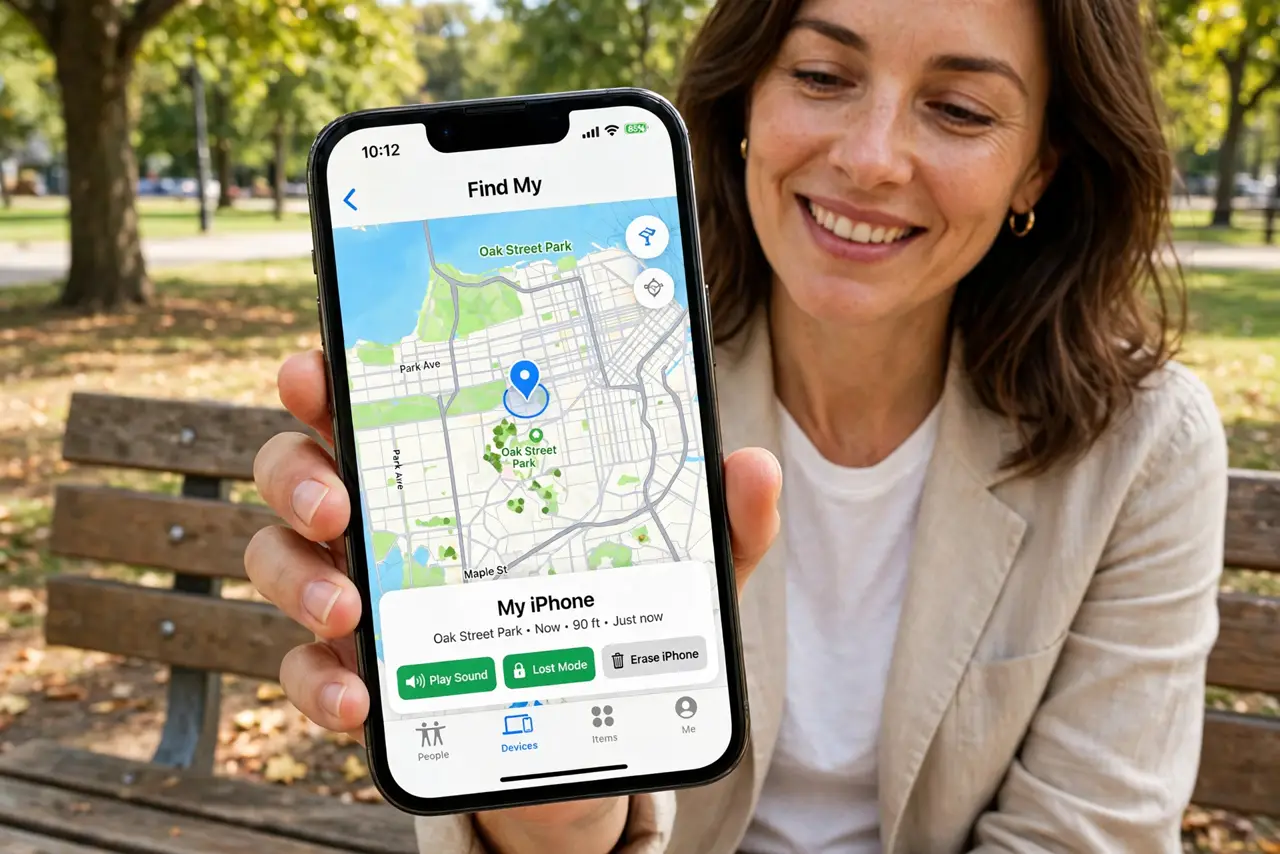
Quick fix: open Settings → [your name] → Find My and confirm Find My iPhone is on, plus Find My network and Send Last Location. The network lets other Apple devices relay your phone's location even offline. Test it now at iCloud.com/find — before you ever need it for real.
Follow these steps
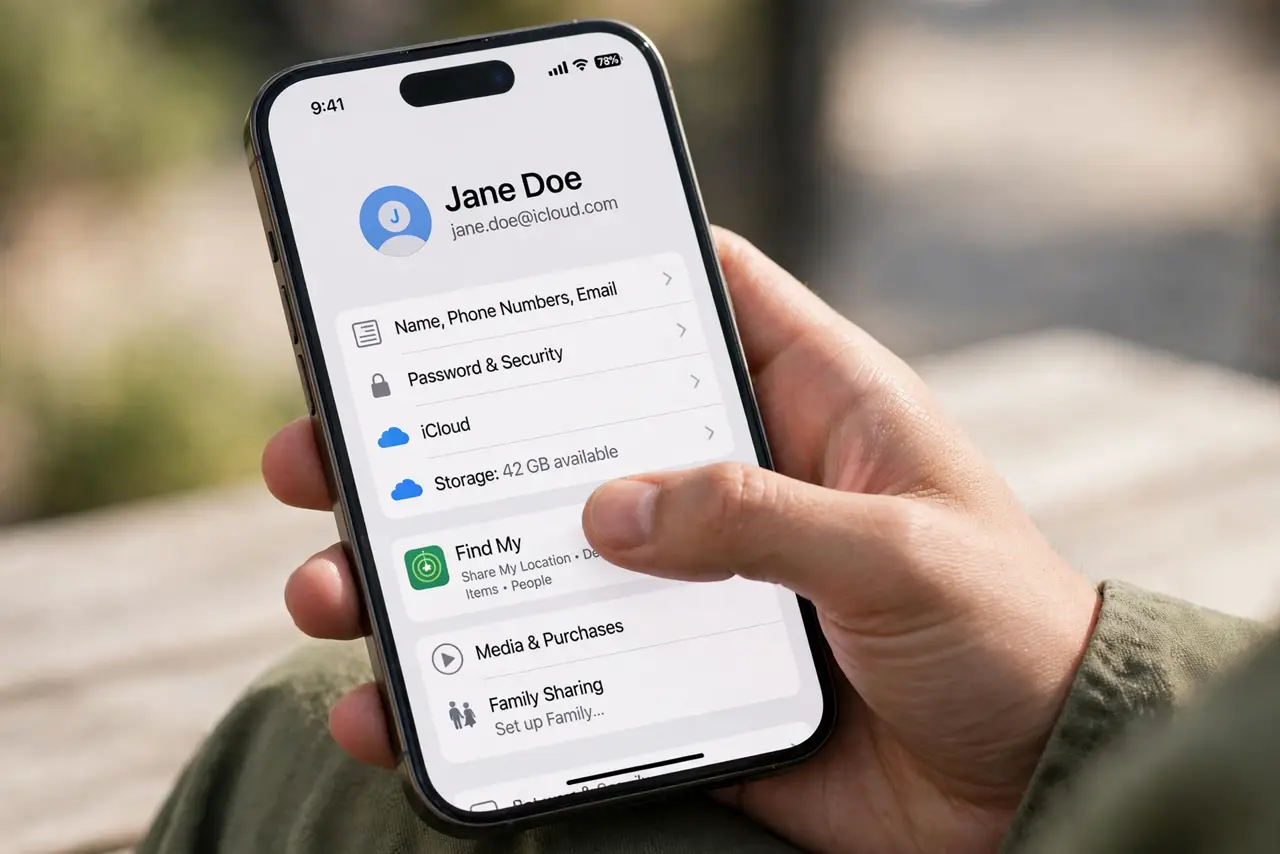
- Open the Find My settings. Go to Settings → tap your name at the top → Find My. This is mission control for locating all your Apple devices. If you are not signed into iCloud here, Find My cannot work — sign in first.
- Turn on Find My iPhone. Tap Find My iPhone and switch it on. This is the master switch — without it, nothing else on this screen matters. It also enables Activation Lock, which stops a thief from erasing and reusing your phone.
- Enable Find My network. This lets nearby Apple devices anonymously relay your phone's Bluetooth signal, so it can be located even with no Wi-Fi or cellular. A phone lost in the woods with a dead SIM can still ping passing iPhones. Leave this on.
- Enable Send Last Location. When the battery hits critical, the iPhone sends its final location to Apple automatically. That last ping is often what finds a dead phone. It costs nothing and has saved countless lost phones.
- Test it before you need it. Visit iCloud.com/find on a computer and confirm your phone appears on the map. Practice the Play Sound and Lost Mode buttons now, while calm. Finding the interface during a panic is the worst time to learn it.
- Pair it with Stolen Device Protection. Find My locates the phone; Stolen Device Protection stops a thief who saw your passcode from changing your Apple ID. The two features are designed to work together — enable both.
What NOT to do
- Do not turn Find My off to save battery. Its idle cost is negligible; the cost of a lost phone without it is not.
- Do not chase a thief yourself. Use Lost Mode and share the location with police — confronting someone over a phone is never worth it.
- Do not remove the device from your Apple ID while it is lost. Removing it disables Activation Lock and hands the thief a usable phone.
- Do not assume it works without iCloud sign-in. A phone signed out of iCloud has no Find My — check the sign-in, not just the toggle.
Frequently asked questions
Can Find My locate a powered-off iPhone?
Recent iPhones can, for a while — the Find My network keeps broadcasting on reserve power after shutdown. Eventually the reserve dies, which is when Send Last Location's final ping matters.
What does Lost Mode actually do?
It locks the phone with your passcode, displays a custom message with a contact number, suspends Apple Pay, and keeps tracking location. The finder can call you but cannot access anything.
Does Find My work without cellular service?
Yes, via the Find My network — nearby Apple devices relay the Bluetooth signal anonymously. Wi-Fi and cellular help, but the crowd-sourced network works without either.