Boarding Passes in Wallet?
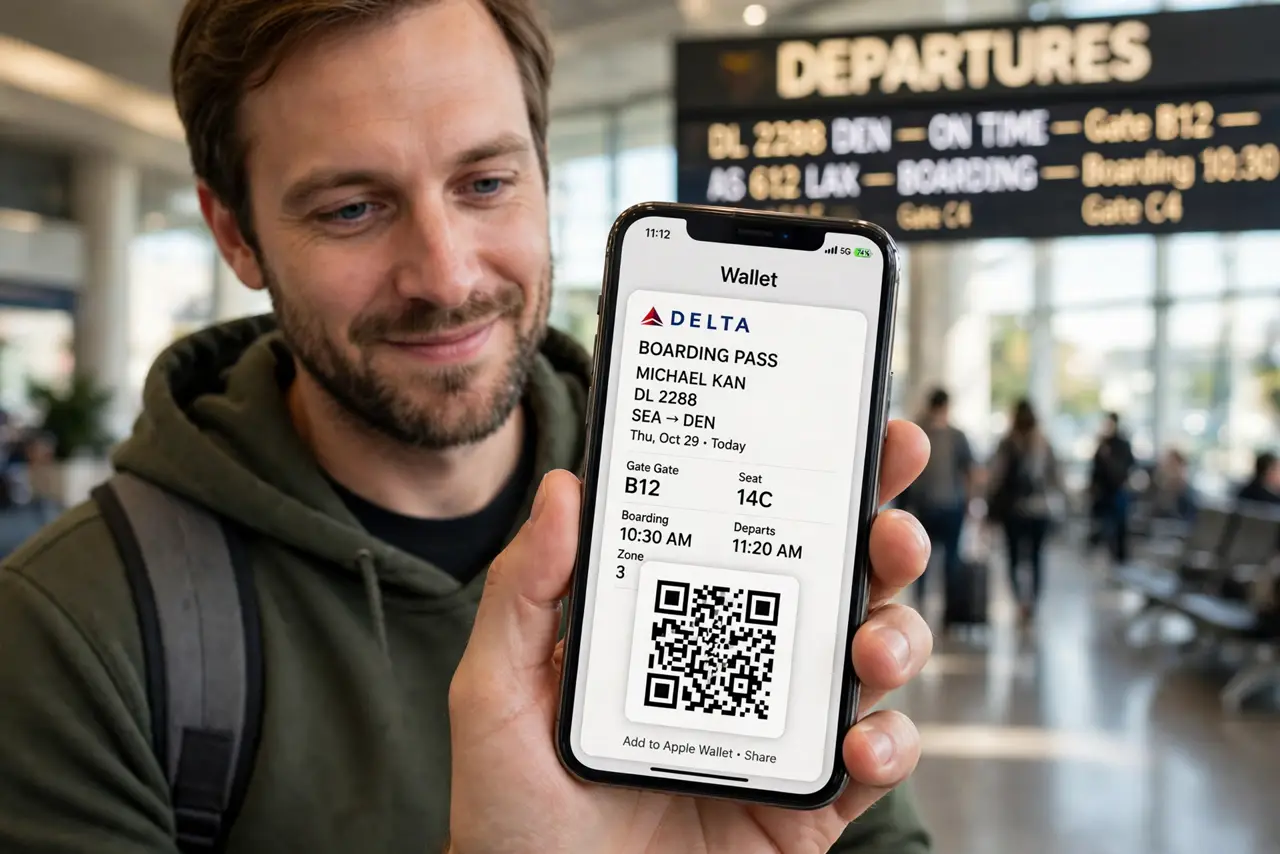
You are at the airport and your boarding pass will not appear, will not scan, or vanished from your wallet app entirely. Boarding passes live in Apple Wallet or Google Wallet, and they depend on the airline app, the wallet app, and sometimes a downloaded pass file all agreeing. This guide gets your pass back on screen before boarding closes.
TL;DR / Quick Fix
Quick fix: first check your airline's app — the pass usually lives there and can be re-added to your wallet in one tap. Make sure the wallet app is updated and you are signed in. Screenshot the QR code as a backup before you leave for the gate.
Follow these steps
- Check the airline app first. Open the airline's own app and find your booking — the boarding pass almost always appears there first. Use its Add to Apple Wallet or Add to Google Wallet button to push it into your wallet cleanly.
- Search inside the wallet app. Passes can slide down the stack and hide behind other cards. Scroll through the full list in Apple Wallet or Google Wallet before assuming the pass is gone — a missing card often just slipped out of view.
- Re-download the pass from email or SMS. Airlines send a pass link by email or text. Open it again on your phone and tap the wallet button — this replaces a corrupted or outdated pass with a fresh copy.
- Update the wallet app and the airline app. An outdated wallet app can fail to render passes, especially after an OS update. Update both apps, then re-add the pass and test that the QR code displays.
- Screenshot the QR code as backup. Before heading to the gate, take a screenshot of the pass with the QR code clearly visible. If the wallet glitches at the scanner, the screenshot scans just as well.
- Ask for a paper pass at the counter. If nothing works, the airline counter prints one in a minute. It is not a failure — it is the reliable fallback, and agents deal with wallet glitches all day.
What NOT to do
- Do not delete the airline app at the airport. It holds your booking, seat changes, and the master copy of the pass.
- Do not rely on a single copy of the pass. Wallet glitches happen — keep the screenshot and the email link too.
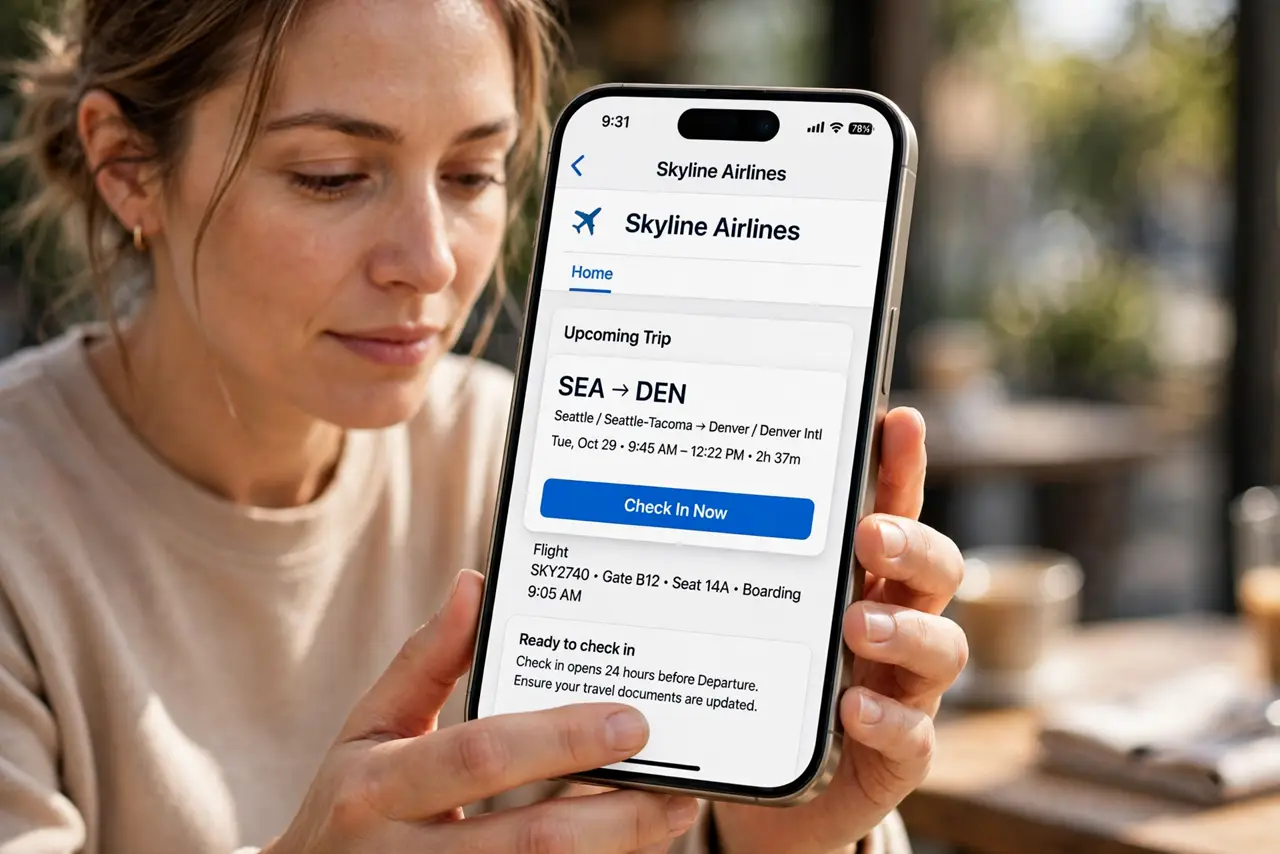
- Do not panic if the pass shows the wrong time. Re-download it first; schedules update and old cached passes cause the mismatch.
- Do not factory reset your phone over a missing pass. This is an app-level hiccup, never a phone-level one.
Frequently asked questions
Why did my boarding pass disappear from Apple Wallet?
Expired passes auto-archive, and reissued passes (seat or gate changes) can replace the old one. Re-add it from the airline app and it returns.
Does a screenshot of the pass actually scan?
Yes, at virtually every scanner. The QR code is what matters, not which app shows it — keep the screenshot bright and full-screen.
Can I add a boarding pass on Android?
Yes — Google Wallet accepts boarding passes from airline apps and email links the same way Apple Wallet does.