Straighten Shots With the Level
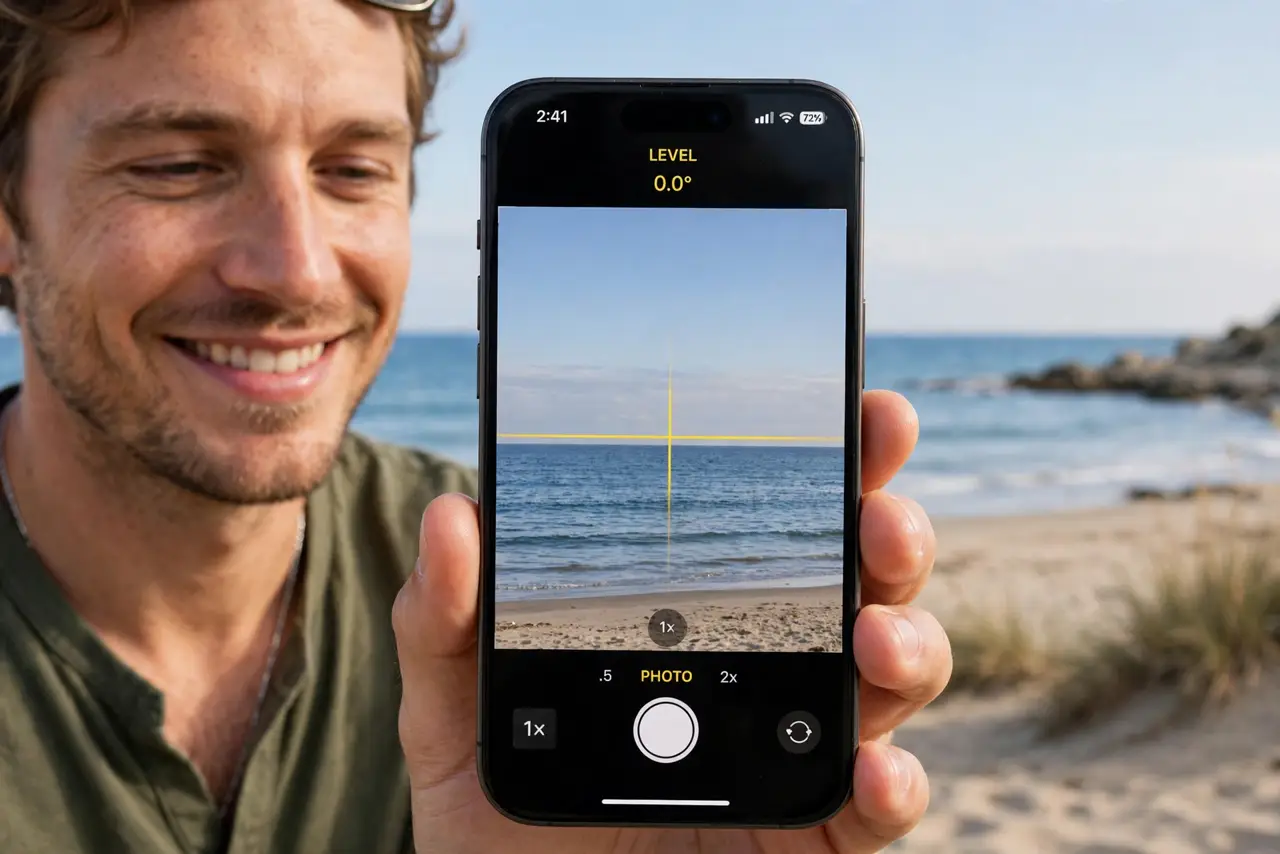
Nothing ruins a great sunset like a horizon sliding downhill. The iPhone's built-in level shows a crosshair in the viewfinder that turns yellow when your shot is perfectly straight — no more eyeballing, no more fixing tilt in editing. Here is how to enable it and read it at a glance.
TL;DR / Quick Fix
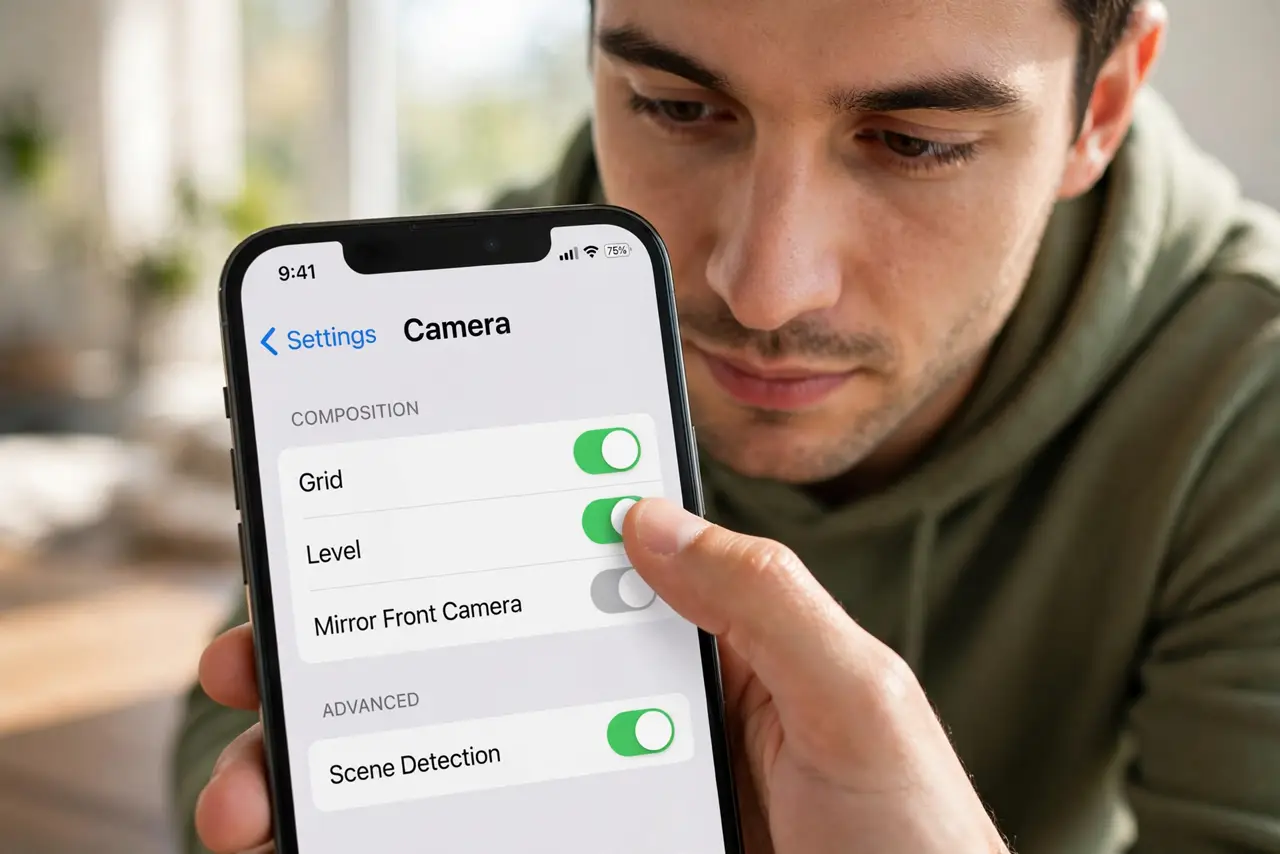
Quick fix: open Settings > Camera > Composition and turn on Level. A crosshair appears in the viewfinder — line it up until it turns yellow and your shot is perfectly straight. It works for photos and video, and it hides itself when the phone is flat for overhead shots.
Follow these steps
- Turn on the Level. Open Settings > Camera > Composition and switch Level on, right under the grid toggle.
- Read the crosshair. A white crosshair floats in the viewfinder. Tilt the phone until the two marks align — they turn yellow when you are level.
- Shoot when it turns yellow. Yellow means straight. Fire the shutter then, especially for horizons, buildings, and seascapes.
- Use it for video too. The level works in video mode, where a tilted horizon is even more noticeable and harder to fix later.
- Know when it hides. Point the phone straight down for flat-lay shots and the crosshair politely disappears — it knows level is meaningless there.
- Combine with the grid. Grid for composition, level for straightness. Both on is the landscape photographer's default setup.
What NOT to do
- Do not chase the yellow obsessively. Near-level is fine for casual shots — the level is a guide, not a law.
- Do not expect it to fix perspective. A straight phone still shows converging lines on tall buildings — that is optics, not tilt.
- Do not leave it off because the crosshair annoys you. It fades into the background after a day of shooting.
- Do not confuse it with auto-rotate. The level straightens your shot; rotation lock is a different system entirely.
Frequently asked questions
Why won't the level turn yellow?
You are likely close but not quite there — micro-adjust slowly. If it never appears, confirm the toggle in Settings > Camera > Composition.
Does the level work with the front camera?
Yes, though it is most useful on the rear camera for landscapes and architecture.
Can I straighten a photo after taking it?
Yes — Photos > Edit > Crop includes a straighten slider. But nailing it with the level saves the crop and the quality.