Camera Timer? Basics
The camera timer is the simplest way to get yourself into the photo — tap the shutter, then run into frame before it fires. The iPhone offers 3 and 10 second delays, plus burst and flash options that work alongside it. This guide shows where the timer hides (it moved) and how to get sharp group shots with it.
TL;DR / Quick Fix
Quick fix: the iPhone camera timer fires 3 or 10 seconds after you tap the shutter — open Camera, tap the top arrow, then the timer icon. Use 3 seconds for group shots, 10 to run into frame. Prop the phone against something steady.
Follow these steps
- Open the Camera app. The timer lives inside the Camera app, not in Settings. Open it and frame your shot first — the timer only delays the shutter, it does not compose for you.
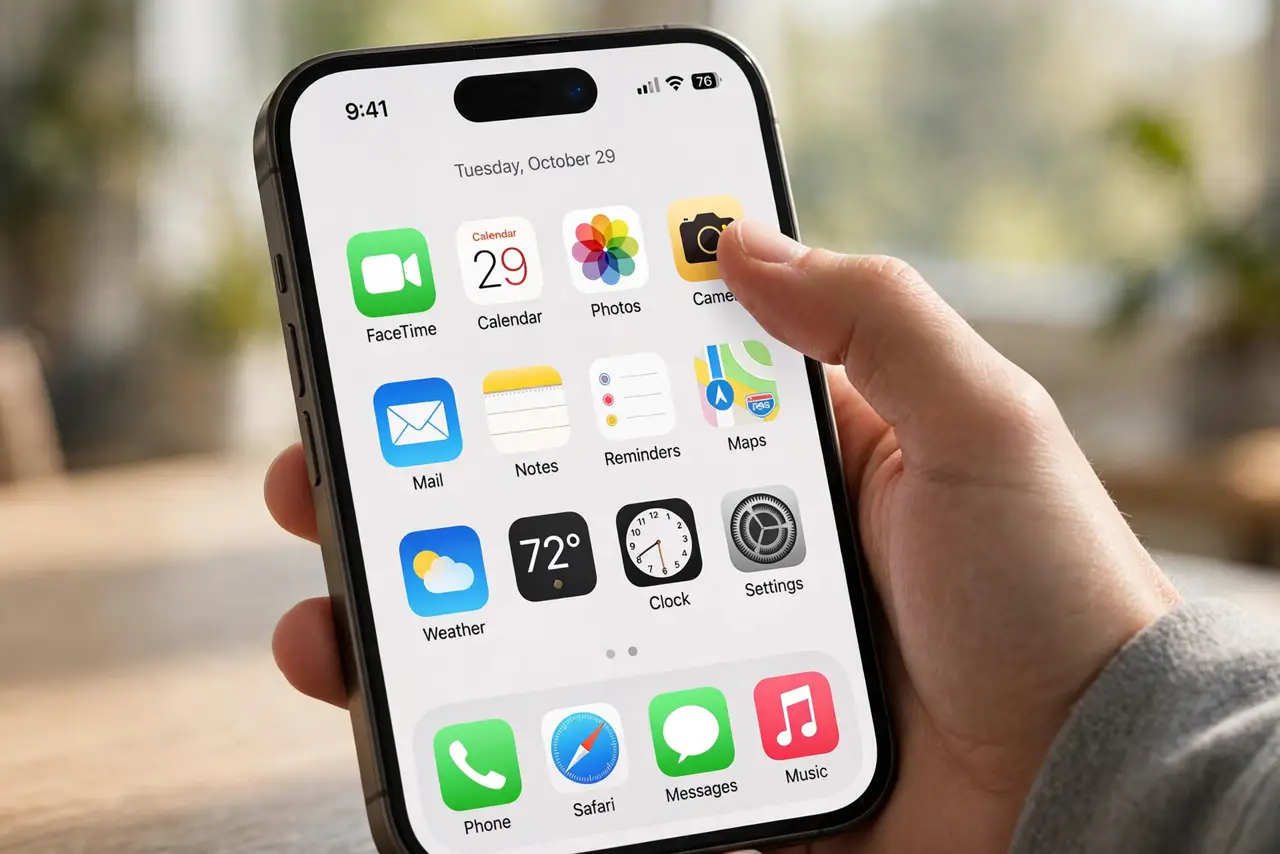
- Reveal the controls. Tap the small arrow (or chevron) at the top of the viewfinder. A row of icons appears above the shutter button — this is where Apple hid the timer.
- Tap the timer icon. Tap the clock-like timer icon and choose 3s or 10s. The selection sticks until you change it, so check it has not been left on from last time.
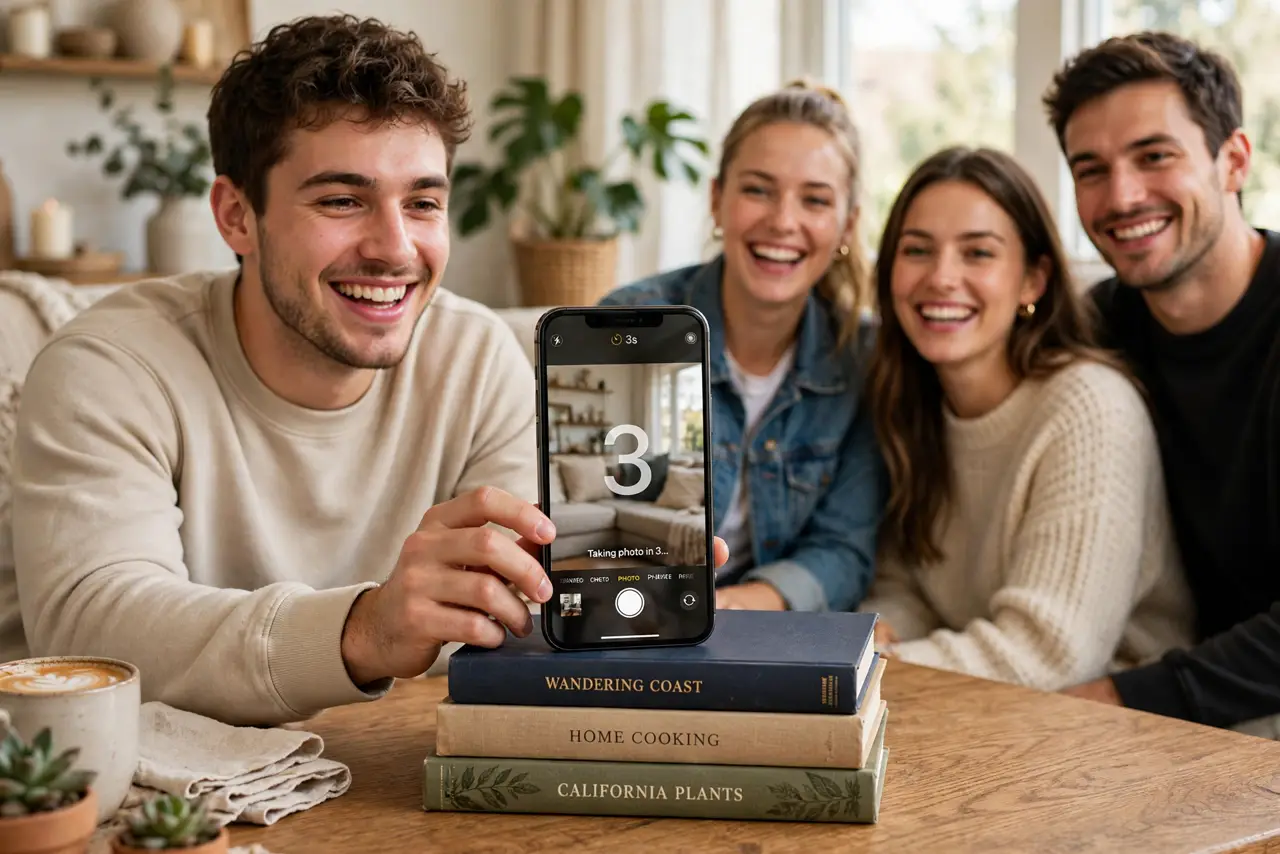
- Prop the phone steady. Lean the iPhone against books, a mug, or a mini tripod. At arm's length on a stack of books beats a wobbly hand every time — the timer exists so you do not have to hold it.
- Tap the shutter and move. Tap the shutter button and get into position. The flash blinks as it counts down; with 10 seconds you have time to cross a room, with 3 seconds just to lower your arm.
- Check the burst. The iPhone captures a burst of frames around the timer shot. Swipe through them in Photos and keep the sharpest — someone always blinks in exactly one frame.
What NOT to do
- Do not hand-hold for timer shots. The whole point is a stable, composed frame — propping the phone is what makes timer photos look good.
- Do not forget the timer stays on. It persists between sessions; an unexpected 10-second delay next time you open the camera is the classic surprise.
- Do not use the timer in low light without flash. Long countdown plus dim light equals motion blur — turn the flash on or add a lamp.
- Do not stand too far for 3 seconds. Three seconds covers lowering your arm, not sprinting across a yard — pick 10s when distance is involved.
Frequently asked questions
Where is the timer on newer iPhones?
Open Camera, tap the arrow at the top of the viewfinder, then the timer icon. Apple moved it into that expandable control row a few iOS versions back.
Can I use the timer with the front camera?
Yes — it works with both cameras. Prop the phone facing you for group selfies; the countdown flash still fires so you know when it shoots.
Does the timer work with Portrait mode?
Yes. Set the timer first, then switch to Portrait — the delay applies and you still get the depth effect. Check focus on faces afterward.