iPhone CarPlay Shows Black Screen? Fix It
CarPlay connects but the car display stays black. A black CarPlay screen usually means a cable, port, or input problem, not a dead phone. The maps twin is CarPlay Maps freezing, which is what happens when the display works but navigation stalls.
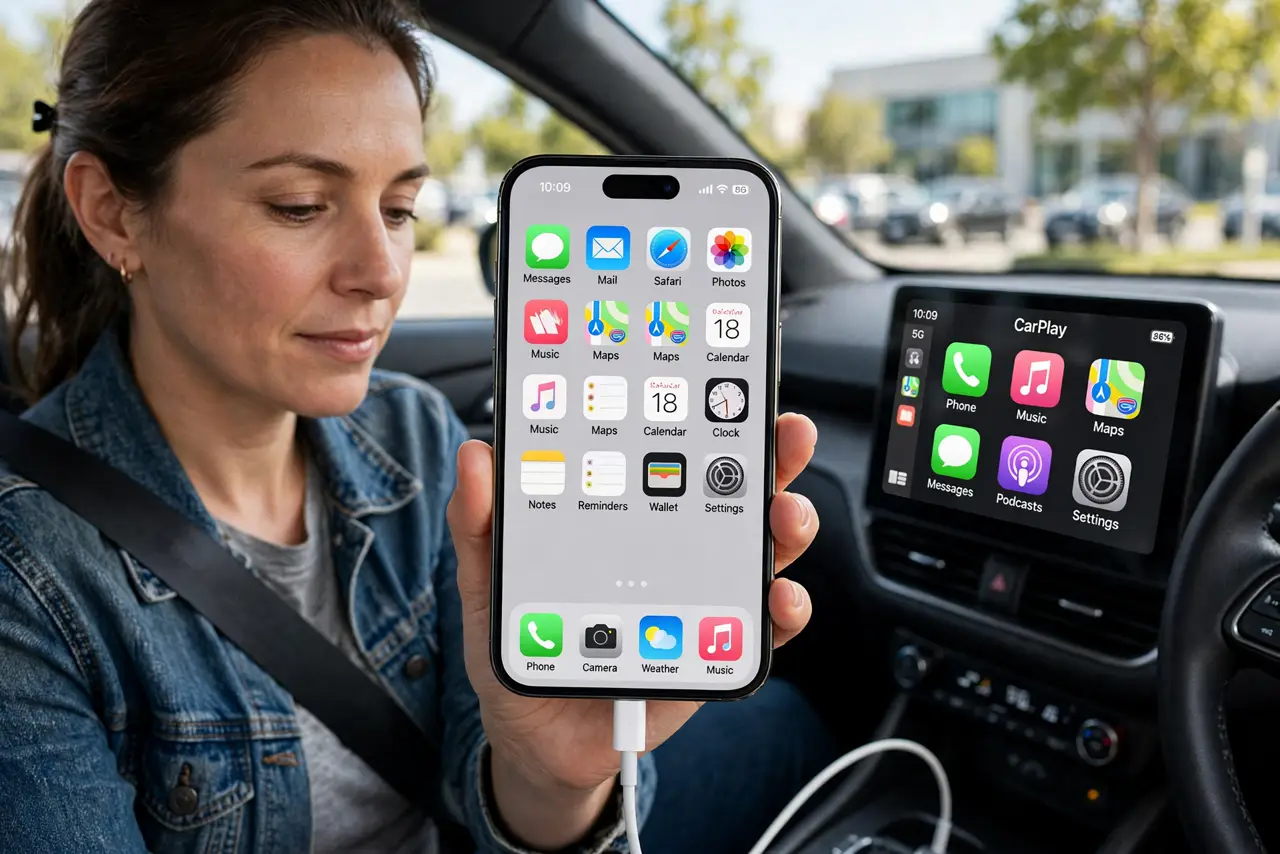
TL;DR / Quick Fix
Quick fix: check the cable and port, confirm the car display input, allow CarPlay in settings, restart phone and car system, and forget and re-add the car. If it still fails after these steps, note exactly when it happens, since that pattern reveals the cause.
Follow these steps
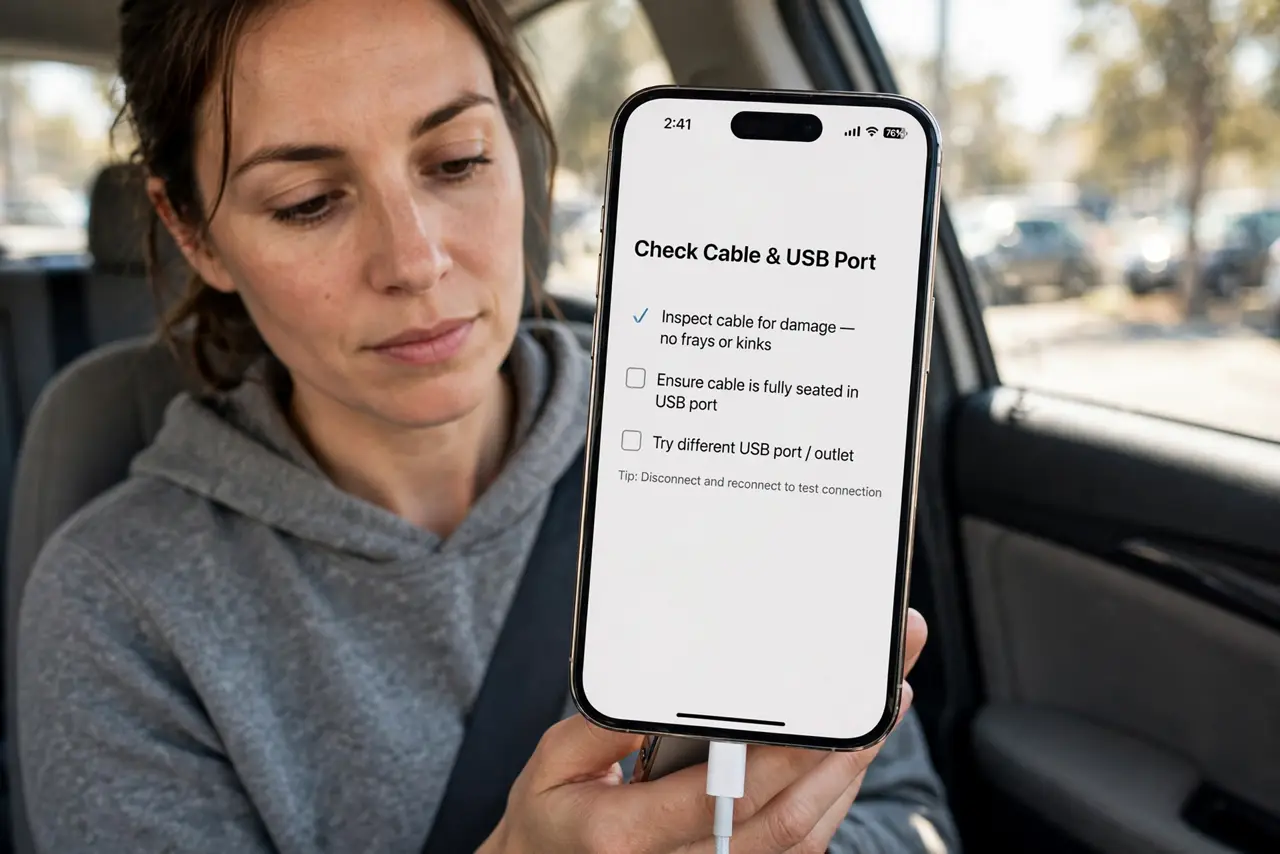
- Check the cable and USB port. Use a genuine or certified cable and the car's CarPlay USB port, not just any port. A charge-only cable or the wrong port gives a black screen.
- Confirm the car display input. Check the car display is on the CarPlay input, not radio or another source. A display on the wrong input looks black or shows another screen.
- Allow CarPlay in settings. Open Settings, then General, then CarPlay, and confirm the car is listed and allowed. Also check Screen Time, then Content and Privacy Restrictions, for a CarPlay block.
- Restart the phone and the car system. Restart the iPhone, then turn the car off and on again. A restart on either side clears a stuck CarPlay session that shows black.
- Forget and re-add the car. In Settings, then General, then CarPlay, tap Forget This Car, then reconnect. A fresh pairing fixes a corrupted CarPlay profile.
- Test with another cable and phone if you can. Try a different cable, and if possible another iPhone. If another phone works, the issue is your phone; if none work, it is the car or cable.
What NOT to do
- Do not keep swapping random cables without checking the port. The CarPlay port matters as much as the cable, so use the port the car manual names.
- Do not assume the car display is broken. Input, cable, and pairing cause most black screens, so check those before booking a repair.
- Do not drive while troubleshooting CarPlay. Pull over safely before changing cables, inputs, or settings.
- Do not ignore a Screen Time block. A restriction can hide CarPlay entirely, and it looks exactly like a black screen.
Frequently asked questions
Why is CarPlay black but the phone charges?
Because the cable may be charge-only, or the wrong USB port. Use a data cable in the CarPlay port.
Does the car display input matter?
Yes. If the display is on radio or another source, CarPlay will not appear even when connected.
Will forgetting the car delete anything?
No. It removes the pairing only, and reconnecting restores CarPlay.