Check In: Share Your Trip Live
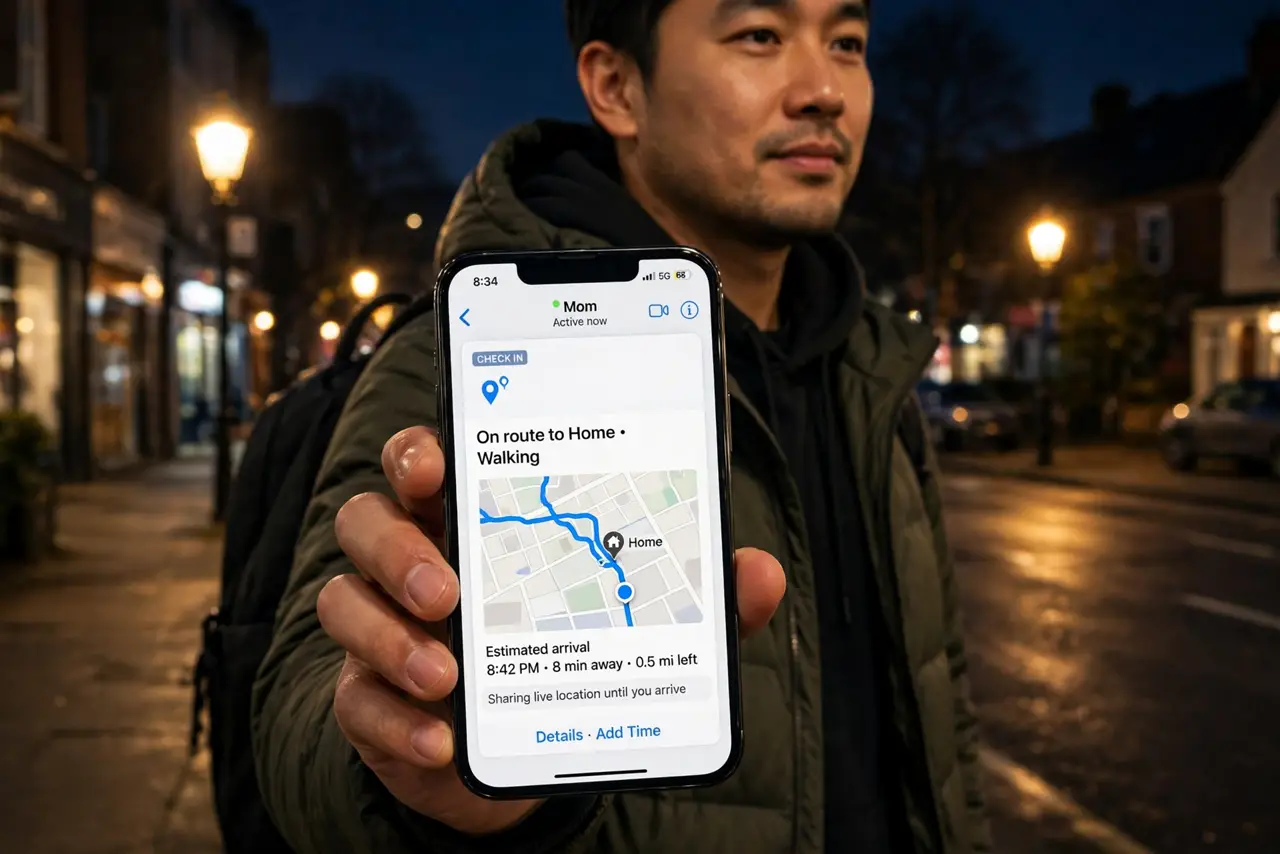
Walking home late, a first date, a solo hike — the people who love you want to know you arrived. Check In shares your trip live from Messages: destination, route, battery, signal. If you do not arrive or respond, it alerts them automatically with what they need. Quiet, private, and genuinely reassuring.
TL;DR / Quick Fix
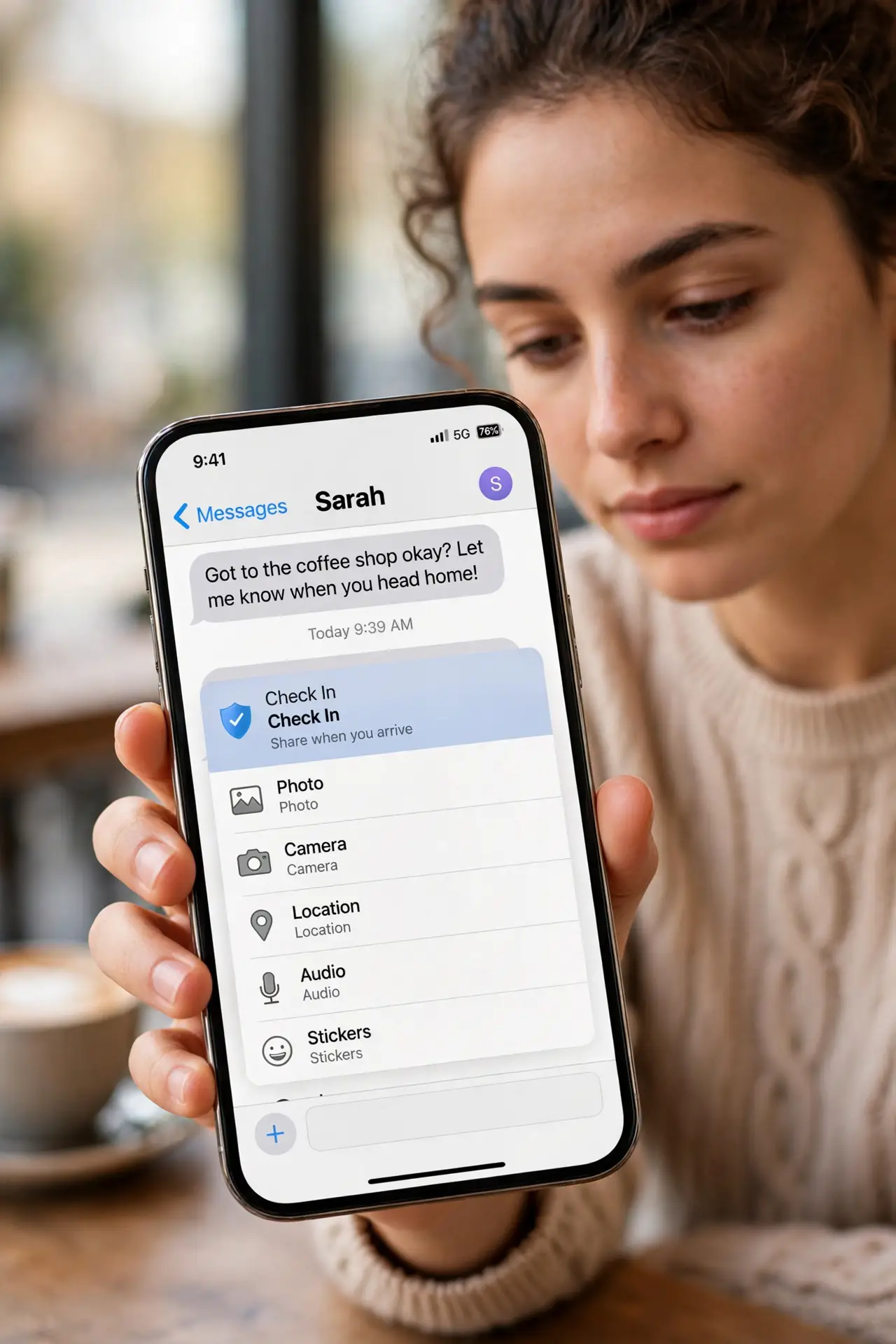
Quick fix: in Messages, open a conversation, tap the plus, choose Check In, and set a destination or timer. If you don't arrive or respond, your iPhone alerts your contact with your location, battery, and signal status. Your data stays private unless the check-in actually triggers.
Follow these steps
- Start a Check In from Messages. Open the conversation with your person, tap the plus, and choose Check In. Pick After a timer or When I arrive.
- Set the destination or time. For a trip, set the destination and transport mode; for a date, set a timer. The iPhone estimates arrival from live conditions.
- Understand the trigger. If you do not arrive, stop progressing, or miss the timer check, the iPhone prompts you first — then alerts your contact with location, route, battery, and signal.
- Keep the phone charged and connected. Check In needs location and network to monitor. A dead phone triggers the alert path — which is the safe failure mode.
- End it on arrival. Tap End when you arrive. The contact gets the all-clear and the live sharing stops — no lingering location access.
- Choose the right contact. Pick someone who will act — a roommate, a partner, a close friend. An alert to someone asleep across the world helps nobody.
What NOT to do
- Do not use it as a tracking tool. Check In shares during the trip only — it is safety, not surveillance; respect that boundary.
- Do not set it and silence the phone. The pre-alert prompt needs your response; a silenced phone escalates to your contact.
- Do not pick a contact who will panic. Choose someone calm who will call you first, not someone who calls emergency services at once.
- Do not forget it exists after one use. The best safety feature is the one you actually start before the late walk.
Frequently asked questions
Is my location shared the whole time?
Only during the active Check In, and your contact sees details only if the alert triggers. Normal completion shares just the arrival notice.
What if my phone dies mid-trip?
The missed check-in escalates to your contact with your last known location — the safe failure mode, by design.
Does the other person need an iPhone?
Yes — Check In works between iPhones with iOS 17 or later, inside the Messages app.