Warn Kids About Nude Images
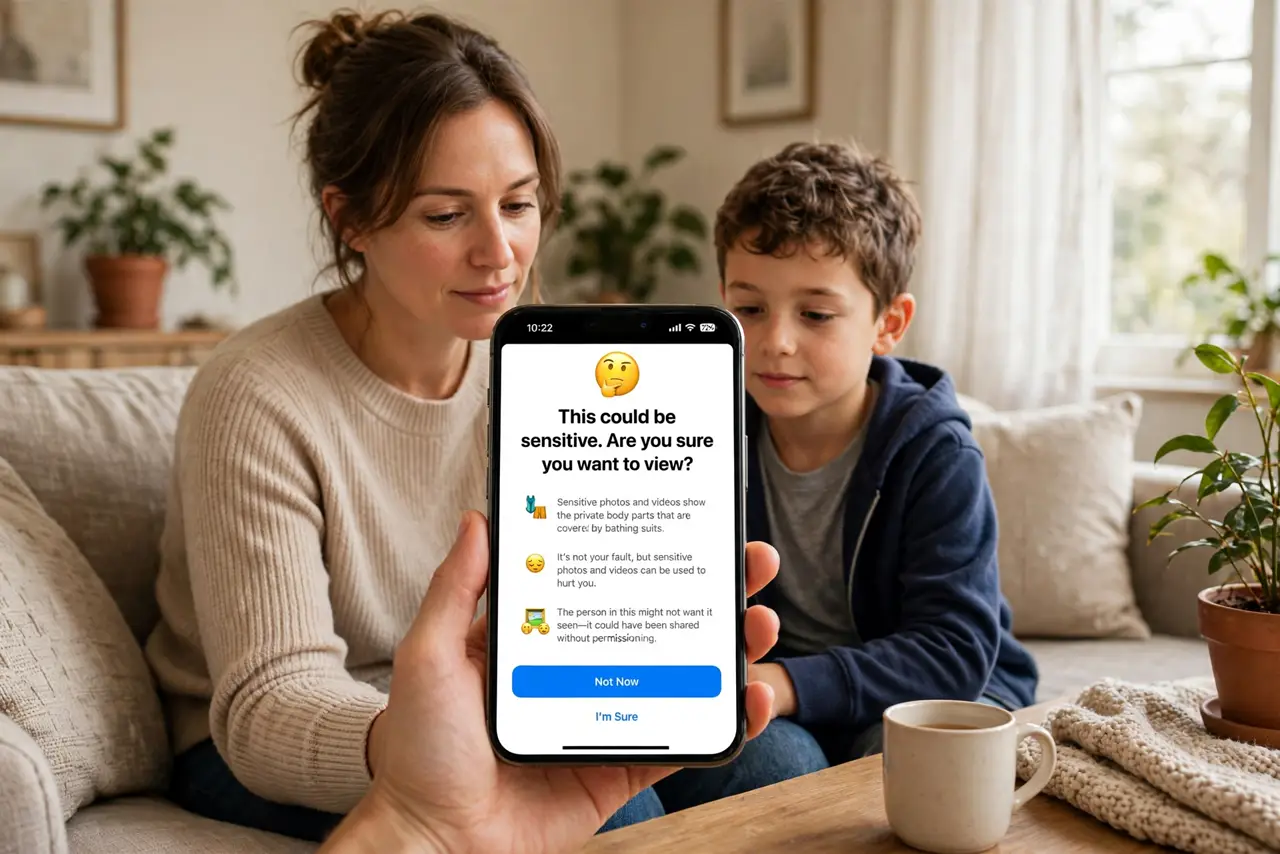
Kids receiving explicit photos — from peers, from strangers, from group chats they did not ask to join — is a risk every parent dreads and few discuss plainly. The iPhone has a built-in feature that blurs nude images in messages and warns the child before they view or share, giving them a moment to think. It is not surveillance; it is a speed bump. Enable it alongside content restrictions for a complete setup.
TL;DR / Quick Fix
Quick fix: turn on Communication Safety in Screen Time settings on your child's iPhone — it blurs nude photos in messages and warns before viewing or sharing. Talk to your child about why it is on: it is a tool for them, not spying on them.
Follow these steps
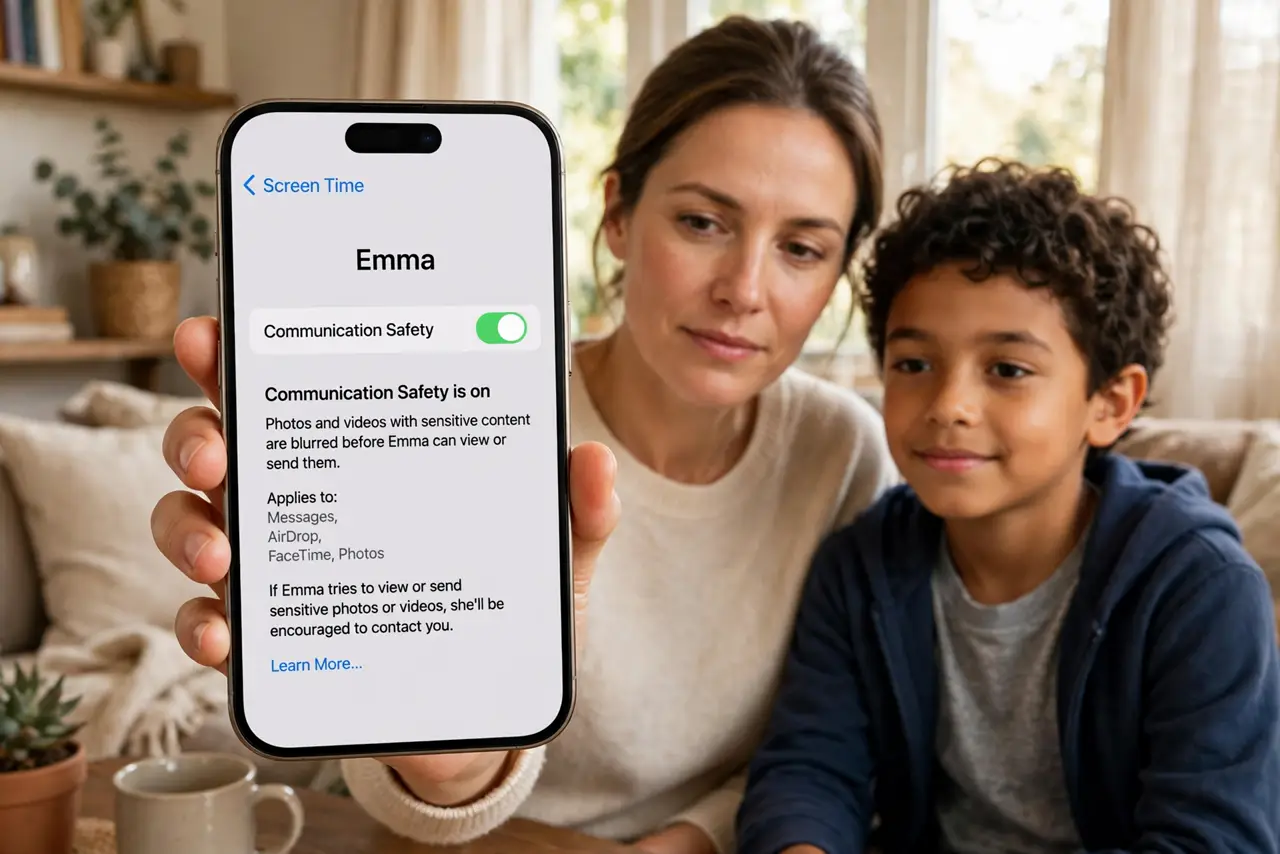
- Understand what it does. When the feature detects a nude image in messages, it blurs the photo and shows a warning with guidance — including an option to message a trusted adult. It intervenes before viewing and before sending.
- Turn it on in Screen Time. On the child's iPhone, open Settings, Screen Time, then Communication Safety, and enable it. It is part of the family setup, not a separate app to install.
- Talk about it first. Tell your child what it does and why: it is there to protect them from pressure and surprises, not to report their conversations. A feature they understand is one they will not try to defeat.
- Cover the messaging apps. It works across the built-in messages and participating apps. Walk through which apps your child actually uses and confirm coverage where it matters.
- Keep it age-appropriate. Younger kids need the full protection with trusted-adult options; teens need the conversation more than the filter. Adjust the strictness as they grow.
- Revisit regularly. Check the setting is still on every few months — updates and new devices can reset things. Make it part of the same routine as any other parental control.
What NOT to do
- Do not enable it secretly and say nothing. A child who discovers hidden monitoring loses trust; a child who understands the tool gains protection.
- Do not treat it as a replacement for conversation. The feature buys a moment to think — your ongoing talks are what fill that moment wisely.
- Do not assume it catches everything. Detection is good but not perfect; keep the dialogue open about anything that gets through.
- Do not forget it is per-device. A new iPhone or iPad needs the setting enabled again — check every device the child uses.
Frequently asked questions
Does it notify the parent?
For younger children it can offer to notify a parent; for older kids it focuses on warning the child. The exact behavior depends on the child's age settings.
Does Apple see the photos?
No — the detection happens on the device. Apple does not receive the images; the whole point is on-device protection.
What age is it for?
It is designed for child accounts. As kids become teens, shift the emphasis from the filter to the conversation.