Customize Control Center
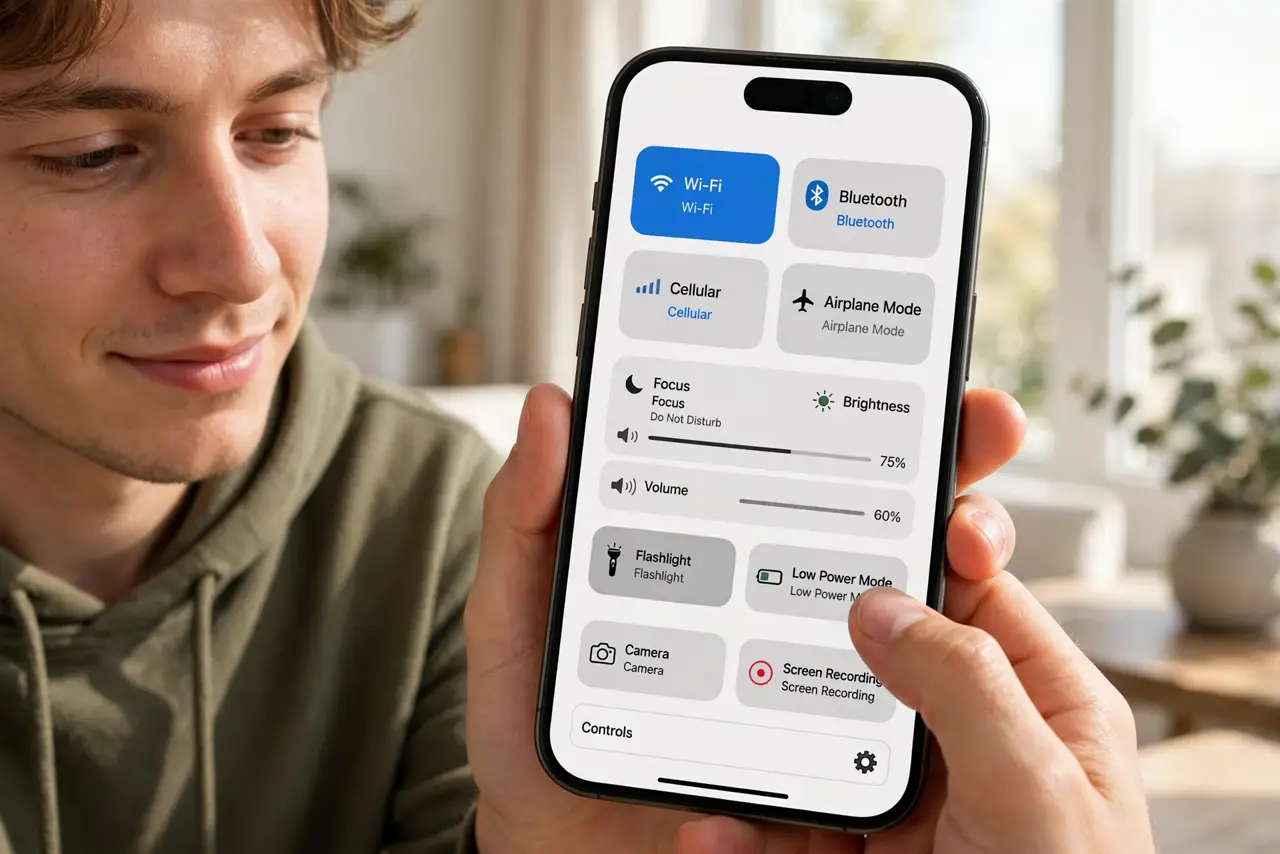
Your Control Center is full of toggles you have never tapped — and the one you need daily is buried three swipes deep. Since iOS 18, Control Center is fully customizable: add, remove, resize, and rearrange controls across multiple pages. Five minutes of setup gives you a control deck that matches your actual habits.
TL;DR / Quick Fix
Quick fix: iOS 18 made Control Center fully customizable — swipe down, tap the plus or long-press, then add, remove, or rearrange controls to match your habits. Delete what you never touch and promote what you use daily. A personalized Control Center beats the default every time.
Follow these steps
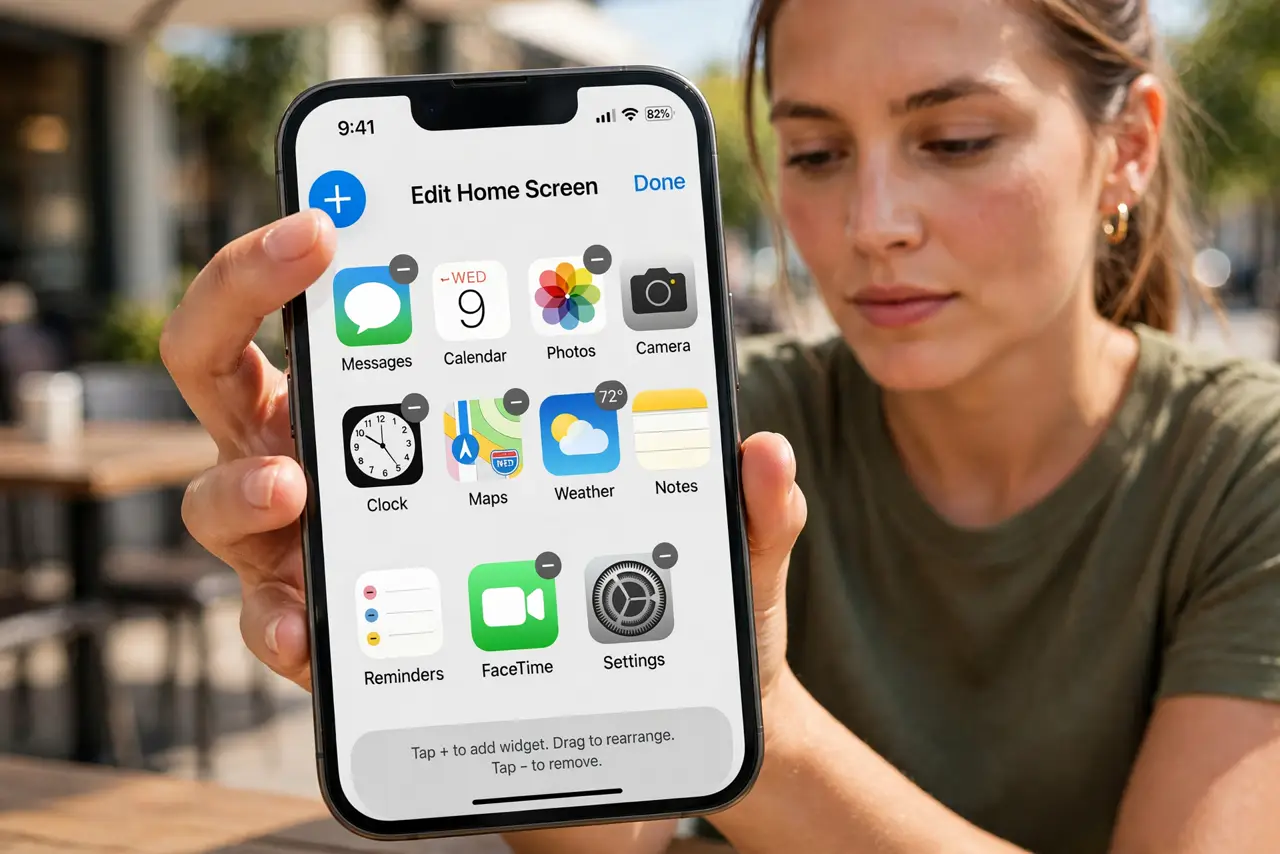
- Enter edit mode. Swipe down from the top-right corner, then tap the plus icon or long-press empty space. The controls start jiggling — you are in the same kind of edit mode as the home screen.
- Remove what you never use. Tap the minus on controls you have never tapped — screen mirroring to nowhere, toggles for features you do not own. Every removal makes the keepers easier to hit.
- Add what you actually need. Tap Add a Control and browse the gallery: flashlight, timer, home controls, accessibility shortcuts, third-party app controls. Add the five you reach for weekly — including the flashlight brightness control if you use the torch often.
- Resize the important ones. Drag the corner handle to make key controls bigger — a large flashlight or music control is faster to hit one-handed. Size signals priority.
- Organize across pages. Swipe between Control Center pages and group by context: connectivity on one, media on another, home controls on a third. Related controls belong together.
- Revisit quarterly. Habits change — the control you added for a trip stays forever unless you prune. A two-minute quarterly tidy keeps it matched to your life.
What NOT to do
- Do not add everything. A Control Center with forty controls is a second settings app — curate ruthlessly, five to ten per page max.
- Do not forget third-party controls. Many apps now offer Control Center widgets — check the gallery for your most-used apps, not just Apple's.
- Do not leave the defaults out of guilt. Apple does not mind if you delete their toggles — the defaults serve everyone, which means they serve you poorly.
- Do not ignore the Lock Screen either. iOS 18 lets you swap the lock-screen buttons too — customize both for a coherent setup.
Frequently asked questions
Can I reorder the pages?
Pages follow the order you arrange them — organize controls so your most-used page comes first in the swipe order.
Why can't I find a control I want?
Some controls only appear if the feature is enabled or the accessory is paired — Home controls need a Home setup, for example. Enable the feature first, then look again.
Does customizing affect battery?
No. Control Center layout is static — it changes nothing about what runs in the background.