Customize StandBy Mode
Your iPhone sits on the nightstand charging, showing... the default clock. Meanwhile StandBy mode can be a beautiful smart display: your photos, a big readable clock, widgets, live activities — all glanceable from across the room. A few minutes of customization turns dead charging time into your favorite desk accessory. This guide sets it up.
TL;DR / Quick Fix
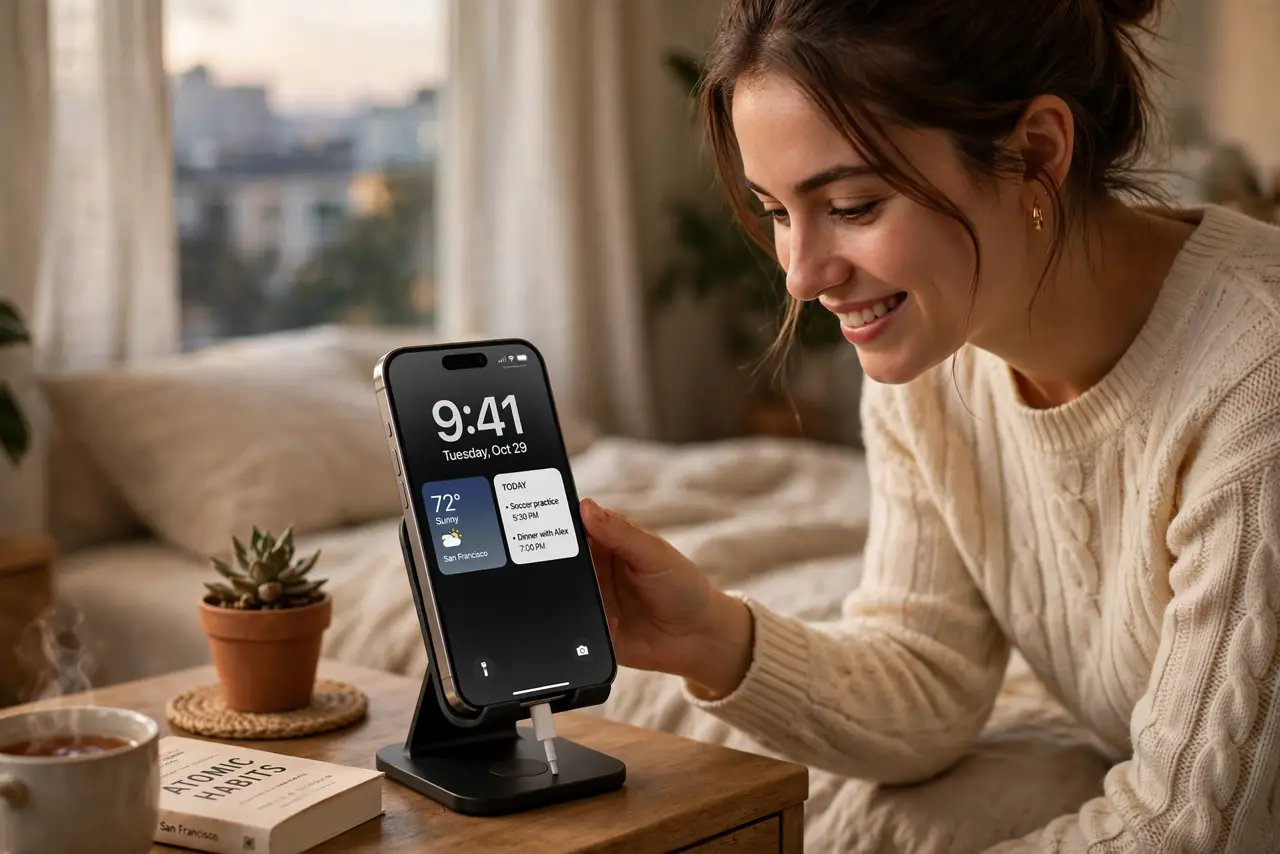
Quick fix: StandBy turns your charging iPhone into a smart display — customize it by swiping through clock styles, adding widgets, and choosing photo albums. Long-press any StandBy screen to edit it. It shines on a nightstand with Night Mode's dim red clock, so set that up too.
Follow these steps
- Trigger StandBy. Connect the charger and set the iPhone on its side in landscape. StandBy activates automatically — if it does not, check Settings, then StandBy, and make sure it is enabled.
- Swipe through the views. StandBy has widget stacks, photo displays, and clock faces — swipe left and right to move between them, up and down to change options within each. Explore before customizing.
- Long-press to customize. Press and hold any StandBy screen to enter edit mode: swap clock styles and colors, add or remove widgets, choose which photo albums shuffle. This is where it becomes yours.
- Set up the photo view. Pick albums that make you happy — family, travel, pets. StandBy shuffles them while charging, turning the nightstand into a living photo frame. See the StandBy basics for the full feature tour.
- Enable Night Mode. In StandBy settings, turn on Night Mode: after dark, the display shifts to a dim red clock that will not blast your eyes at 3 AM. This one setting is what makes it a great bedside clock.
- Try Live Activities. Timers, sports scores, and delivery tracking appear in StandBy automatically. A charging phone that shows your pizza's progress is the correct use of technology.
What NOT to do
- Do not leave it in a bright always-on state overnight. Night Mode exists for a reason — a glowing rectangle ruins sleep hygiene and wastes power.
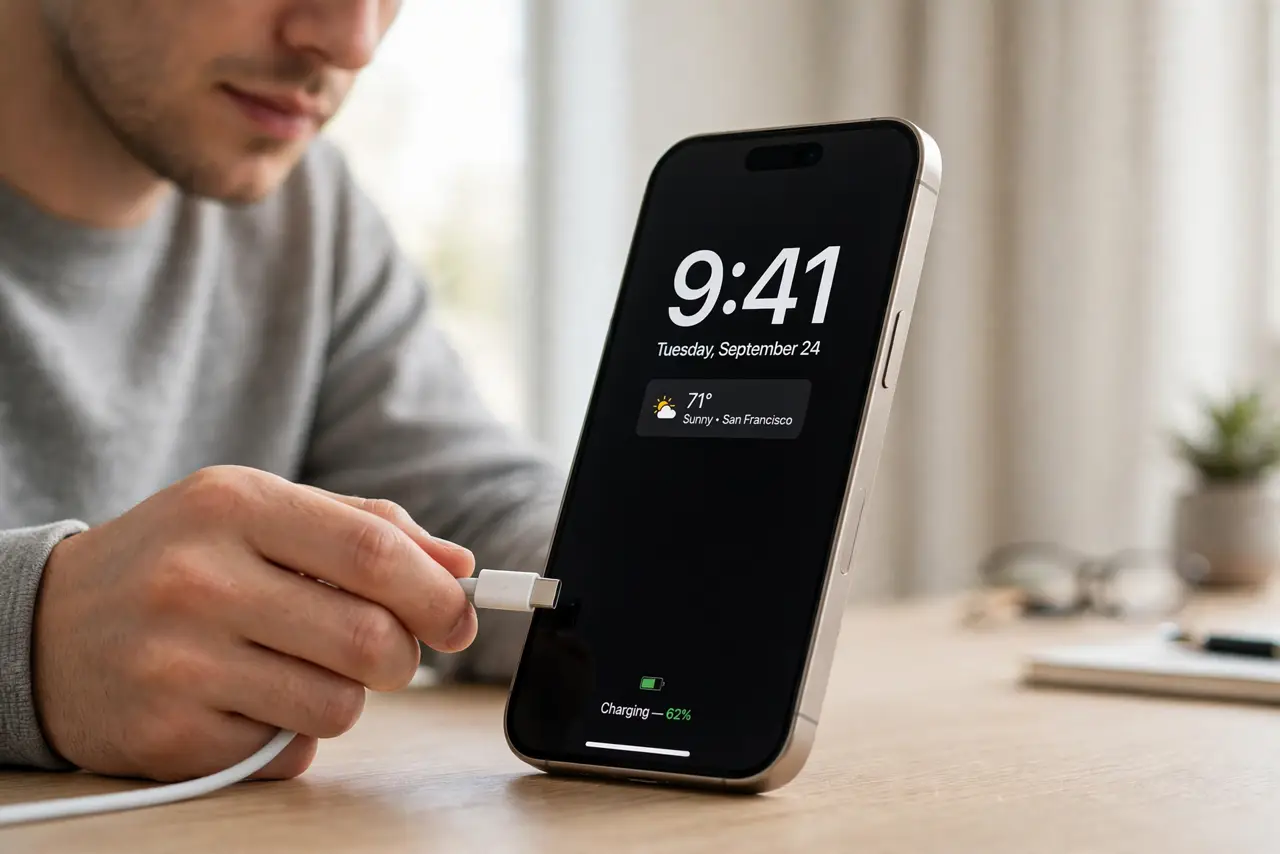
- Do not expect it without a charger. StandBy needs power connected (or MagSafe) — it is a charging-mode feature, not a lock-screen replacement.
- Do not put sensitive widgets on it. StandBy is glanceable by anyone in the room — keep private calendars and messages off the bedside display.
- Do not forget the viewing angle. StandBy is designed to be read at a distance — tiny widgets defeat the purpose; go big and bold.
Frequently asked questions
Does StandBy drain the battery?
It runs while charging, so net battery still climbs. On a weak charger it may charge slower — use a proper adapter for overnight.
Why won't StandBy turn on?
Three requirements: charging, landscape orientation, and locked screen. Miss any one and it stays off — the angle of the stand matters too.
Can I use it as an alarm clock?
Yes — and it is excellent at it. The big clock plus Night Mode makes it the best bedside alarm the iPhone has ever had.