Custom Vibrations? Basics
Your phone buzzes in your pocket, but every buzz feels the same — is that your partner, your boss, or spam? Custom vibrations let you assign a unique buzz pattern to a contact, so you know who is calling without looking. It takes twenty seconds to set up and works in silent mode. Here is how.
TL;DR / Quick Fix
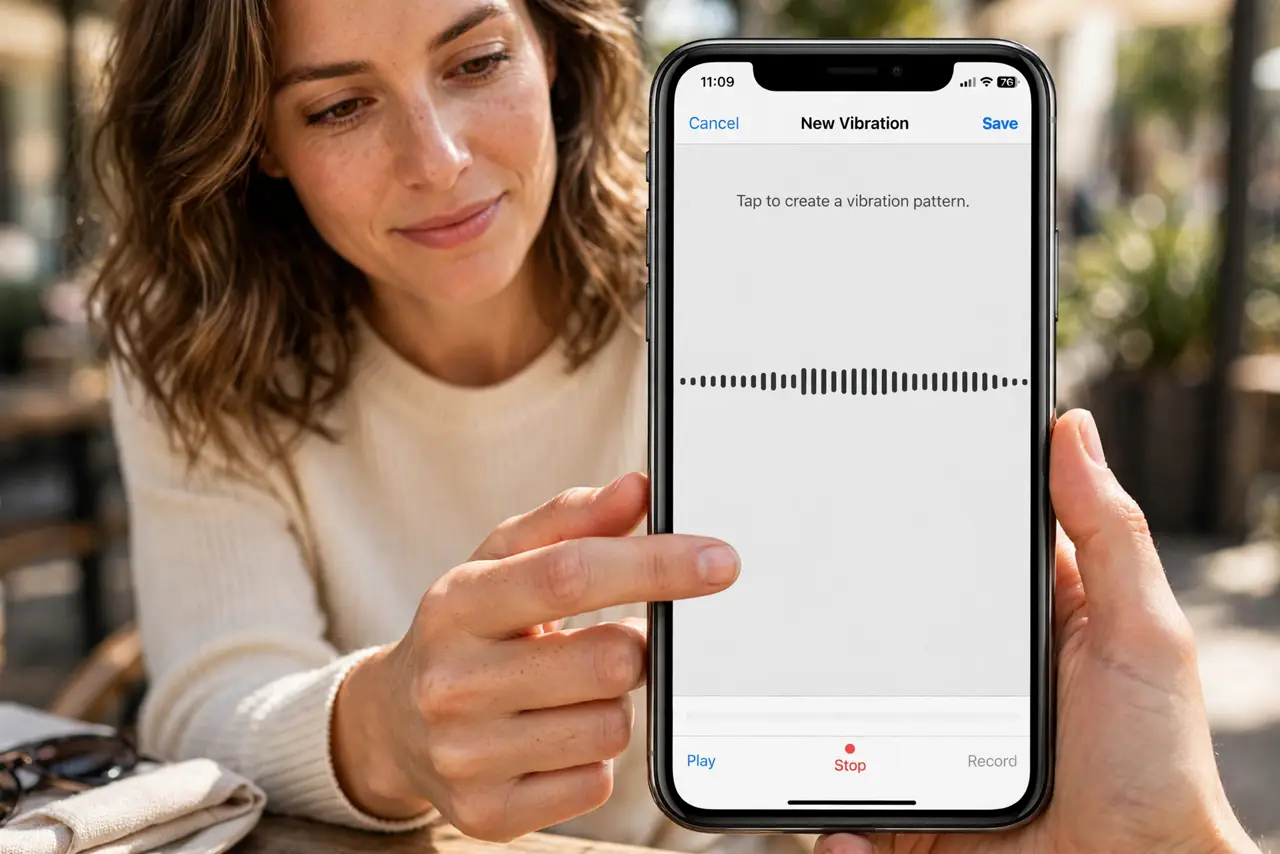
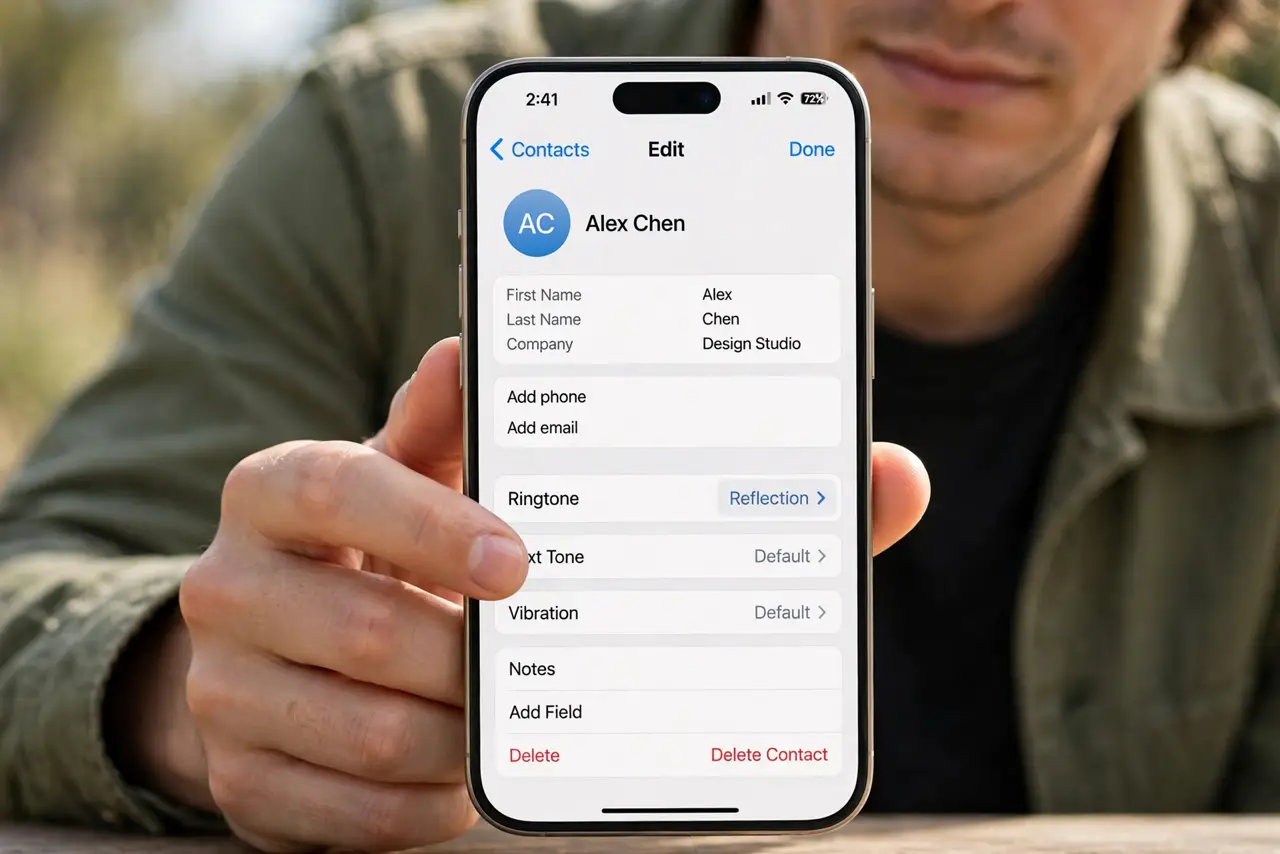
Quick fix: open a contact, tap Edit, tap Ringtone, then tap Vibration and choose Create New Vibration. Tap your rhythm on the screen, save it, and name it. That contact now buzzes in your pattern — even with the ringer off.
Follow these steps
- Open the contact's ringtone settings. Open the contact, tap Edit, then tap Ringtone. The Vibration row at the top controls the buzz pattern for this contact's calls — separate from the ringtone itself.
- Create your pattern. Tap Vibration > Create New Vibration, then tap the screen in your rhythm — long presses for long buzzes, quick taps for short ones. Play it back, and re-record until it feels distinct.
- Name it clearly. Save the pattern with the contact's name or a label like 'Mom — urgent.' Named patterns are reusable: assign the same one to other contacts later from the standard list.
- Assign it to texts separately. Calls and texts each get their own vibration: set Text Tone > Vibration for messages too. A distinct text buzz tells you it is a message, not a call, without looking.
- Test in silent mode. Flip the silent switch and have someone call — or call yourself from another phone. Custom vibrations shine exactly when the ringer is off, so test in the real condition.
- Pair with Emergency Bypass for VIPs. A custom vibration plus Emergency Bypass means your most important people break through silence with a pattern you recognize instantly.
What NOT to do
- Do not make patterns too similar. Three patterns that all feel like 'buzz-buzz' defeat the purpose — make them rhythmically distinct.
- Do not forget texts need their own setting. A custom call vibration does nothing for messages — set both.
- Do not use the default patterns for everyone important. The point is differentiation — defaults for strangers, customs for your people.
- Do not record with shaky hands. A sloppy tap recording makes a muddy pattern — tap deliberately on a steady surface.
Frequently asked questions
Do custom vibrations work on Apple Watch?
Your watch mirrors the iPhone's vibration settings for calls from the paired phone — distinct patterns carry over to your wrist.
Can Android do custom vibrations?
Yes — most Android phones let you set per-contact vibration patterns in the contact or phone app settings, though the menus differ by brand.
Why can't I feel the difference?
Some patterns are too subtle. Re-record with exaggerated contrasts — long buzz versus rapid taps — and test in your pocket, not on the desk.