Add Your ID to Apple Wallet
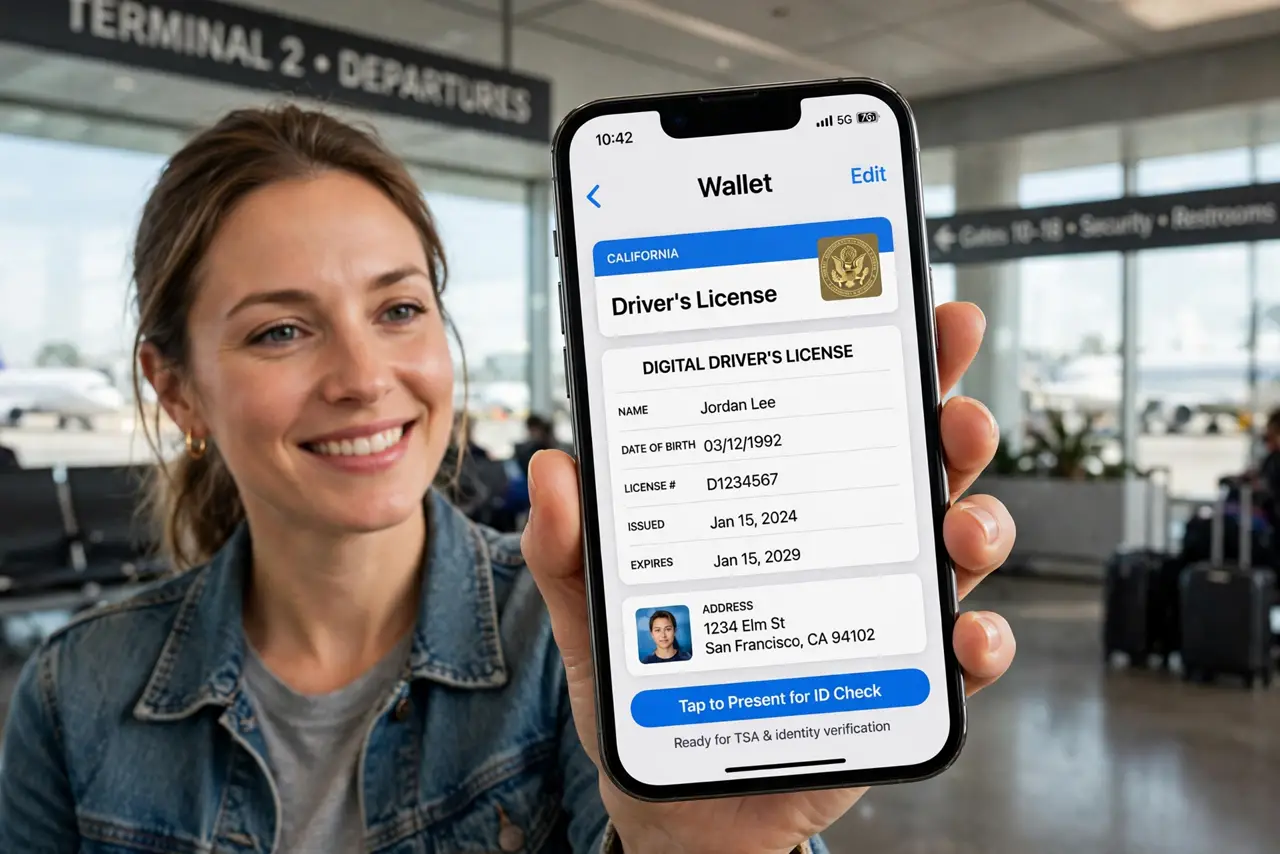
Your driver's license lives in your physical wallet, which you forget exactly when you need it most. Several US states now let you carry a digital version in Apple Wallet — verified, encrypted, and presentable at select TSA checkpoints with a tap. It is not a full replacement yet, but it is real, and setup takes about ten minutes.
TL;DR / Quick Fix
Quick fix: some US states let you add a driver's license to Apple Wallet — open Wallet, tap +, choose Driver's License or State ID, and finish the scan-and-selfie verification. It works at TSA checkpoints. It does not replace your physical ID yet; carry both. Check your state's availability first.
Follow these steps
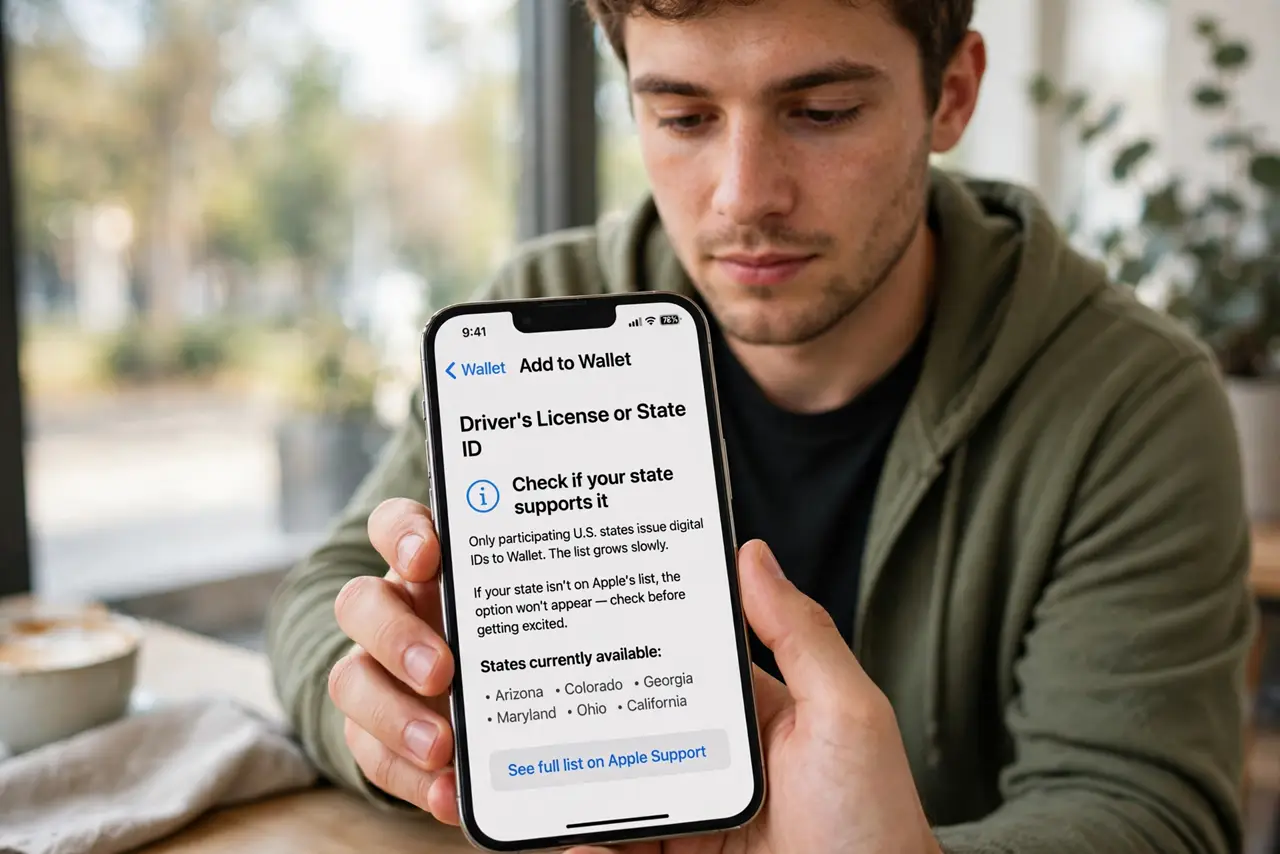
- Check your state supports it. Only participating US states issue digital IDs to Wallet, and the list grows slowly. If your state is not on Apple's list, the option simply will not appear — check before getting excited.
- Open Wallet and tap +. Choose Driver's License or State ID, then select your state. The flow is guided — Apple walks you through every step.
- Scan the front and back of your license. Hold the card in the frame with good lighting. Glare is the main failure — a matte surface or angled light fixes most rejected scans.
- Complete the selfie verification. You will move your head through a series of poses so Apple can match you to the license photo. It is awkward for thirty seconds and then it is done.
- Confirm with your state. Your state verifies the details, which can take minutes or days. You will get a notification when the ID is ready — do not delete the in-progress setup meanwhile.
- Know where it actually works. Select TSA checkpoints and a growing list of apps and businesses. Everywhere else — traffic stops, bars, banks — still wants the physical card. Carry both, always.
What NOT to do
- Do not leave your physical ID at home yet. Digital ID acceptance is patchy — a traffic stop without your real license is a real ticket.
- Do not hand your unlocked phone to anyone to check your ID. Use the Wallet presentation flow, which shows only the ID — never unlock and hand over the device.
- Do not assume it works outside the US. This is a US-state program; international travelers get nothing from it at foreign checkpoints.
- Do not screenshot your digital ID as a backup. Screenshots of IDs in your camera roll are an identity-theft starter kit — the Wallet version is the secure one.
Frequently asked questions
Is my digital ID as private as showing my license?
More so — Wallet presentations share only the fields the verifier requests, unlike a physical license that shows everything. You approve each share.
What if I lose my iPhone?
Suspend the digital ID via Find My or iCloud.com, just like a lost card. Your physical license keeps working regardless.
Does it drain battery or need internet?
Presenting the ID works offline via NFC. You need connectivity only for the initial setup and state verification.