Schedule Downtime for Kids
Bedtime phone battles — the glowing screen under the blanket, the one more video at midnight. Downtime schedules the phone itself to wind down: at bedtime, apps lock except the ones you allow, and the phone becomes boring on purpose. It is not punishment; it is the device helping with the discipline. Pair it with purchase approvals for a complete kid setup.
TL;DR / Quick Fix
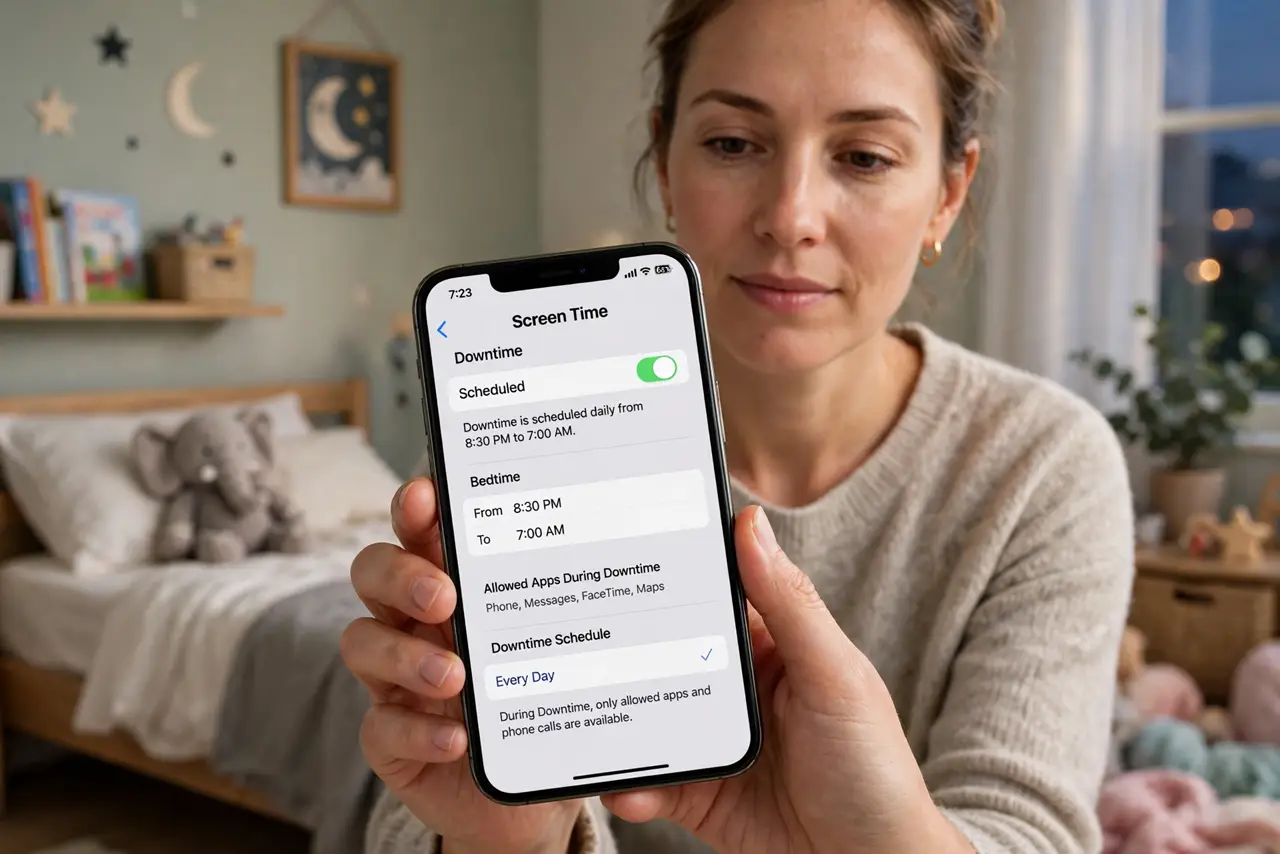
Quick fix: in Screen Time, turn on Downtime and set the bedtime hours — apps lock automatically except calls, messages, and anything you allow. Kids can request more time, which you approve or decline. Set it on the child's device and keep your own passcode on the Screen Time settings.
Follow these steps
- Open Downtime settings. On the child's iPhone, go to Settings, Screen Time, then Downtime, and turn it on. This is the master switch for the whole schedule.
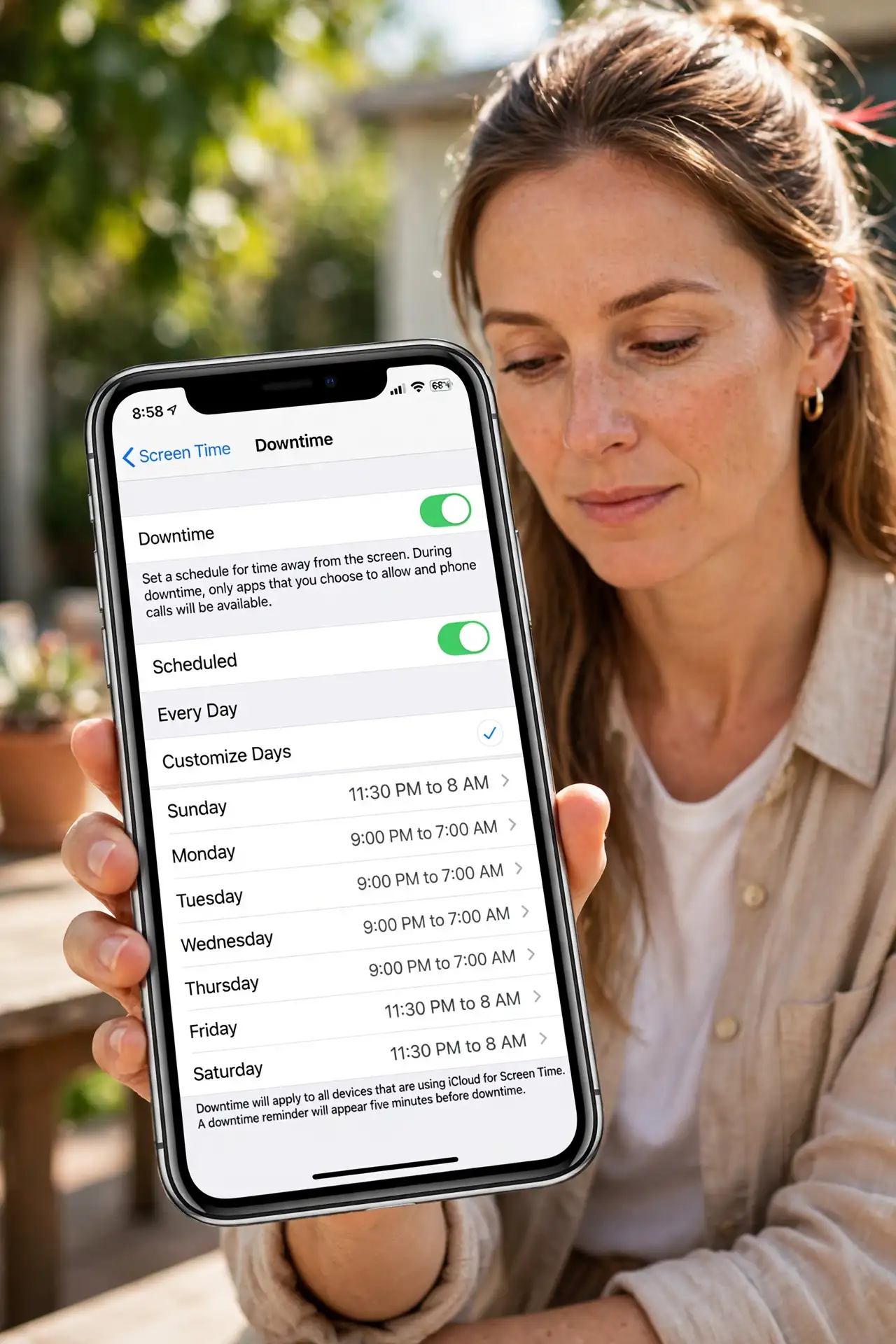
- Set the bedtime window. Choose the hours — say 9 PM to 7 AM. During Downtime, apps show a lock and only allowed apps and calls work. Pick hours you can defend consistently.
- Choose the always-allowed apps. Calls, messages to family, and maybe music or an alarm stay available. Everything else waits until morning — that is the point.
- Protect the settings with a passcode. Set a Screen Time passcode only you know. Without it, the schedule is a suggestion the kid can switch off in ten seconds.
- Handle time requests calmly. Kids can ask for more time with one tap, and you approve or decline. Use it as intended — a safety valve, not a nightly negotiation war.
- Keep it consistent. A schedule with exceptions every night is not a schedule. Hold the line for two weeks and the battles fade — the phone being boring does the parenting for you.
What NOT to do
- Do not set Downtime without the Screen Time passcode. An unprotected schedule is decoration — the kid disables it the first night.
- Do not make the window so strict it backfires. Total lockdown breeds resentment and workarounds; firm but reasonable wins long term.
- Do not negotiate every night. Decide the policy once, enforce it kindly, and let the consistency do the work.
- Do not forget it is per-device. The iPad needs the same schedule, or bedtime just moves to the bigger screen.
Frequently asked questions
Can my kid still call me during Downtime?
Yes — phone calls and the apps you mark as always allowed keep working. Downtime blocks distractions, not contact.
What if they need an app for homework?
Add it to the always-allowed list. The schedule should block entertainment, not schoolwork — adjust the allowed list, not the hours.
Does Downtime work on the iPad too?
Yes, with the same Screen Time setup per device. Set it everywhere the child has a screen.