Dynamic Island Stays Expanded on iPhone
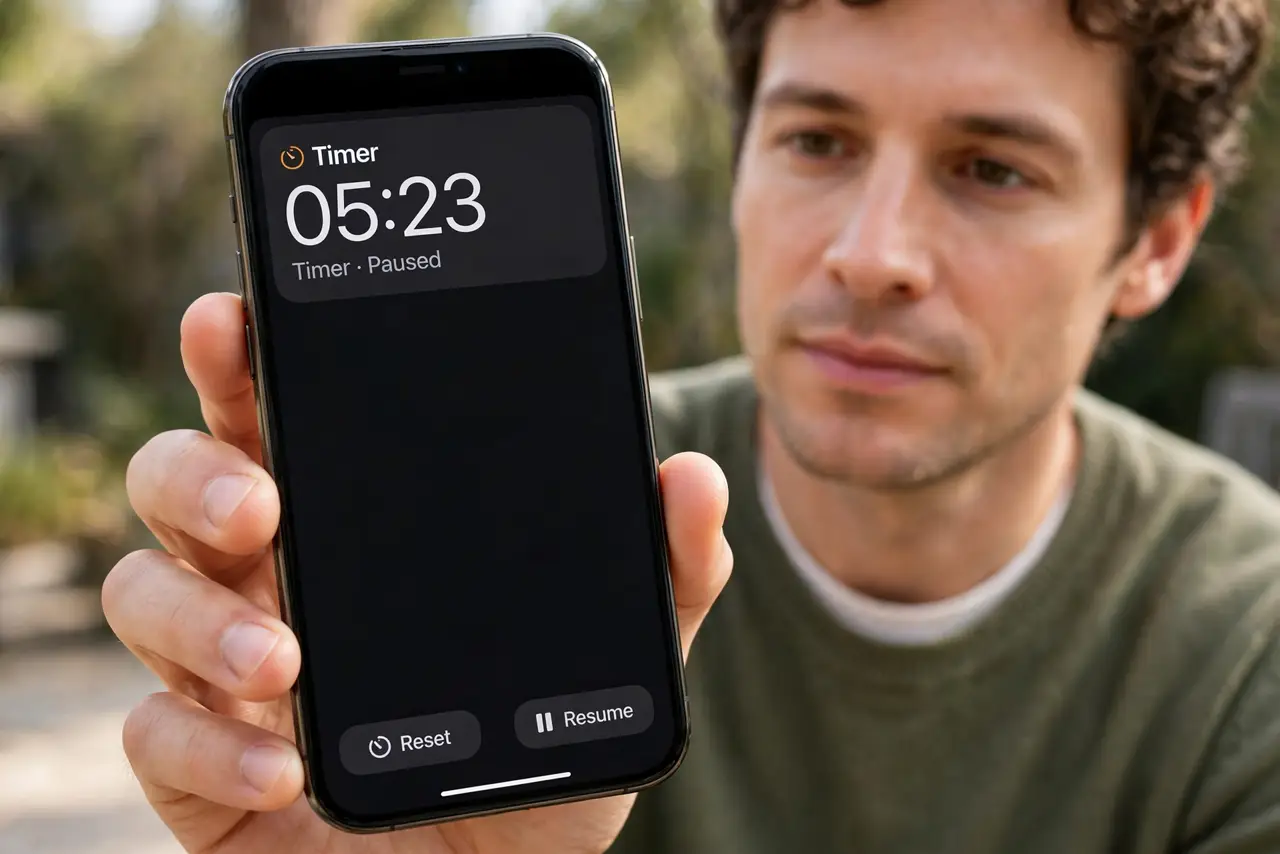
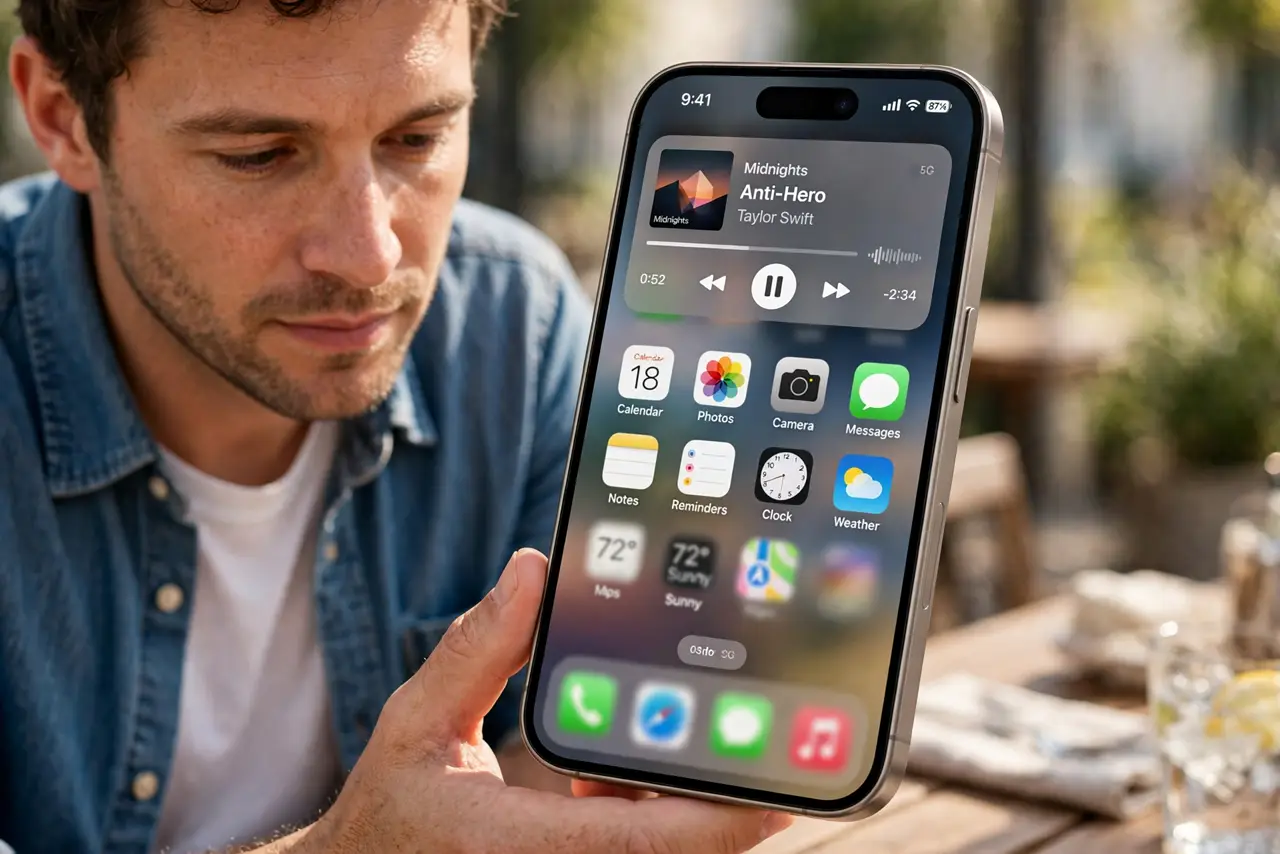
The Dynamic Island opens wide for a call or timer and then never shrinks back. A Live Activity or background task is holding it open — and closing that task usually collapses it.
TL;DR / Quick Fix
Quick fix: tap the expanded island to open its app, then end the call, timer, or activity holding it open. If it stays expanded, swipe the island away or restart the iPhone once and restart the iPhone if the island stays expanded.
Follow these steps
- See what is holding the island open. Look at the expanded island: it shows the app behind it, such as a call, timer, or music. That app is the one keeping the island expanded, so start there.
- End the activity in its app. Tap the island to open its app, then end the call, stop the timer, or pause the playback. The island shrinks once the activity it displays actually ends.
- Swipe the island to dismiss it. Try swiping across the island to dismiss a lingering display. Some island displays close with a swipe even when their app session has already ended.
- Force-close the app behind the island. If the app will not end its activity, force-close it from the app switcher and check the island. Closing the app removes the activity that held the island open.
- Restart the iPhone if the island stays wide. If no app step collapses it, restart the iPhone once. A restart resets the island display and clears any activity display stuck in the expanded state.
- Check for a repeat offender app. If one app always leaves the island expanded, check its Live Activities permission in Settings. Turning it off for that app stops its island displays from lingering.
What NOT to do
- Do not restart the iPhone before checking the island's app. A running timer or call explains an expanded island, and ending it is faster than a restart.
- Do not assume the island is damaged because it stays wide. A stuck activity display looks like a hardware fault, but it is almost always an app session that never ended.
- Do not force-close every app to fix the island. Close only the app shown in the island, since the others have nothing to do with it.
- Do not ignore an expanded island for days. It can hide notifications and cover content, so end the activity or restart promptly.
Frequently asked questions
Why does the Dynamic Island stay expanded?
Because a Live Activity, call, or timer behind it never ended, so the island keeps displaying it.
How do I collapse it?
End the activity in its app, swipe the island away, or restart the iPhone if the display is stuck.
Is a stuck island a hardware problem?
Almost never. It is a software display held open by an app session, not a fault in the screen.