Edit Sent Texts
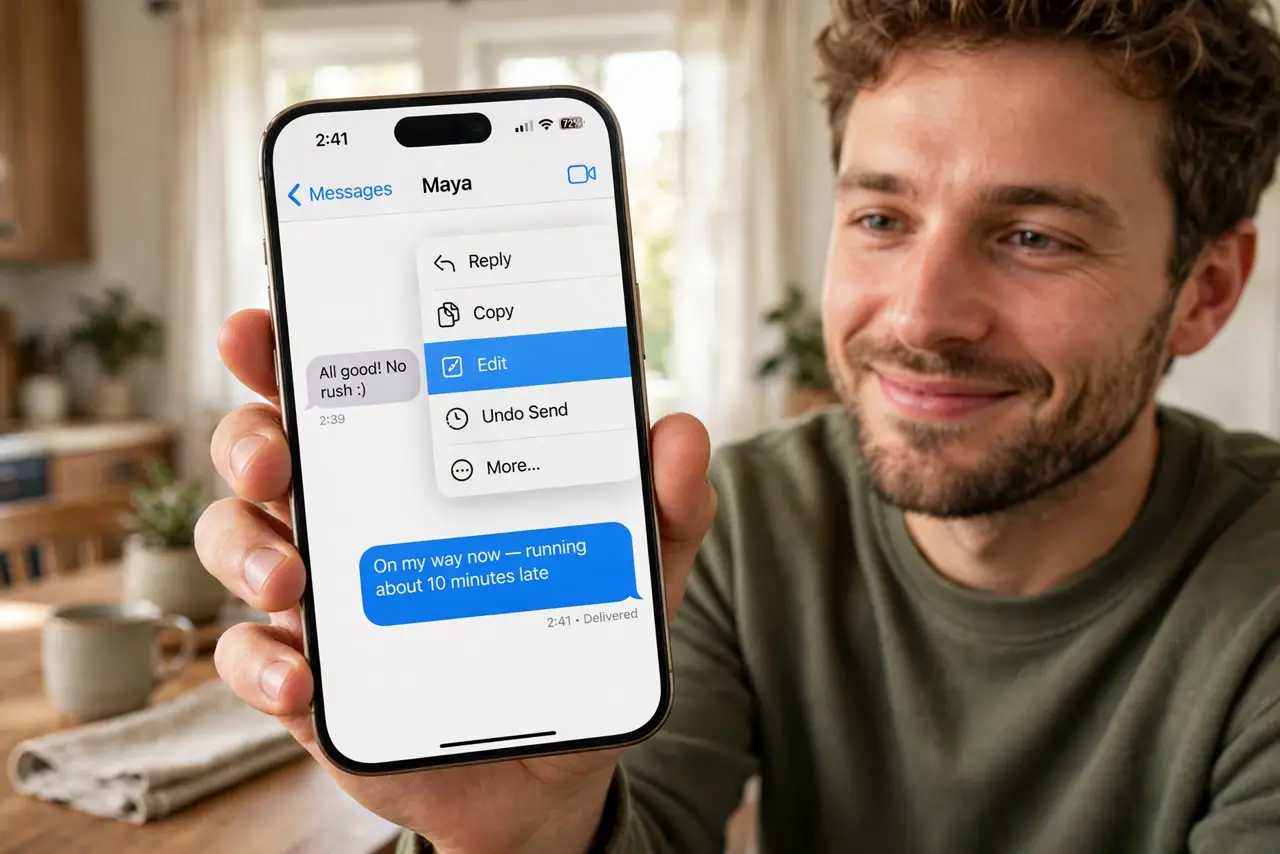
You sent 'definitely' as 'defiantly' — again — or fired off a text to the wrong person and watched the horror unfold. iMessage lets you edit a sent text within two minutes and unsend one entirely, if you act fast. This guide fixes typos, recalls disasters, and knows the limits — because edited messages still show an 'edited' flag. For instant reactions instead, react with Tapback.
TL;DR / Quick Fix
Quick fix: in Messages, press and hold a sent iMessage bubble — tap Edit to fix a typo within two minutes, or Undo Send to recall it. Both need iMessage and recent iOS on both ends. Act fast; the window is short and recipients may have already seen it.
Follow these steps
- Long-press the sent bubble. Within two minutes of sending, press and hold the blue iMessage bubble. The Edit and Undo Send options appear — speed matters here.
- Edit the typo. Tap Edit, fix the text, and send. The message shows an 'Edited' label; recipients can tap it to see the edit history — so edit, do not rewrite history.
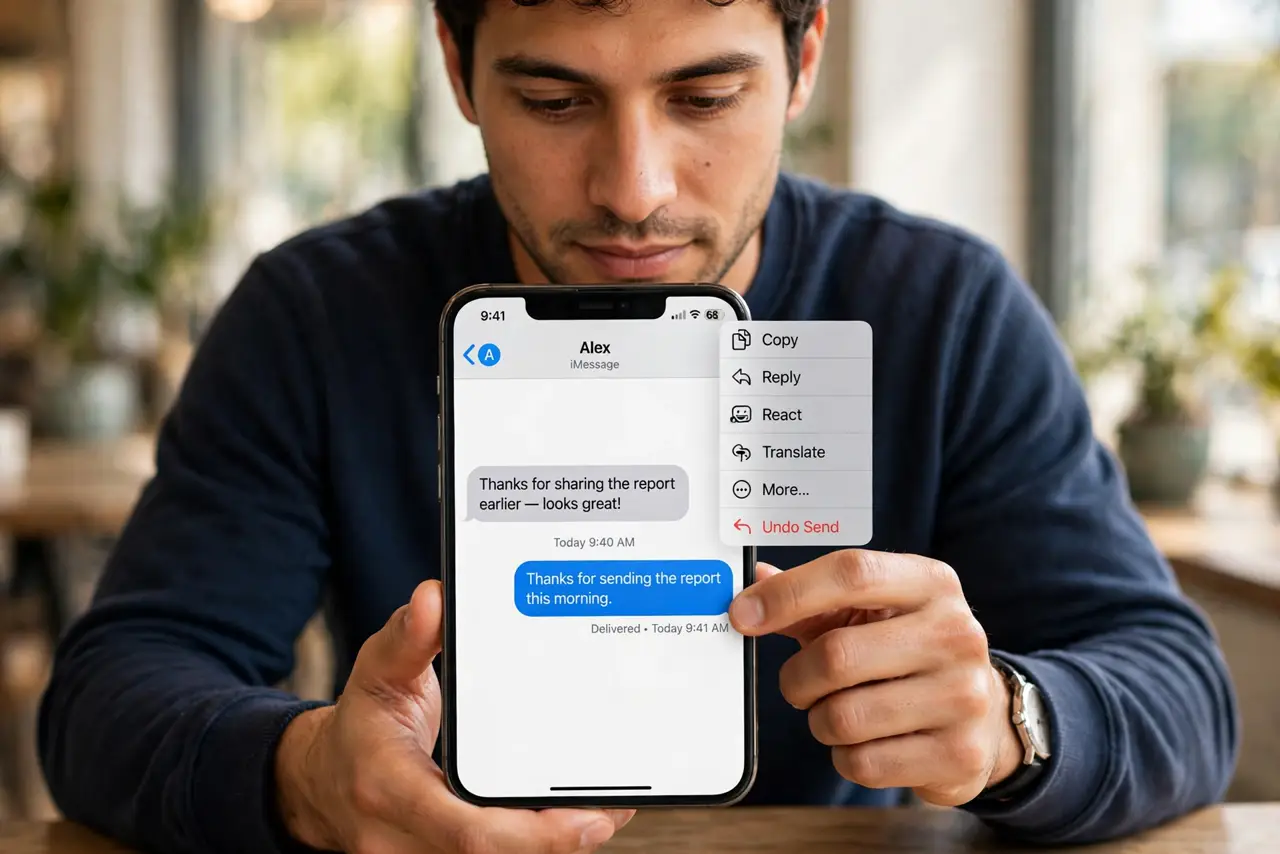
- Undo Send for disasters. Tap Undo Send to retract the message entirely. It vanishes from both phones — unless the recipient already read it or screenshotted it.
- Know the time limits. Two minutes for both edit and unsend. After that, the options disappear and the message is permanent — there is no late recall.
- Check the requirements. Both sides need iMessage on recent iOS. Messages to Android (green bubbles) or old iOS versions cannot be edited or unsent at all.
- Do not rely on it for secrets. Undo Send is not a security feature — notifications may have previewed the text, and screenshots defeat it completely. Think before sending, not after.
What NOT to do
- Do not edit to change meaning sneakily. The edit history is visible — rewriting 'no' to 'yes' after the fact will be caught.
- Do not assume unsend worked. Read receipts, notification previews, and screenshots all survive the recall — verify with the person for anything critical.
- Do not wait to decide. The two-minute window is short; hesitation turns a fixable typo into a permanent one.
- Do not expect it on SMS. Green-bubble messages to Android have no edit or unsend — those are final the moment they send.
Frequently asked questions
Can the other person see the original?
For edited messages, yes — the edit history is viewable. For unsent messages, they see that a message was unsent, plus anything they already read.
Why do I not see Edit?
The message is older than two minutes, it is SMS not iMessage, or the software is outdated on either end.
Does unsend work in group chats?
Yes, under the same rules — two minutes, iMessage, recent iOS. Group members who already saw it still saw it.