Emergency SOS Triggers by Accident on iPhone
Emergency SOS is meant for real emergencies, but side-button presses in a pocket or bag can set it off. You can keep the feature while making accidental triggers much less likely.
TL;DR / Quick Fix
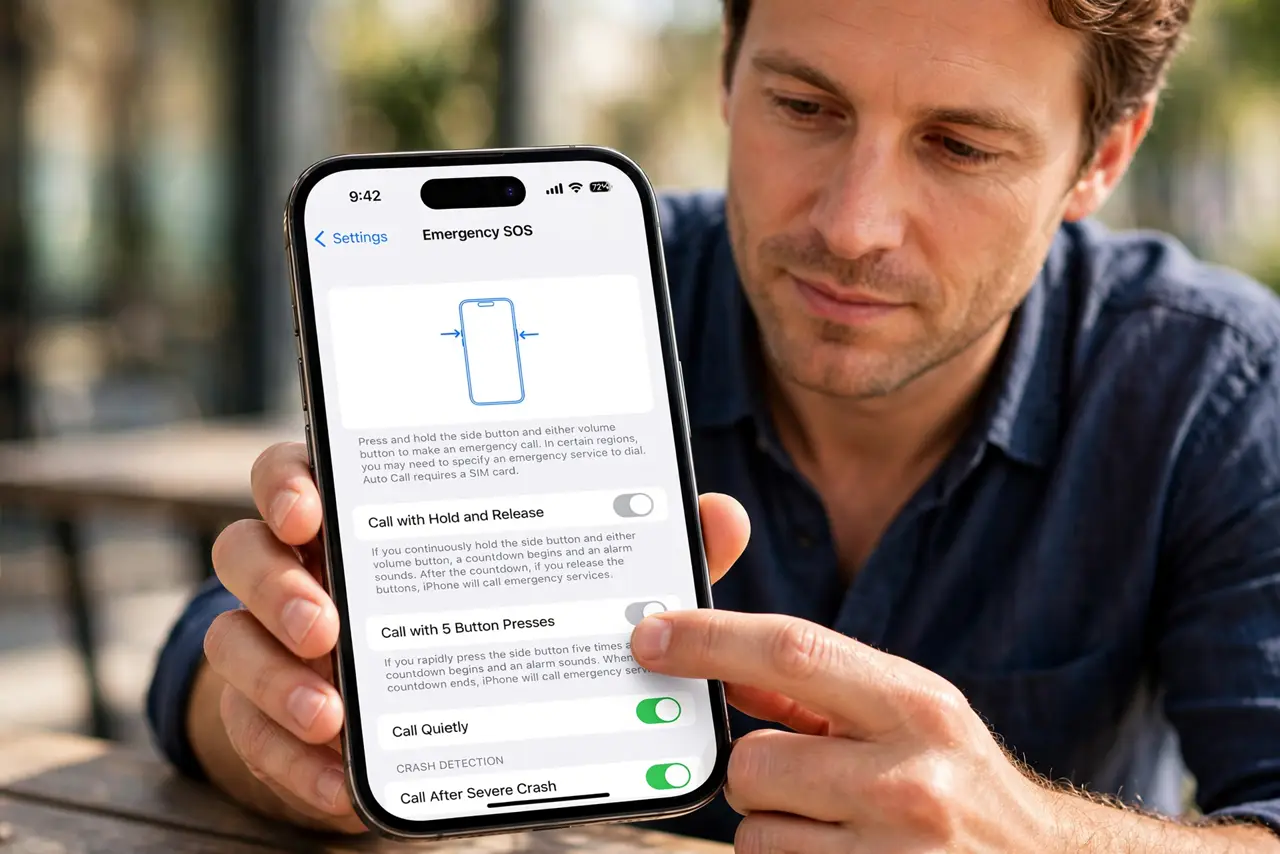
Quick fix: open Settings, then Emergency SOS, and turn off Call with Hold and Release and Call with 5 Button Presses. Keep Call with Side Button only if you want it, and use a case that covers the buttons and keep one deliberate SOS route available.
Follow these steps
- Turn off Hold and Release calling. Open Settings, then Emergency SOS, and turn off Call with Hold and Release. That stops a long side-button press in a pocket from starting an emergency call on its own.
- Turn off the 5-press shortcut if it misfires. In the same Emergency SOS pane, turn off Call with 5 Button Presses if pocket presses keep triggering it. You keep the other SOS routes, just not the one that misfires.
- Use a case that guards the side button. A case with a firm button cover makes accidental presses harder while keeping deliberate presses possible. A loose pocket without a case is the worst combination.
- Carry the iPhone with buttons facing away. Put the iPhone in a pocket or bag with the side button facing away from keys and tight objects. Fewer hard presses reach the button in the first place.
- If a call starts, stay and explain. If Emergency SOS does start a call by accident, stay on the line and tell the operator it was accidental. Hanging up can trigger a callback, which causes more worry than a short explanation.
- Teach the household the new setup. Tell family members which SOS shortcuts you turned off, so nobody assumes a shortcut still works in a real emergency. Show them the remaining way to call for help.
What NOT to do
- Do not turn off Emergency SOS entirely over accidental triggers. The feature can save a life, so tame the trigger instead of removing the safety net.
- Do not hang up on an accidental emergency call without speaking. Operators may call back or send help, so a brief explanation is kinder and safer.
- Do not carry the iPhone loose with keys pressing the side button. A case and a better pocket position prevent most accidental triggers.
- Do not test Emergency SOS by placing a real call. Use the settings screen to review the options, and never tie up an emergency line for a test.
Frequently asked questions
Why does SOS trigger in my pocket?
Because a long side-button press or five quick presses can start it, and a tight pocket presses buttons without you noticing.
Is it safe to turn off a shortcut?
Yes, as long as one SOS route remains that you can use deliberately in a real emergency.
What if SOS calls by accident?
Stay on the line and explain it was accidental, instead of hanging up and triggering a callback.