Erase All Content? Basics
You are selling your iPhone, handing it to a family member, or trading it in — and your photos, messages, and accounts need to be gone for good. Erase All Content and Settings wipes the phone back to factory-fresh in a few taps. Done right, your data is unrecoverable and the next owner can activate it cleanly. Here is the safe sequence.
TL;DR / Quick Fix
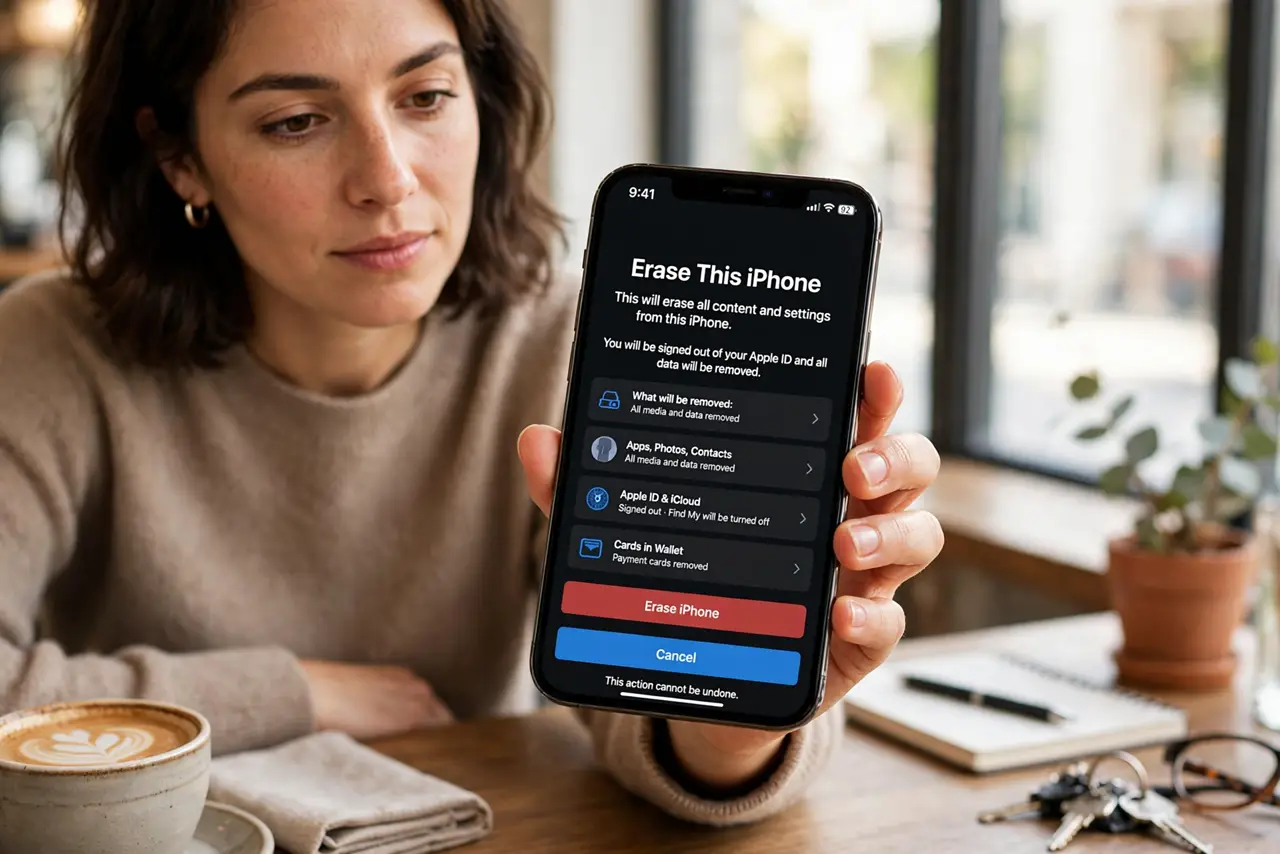
Quick fix: back up first, then go to Settings, General, Transfer or Reset iPhone, and tap Erase All Content and Settings. Sign out of iCloud when prompted so Activation Lock releases. Keep the phone charged and on Wi-Fi until it finishes and shows the hello screen.
Follow these steps
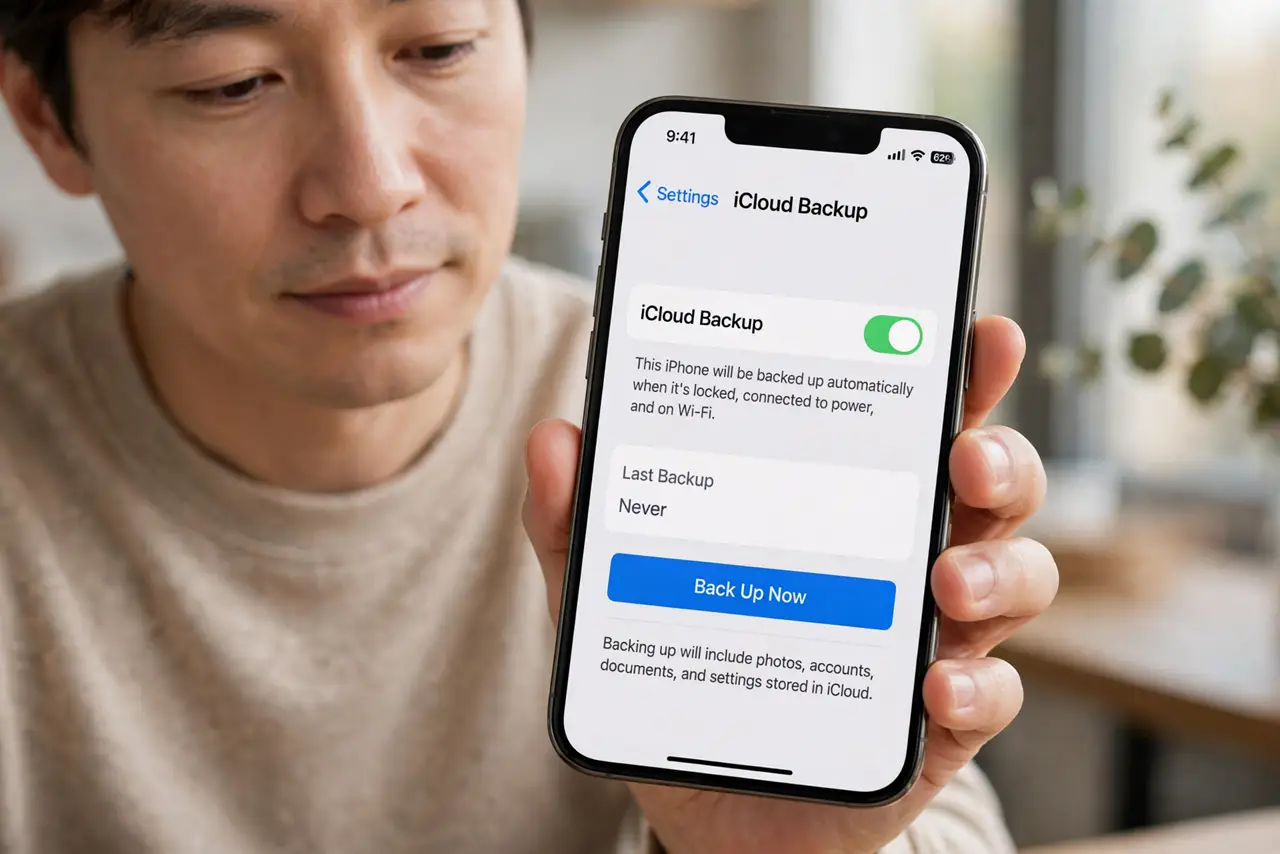
- Back up before you erase. Run a fresh iCloud or computer backup and confirm its date before touching anything. Erasing is one-way — without a current backup, your photos and messages are gone. Our backup restore guide covers getting everything back on your next phone.
- Sign out of iCloud and the App Store. Go to Settings, tap your name, and sign out at the bottom. This releases Activation Lock — skip this and the next owner gets a phone they cannot activate, which kills resale value.
- Remove the SIM and unpair accessories. Take out the physical SIM (or erase the eSIM during reset) and unpair your Apple Watch if you have one. Accessories paired to the old phone cause confusing prompts for the new owner.
- Run Erase All Content and Settings. Go to Settings > General > Transfer or Reset iPhone > Erase All Content and Settings, and confirm. The phone wipes itself — on modern iPhones this is fast because it just destroys the encryption keys.
- Wait for the hello screen. Let the erase finish completely until the 'Hello' setup screen appears. Do not interrupt it, and keep the phone on the charger — a half-erased phone is a headache for everyone.
- Verify it is clean before handing it over. The hello screen with no Apple ID attached means it is ready. If the phone is unresponsive and will not erase normally, Recovery Mode is the fallback.
What NOT to do
- Do not erase before confirming your backup. Check the backup date yourself — 'it backs up automatically' is not a verification.
- Do not forget to sign out of iCloud first. An erased phone still tied to your Apple ID is an expensive brick for the buyer.
- Do not erase a phone you still need today. Do it the night before the sale, not an hour before you need maps to get there.
- Do not trust 'delete photos manually' as a wipe. Manual deletion leaves recoverable traces — only Erase All Content and Settings does a proper cryptographic wipe.
Frequently asked questions
Is Erase All Content and Settings enough for privacy?
Yes — on modern iPhones it destroys the encryption keys, making all data cryptographically unrecoverable instantly. It is far more thorough than deleting things by hand.
Will erasing remove the carrier lock?
No. Erasing never removes a carrier/SIM lock — that is separate and must be requested from your carrier.
Can I erase remotely if I already sold it?
Yes — use Find My on iCloud.com to erase it remotely, then remove it from your Apple ID. Do this ASAP if you forgot before handing it over.