Plan EV Charging Routes
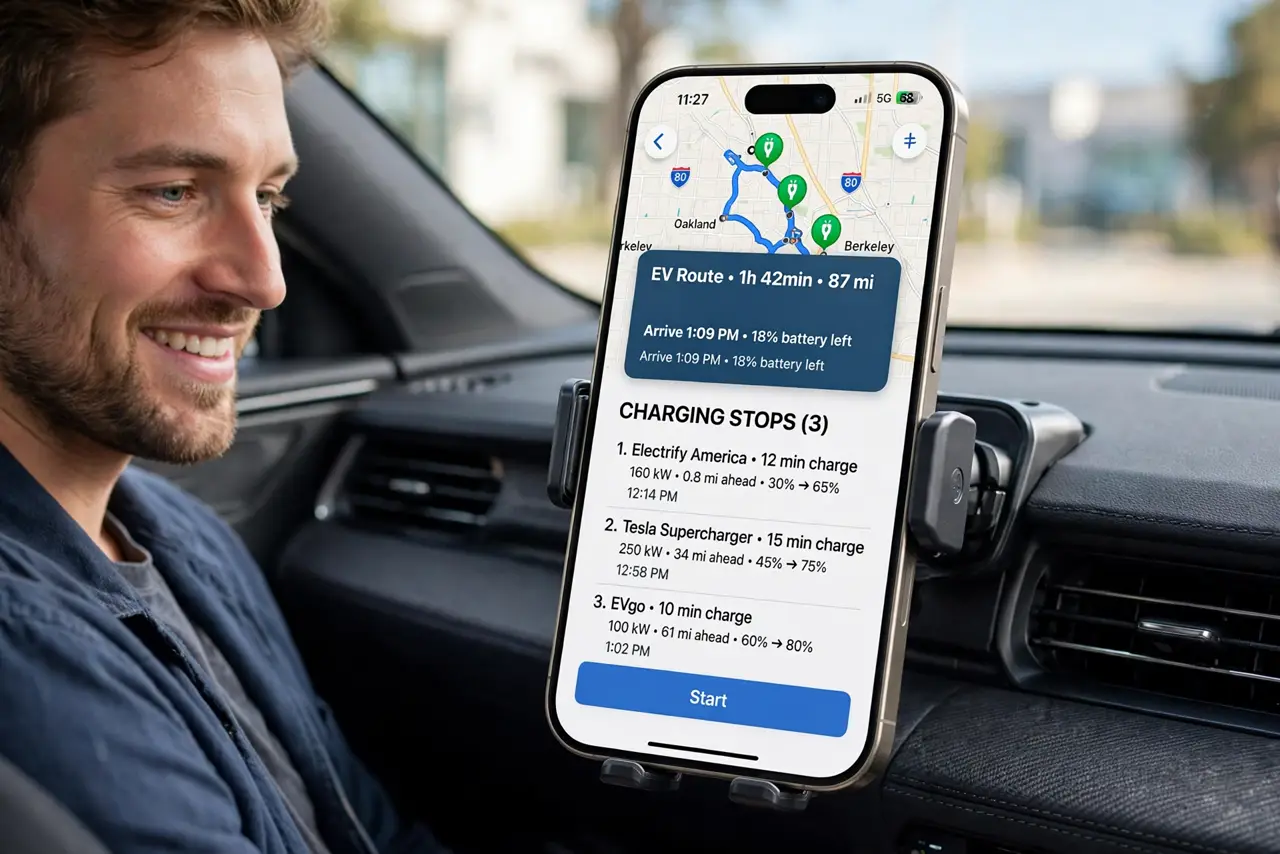
Road-tripping an electric car used to mean spreadsheet-level planning and range anxiety. Apple Maps now plans charging stops automatically for many EVs — pick compatible chargers along your route, sized to your battery. Set it up once and road trips feel like road trips again.
TL;DR / Quick Fix
Quick fix: in Apple Maps, add your EV in Settings, Maps, then plan a route — Maps inserts charging stops automatically based on your car's range. Prefer networks you have accounts with, and always have a backup charger in mind in case a station is full or broken.
Follow these steps
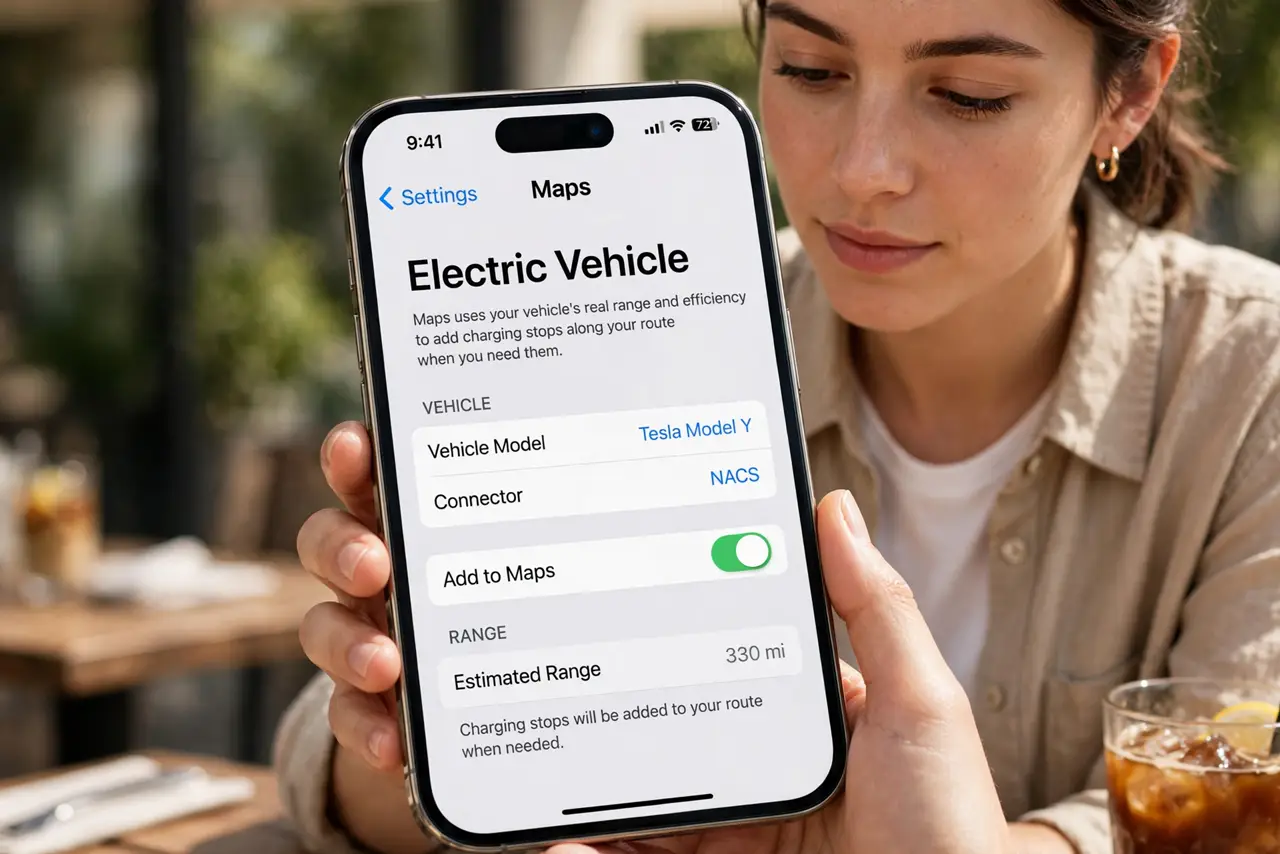
- Add your EV to Apple Maps. Go to Settings, Maps, and add your vehicle model if supported. Maps uses its real range and efficiency to place charging stops where you will actually need them.
- Plan the route normally. Enter your destination and start navigation — charging stops appear as waypoints automatically. Maps accounts for elevation and your current charge level, not just distance.
- Check charger details before committing. Tap each charging stop to see the network, plug type, and speed. A 350 kW station saves real time over a 50 kW one — the details screen tells you which you are getting.
- Prefer networks you can pay easily. Charger chaos usually means payment chaos. Favor networks where you have the app or membership set up — fumbling with new accounts at a remote station is miserable.
- Always have a backup stop. Chargers break and queues form. Note the next charger past your planned stop before you arrive — the five seconds of planning beats an hour stranded.
- Combine with multi-stop planning. For errand days, build multi-stop routes with charging worked in — Maps handles the ordering so you charge while you shop.
What NOT to do
- Do not trust arrival estimates blindly in winter. Cold cuts range significantly — plan with 20% more buffer than the app suggests in freezing weather.
- Do not arrive at low charge with no backup. One broken charger at 5% battery is a tow truck — keep a reserve and a plan B.
- Do not assume all chargers fit your car. Plug types and networks vary — verify compatibility in the stop details before navigating there.
- Do not skip checking station status. Apps showing live availability beat driving to a full or broken station — check before you commit to the detour.
Frequently asked questions
Which EVs work with Apple Maps routing?
Support varies by maker and model year — check Settings, Maps on your iPhone for the current vehicle list. Coverage expands regularly.
How accurate are the charging time estimates?
Good but optimistic — they assume ideal charger speed and battery temperature. Add 20-30% buffer for real-world conditions.
Can I filter for specific charging networks?
Yes, in the route options you can prefer networks. Set your memberships once and Maps favors them on every trip.