Avoid Tolls in Apple Maps
Nothing sours a drive like an unexpected $12 toll — or the rental-car toll bill that arrives weeks later. Apple Maps can route around tolls automatically, and you can toggle it per trip. Set your preference once and stop paying for roads you did not mean to take.
TL;DR / Quick Fix
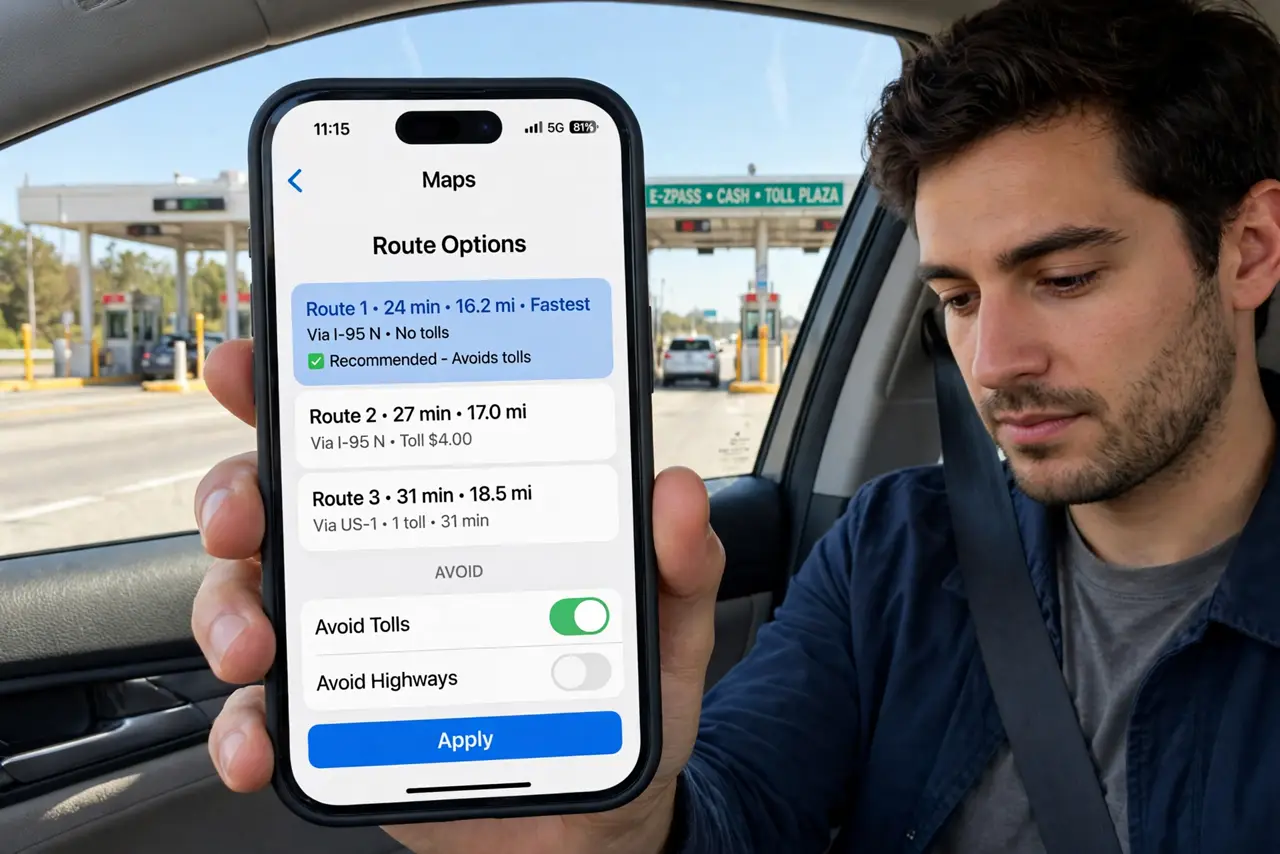
Quick fix: in Apple Maps route options, turn on Avoid Tolls — or set it permanently in Settings, Maps, Driving, Avoid Tolls. The route may take a few minutes longer but costs nothing extra. For complex errand days, combine with multi-stop routes planned around toll-free roads.
Follow these steps
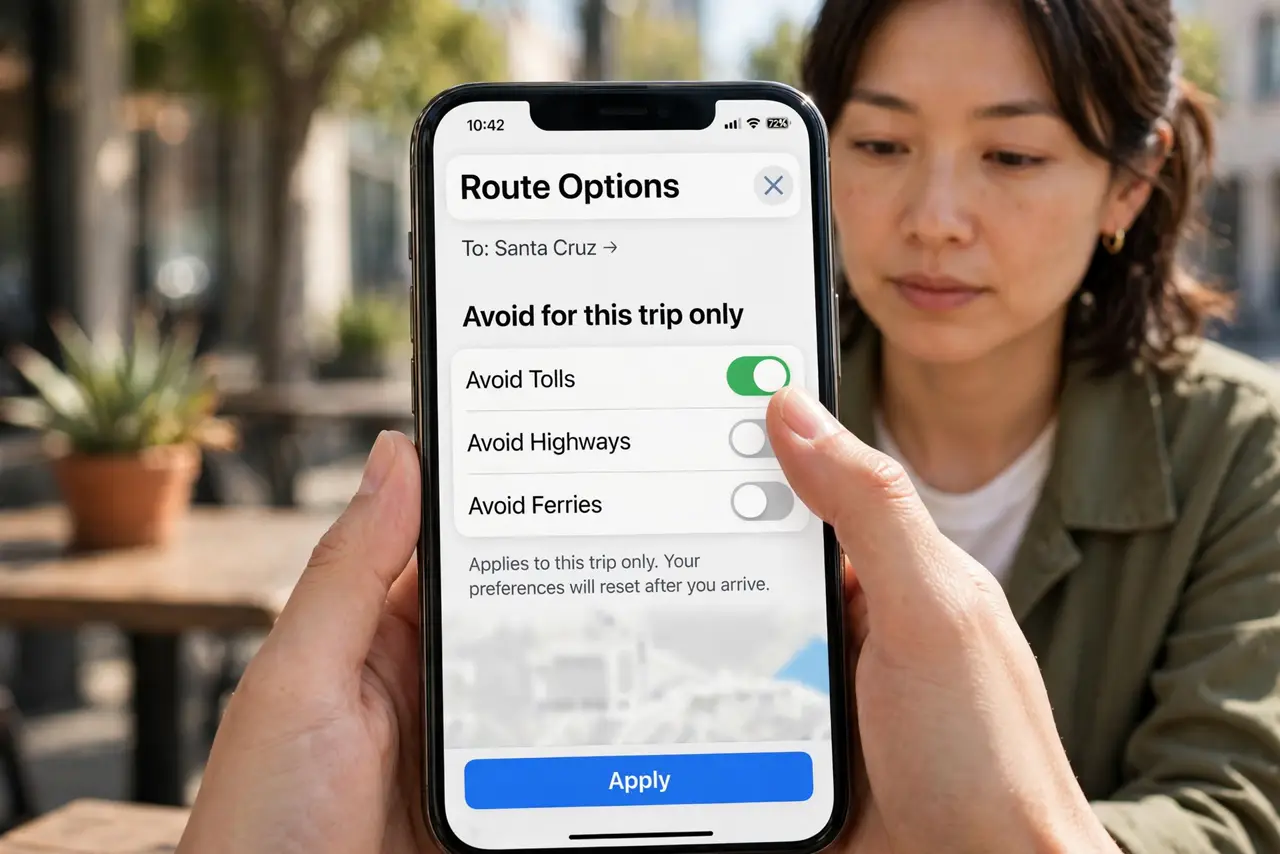
- Avoid tolls for one trip. After entering a destination, tap the route options and toggle Avoid Tolls for that trip only. Perfect for the occasional drive where you would rather take the scenic route.
- Set it as your default. Go to Settings, Maps, Driving, and turn on Avoid Tolls permanently. Every future route avoids tolls unless you override it — set and forget.
- Compare the time cost. Maps shows both options when the difference matters. A 5-minute-longer toll-free route is usually worth it; a 40-minute detour to save $2 is not — decide with the numbers visible.
- Know what counts as a toll. The setting avoids tolled highways and bridges, but some congestion zones and express lanes may still appear — check the route details for fee notes.
- Watch for rental car toll traps. Rental companies charge hefty 'convenience fees' on top of tolls. Avoid-tolls routing plus paying cash where possible keeps the post-trip bill from shocking you.
- Pair with multi-stop planning. On errand days, build multi-stop routes with toll avoidance on — Maps optimizes the whole loop around free roads.
What NOT to do
- Do not assume Avoid Tolls is on because you set it once. iOS updates and route overrides can reset preferences — glance at the route before driving.
- Do not take a huge detour to dodge a tiny toll. Compare time vs money on the route screen — sometimes the toll is the smart buy.
- Do not forget bridges. Some toll bridges have no reasonable alternative — Maps will warn you when avoidance is impractical.
- Do not rely on it in unfamiliar countries. Toll systems abroad may not be fully mapped — research local tolls before driving internationally.
Frequently asked questions
Does Avoid Tolls also avoid highways?
No — separate toggles. You can avoid tolls while keeping highways, or avoid both for the full back-roads experience.
Why did Maps still route me through a toll?
Some tolls are unavoidable on the only reasonable route, or the map data missed a new toll. Report it in Maps to help fix the data.
Can I avoid tolls but allow them when worth it?
Yes — leave the default on and toggle per trip. The route comparison shows the time savings, so you decide case by case.