Use Express Transit
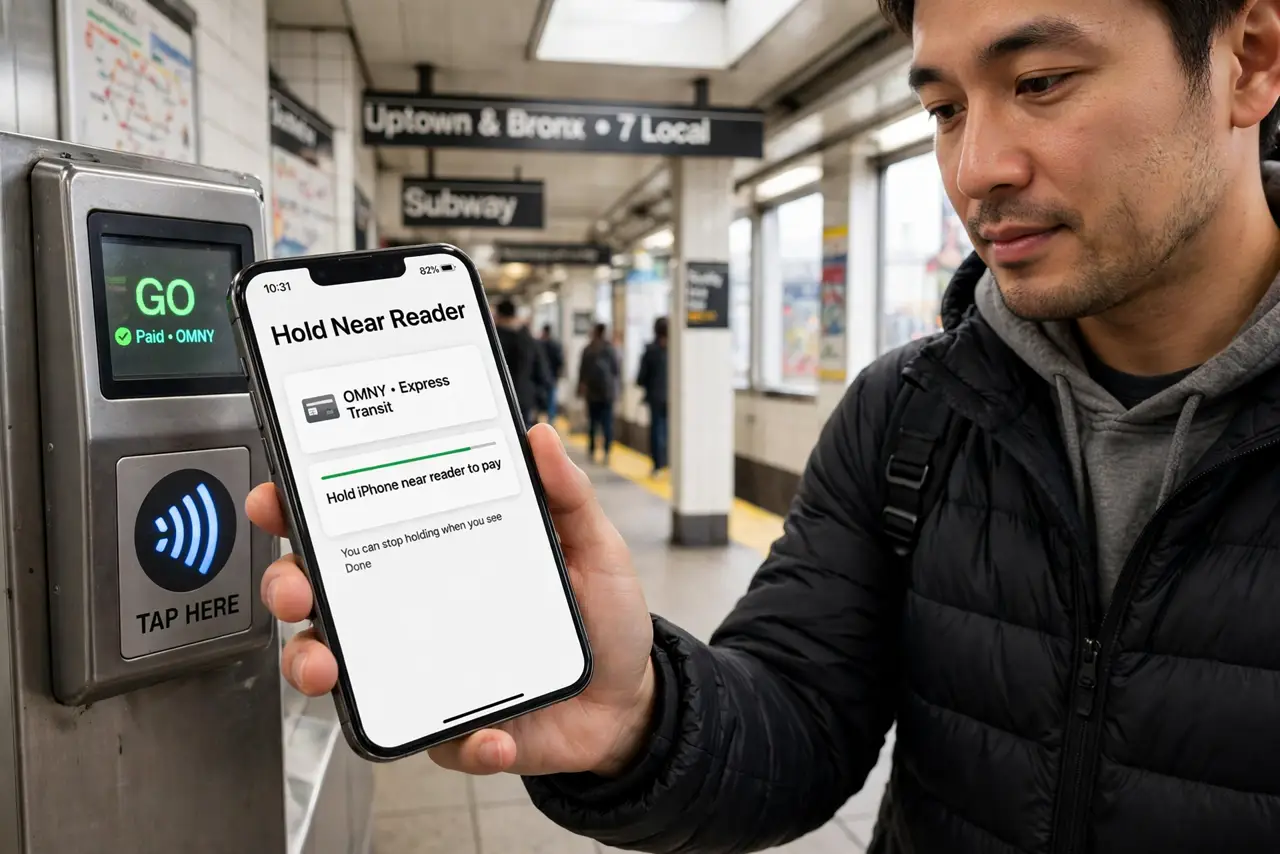
You are at the subway gate, phone in hand, fumbling to unlock it and open the wallet while the line builds behind you. Express Transit fixes this: pick one transit card in Apple Wallet, and it works by just tapping the phone — no unlock, no Face ID, no opening anything. Two minutes of setup, and you glide through gates forever.
TL;DR / Quick Fix
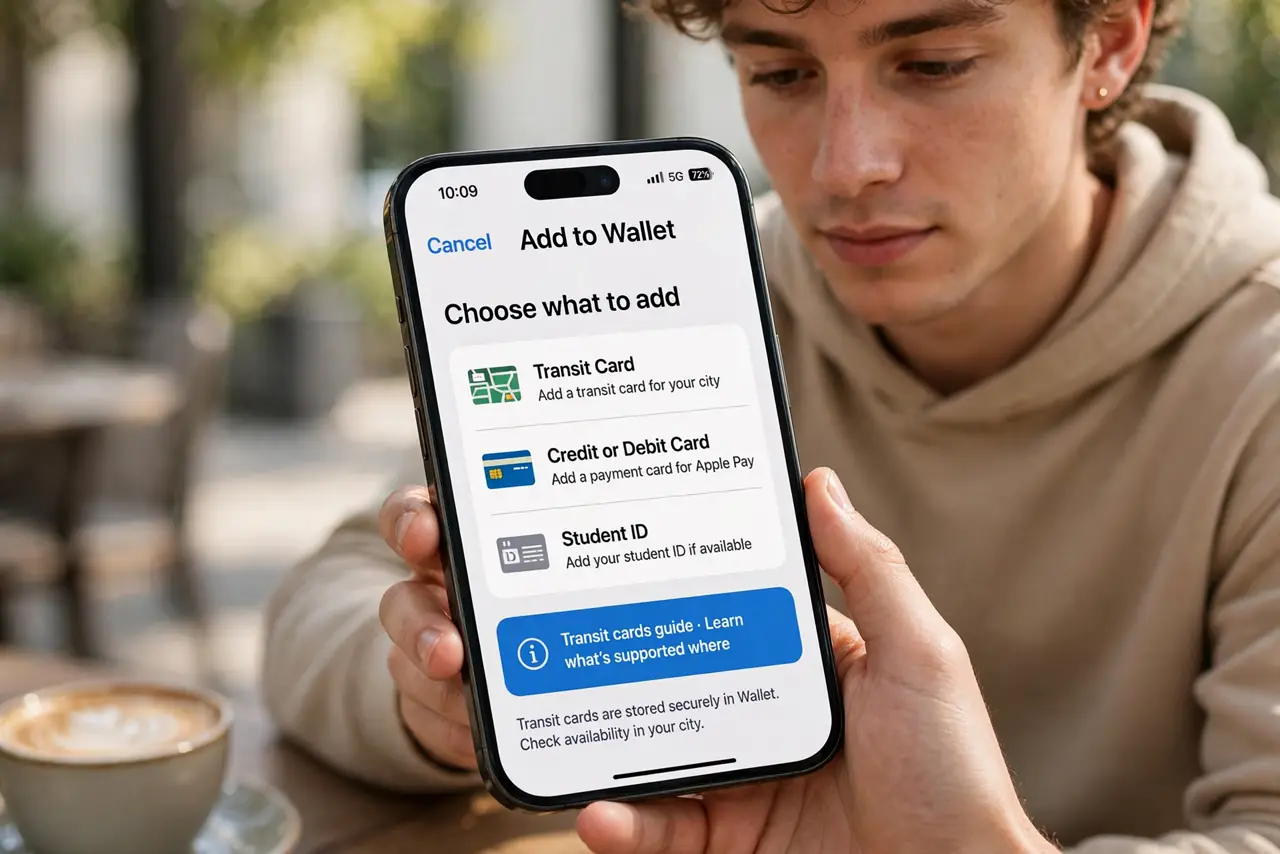
Quick fix: Express Transit lets you tap your iPhone at transit gates without unlocking it or opening Wallet. Add a transit card to Apple Wallet, open its settings, and enable Express Transit. Two minutes of setup, then tap and walk through. See the transit cards guide for setup details.
Follow these steps
- Add a transit card to Apple Wallet. Open Wallet, tap +, and choose a transit card for your city — or add a payment card that your transit system accepts. The transit cards guide lists what is supported where.
- Open the card's settings. In Wallet, tap the transit card, then the three-dot menu. This is where per-card options live — Express Transit is one of them.
- Turn on Express Transit. Toggle Express Transit on for this card. If you have several cards, pick ONE — the phone cannot guess which system you are tapping into.
- Test it at a gate. Hold the top of the iPhone near the reader without unlocking. You will feel the haptic tap — that is the payment going through. No Face ID, no passcode, no open app.
- Know it works with a nearly dead battery. On recent iPhones, Express Transit works for hours after the battery dies via power reserve. It is the one feature designed for the exact moment your phone gives up.
- Turn it off when traveling. Visiting another city? Switch Express Transit to that city's card — or off — so a stray tap does not charge the wrong system.
What NOT to do
- Do not enable Express Transit on two cards at once. The phone uses one default — pick the card for the system you are actually riding.
- Do not assume every city supports it. Express Transit needs the transit agency's participation — check your city's support before relying on it.
- Do not panic about security. Express Transit only works with designated transit readers, not store terminals — nobody can charge your card by bumping your phone at a shop.
- Do not forget it after a trip. A card left as Express default can surprise you with a charge back home — switch it when you travel.
Frequently asked questions
Does Express Transit work without internet?
Yes — the tap is local between phone and reader. You need connectivity to top up the card, but not to ride.
Can I use Express Transit with Apple Watch?
Yes — set it up separately in the Watch app's Wallet settings. The watch taps gates the same way, no unlock needed.
What if the gate does not react?
Hold the very top of the phone flat against the reader for a full second. Thick cases with metal can interfere — and confirm the right card is the Express one.