Face ID With a Mask?
You're wearing a mask and Face ID just stares at you — so you type the passcode like it's 2016 again. Apple added Face ID with a Mask, which recognizes the unique features around your eyes to unlock while masked. It needs an iPhone 12 or later and a minute of setup. Here is how to enable it and what to expect.
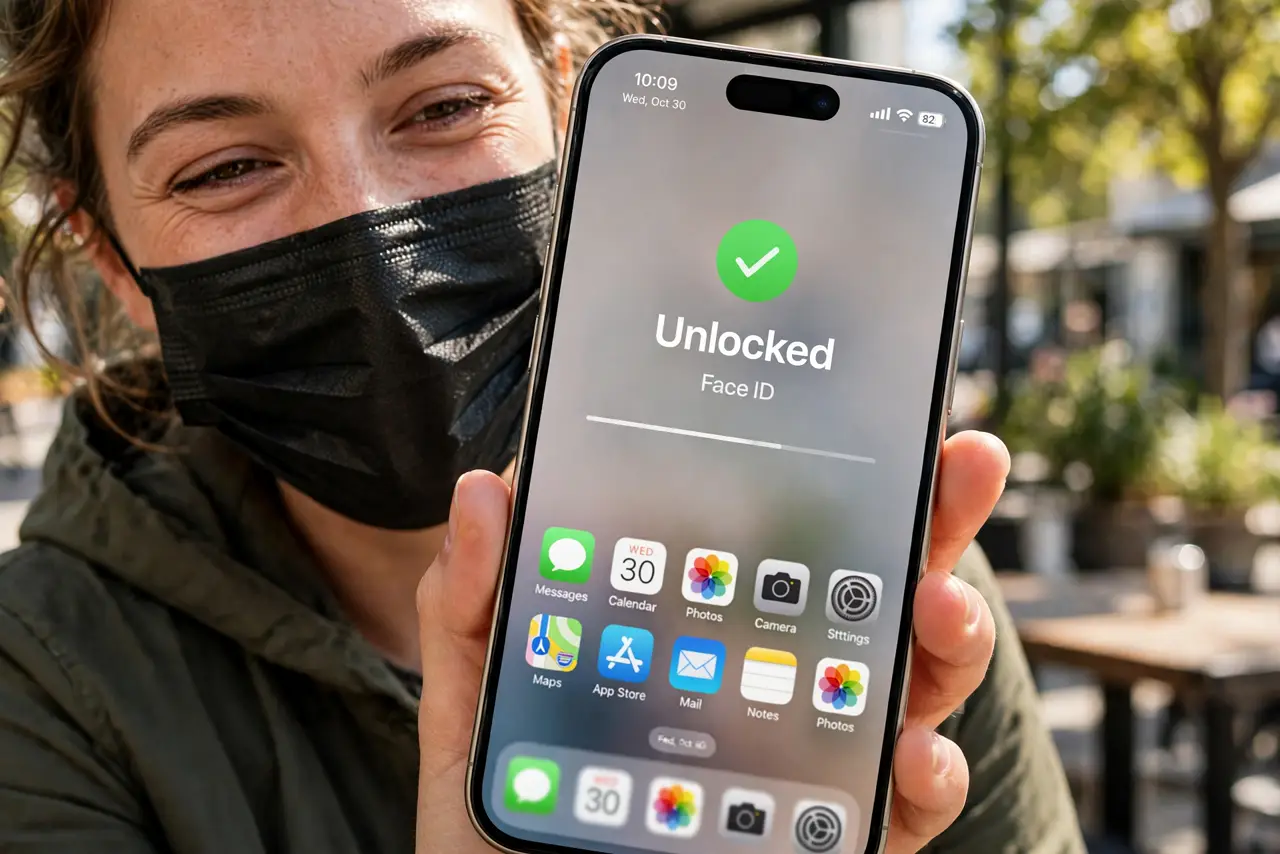
TL;DR / Quick Fix
Quick fix: on iPhone 12+, Settings → Face ID & Passcode → Face ID with a Mask → enable it, and add each pair of glasses you wear. It recognizes your eye area to unlock while masked. Slightly less secure than full-face — but far better than typing passcodes.
Follow these steps
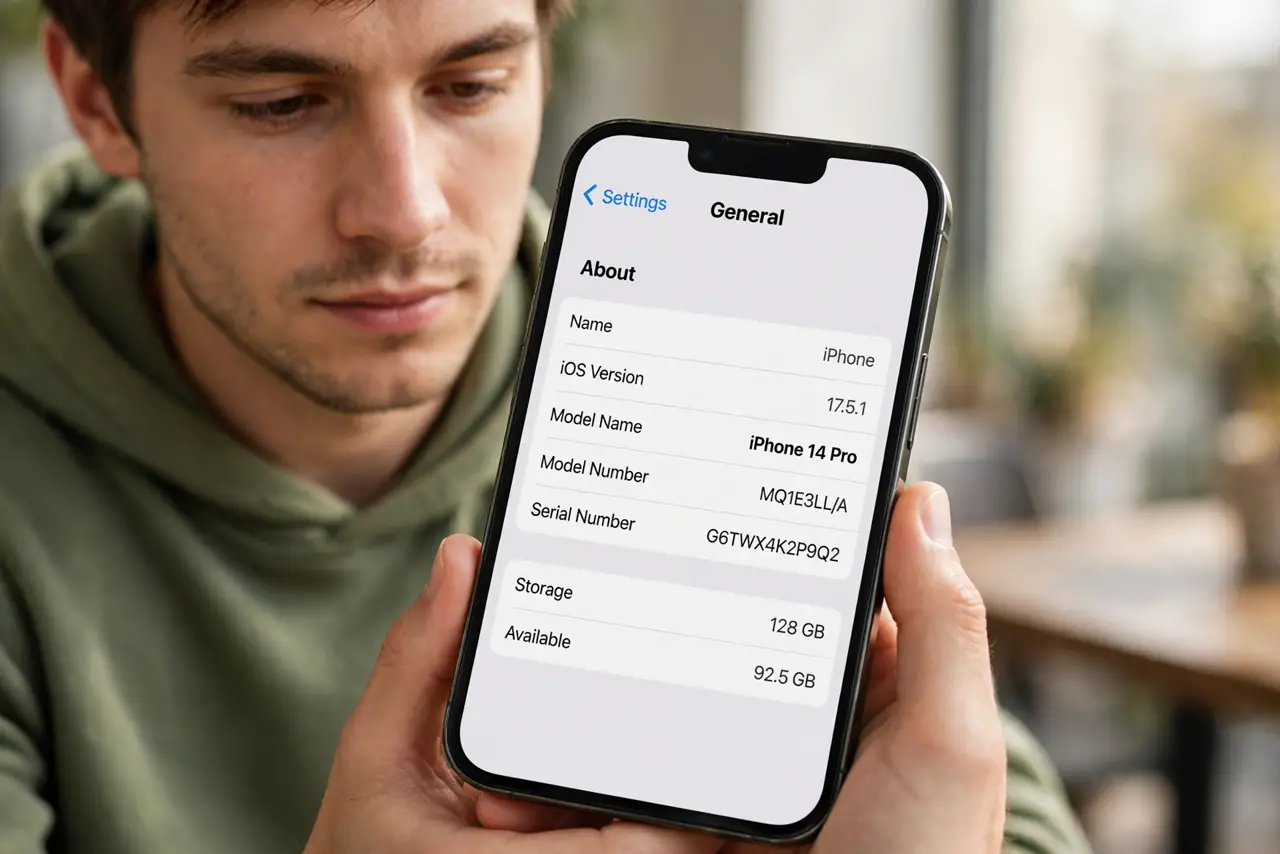
- Check your iPhone qualifies. Face ID with a Mask needs iPhone 12 or later — it won't appear on iPhone 11 or X. Update to a recent iOS too. If the toggle is missing, the hardware is the reason.
- Enable it. Settings → Face ID & Passcode → enter passcode → toggle on 'Face ID with a Mask.' The phone runs a quick additional scan of your eye area. A strong passcode stays important — mask mode is a convenience layer, not a replacement.
- Add your glasses. Tap 'Add Glasses' and scan each pair you wear regularly — it handles most eyewear, but each pair needs its own enrollment. Sunglasses don't work (eyes must be visible). Skip this and masked unlocks with glasses will fail.
- Test it properly. Put on your mask (and glasses) and lock/unlock a few times. Angle the phone slightly lower than usual — it needs a clear view of your eyes. If it struggles, redo the scan in good lighting.
- Know the security tradeoff. Apple states mask mode is less secure than full-face — it authenticates on fewer features. For most people the convenience wins; if your threat model is high, keep full-face only and type the code when masked.
- Pair with Stolen Device Protection. Mask mode's slight security reduction makes Stolen Device Protection even more worthwhile — it ensures critical changes still need full Face ID plus a delay. Layers compensate for each other.
What NOT to do
- Do not expect it on iPhone 11 or older. The feature needs the newer sensor pipeline — no software update will add it.
- Do not enroll with sunglasses on. The scan needs your eyes visible; sunglasses enrollment will fail or produce a useless profile.
- Do not skip adding each glasses pair. One generic glasses scan doesn't cover different frames — enroll them all.
- Do not assume it works with face coverings beyond masks. Ski masks and coverings over the eye area defeat the eye-area scan.
Frequently asked questions
Why does it fail with my glasses?
Each pair needs separate enrollment via 'Add Glasses.' Also check the lenses are clean and the frames don't obscure your eyes heavily — very dark tints read as sunglasses.
Is it really less secure?
Marginally, per Apple — fewer facial features means a slightly higher false-accept rate. In practice it's still far stronger than a 4-digit passcode typed in public.
Can I use it for Apple Pay?
Yes — masked Face ID authorizes Apple Pay and app logins too. The double-click-side-button flow works the same.