Captions in FaceTime Calls
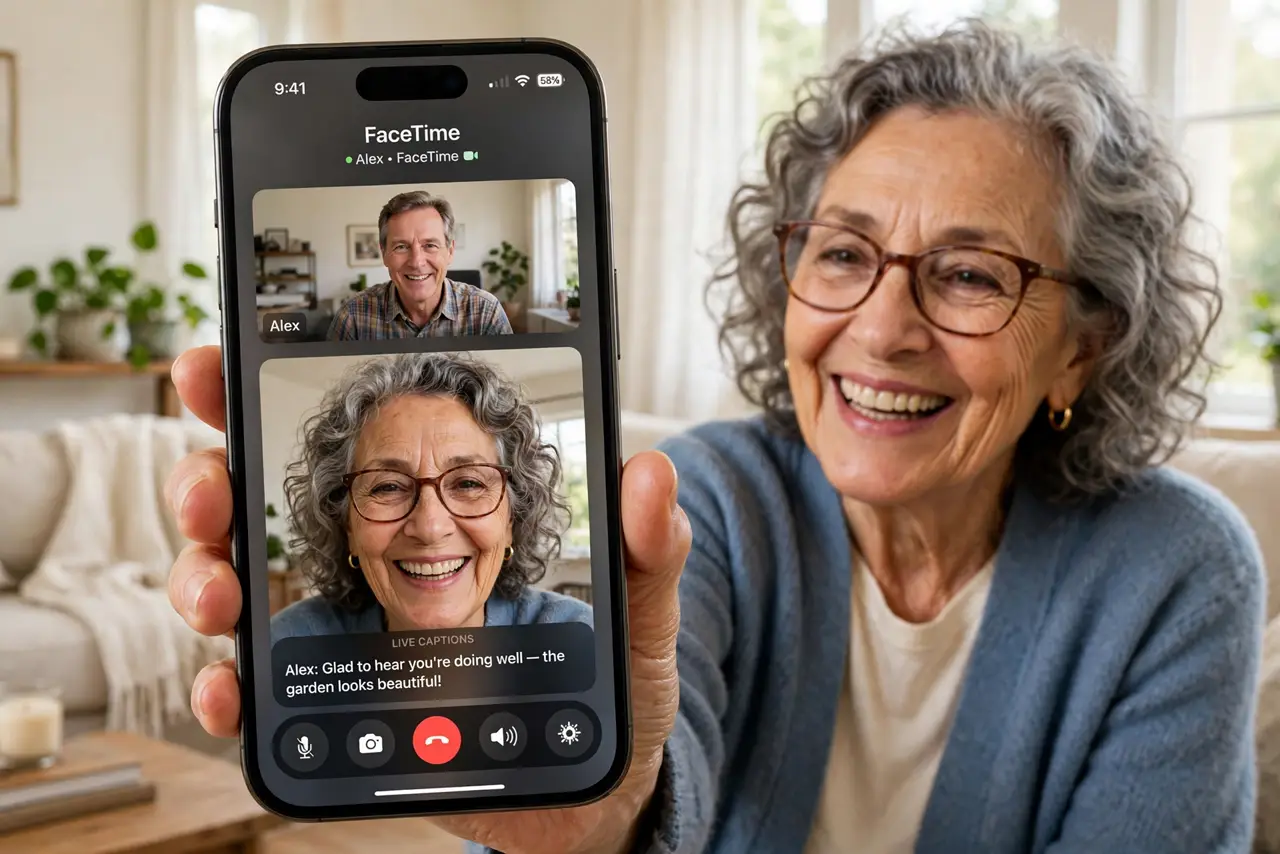
FaceTime with Grandma is wonderful until the hearing aids whistle and half the conversation evaporates. Live Captions puts real-time subtitles on your FaceTime calls — generated on your iPhone, in English, with nobody's audio leaving the device. Here is how to switch them on and what to expect.
TL;DR / Quick Fix
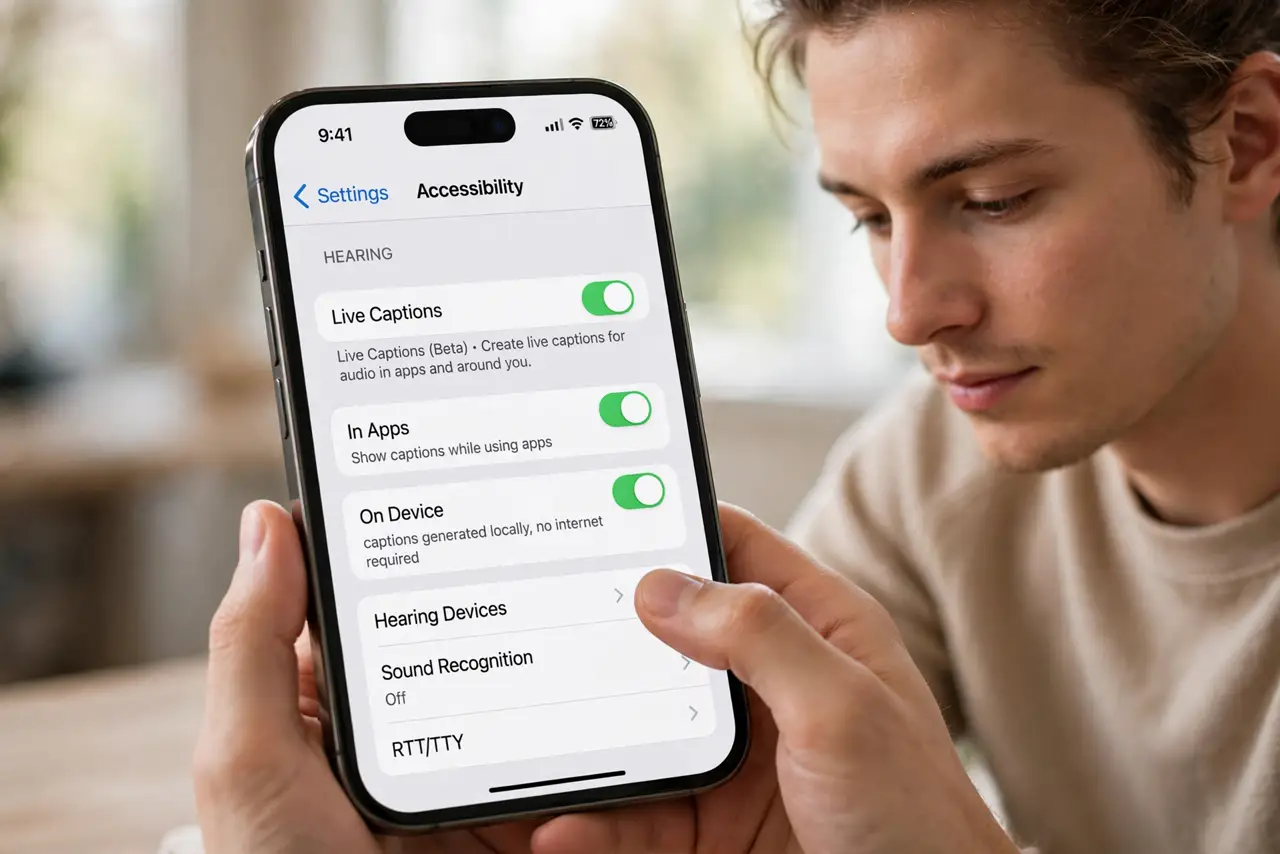
Quick fix: open Settings > Accessibility > Hearing and turn on Live Captions. On the next FaceTime call, captions appear automatically as people speak. It works on iPhone 11 and later in English. Captions are generated on-device, so the conversation never leaves your phone.
Follow these steps
- Turn on Live Captions. Open Settings > Accessibility > Hearing (or Live Captions directly) and enable it. Choose whether captions appear in FaceTime, RTT, and other apps.
- Start a FaceTime call normally. Captions appear automatically once someone speaks — a caption panel grows at the bottom of the call screen.
- Reposition the caption panel. Drag the captions where they block least. On small screens, placement matters — park them under faces, not over them.
- Know the accuracy limits. Clear speech captions well; accents, crosstalk, and background noise degrade it. It is an aid, not a transcript service.
- Use it with speakerphone or earbuds. The mic needs clean audio of the other person — which it gets from the call itself, so your environment barely matters.
- Check the language support. Live Captions works in select languages, English first. If your conversation is in another language, check Apple's current list.
What NOT to do
- Do not rely on captions for critical instructions. Medical or legal details deserve a written follow-up — captions can mishear.
- Do not assume the other person sees them. Captions are local to your device; Grandma's screen is unchanged.
- Do not enable it and forget the mic check. If they cannot hear you, captions will not save the call — test audio first.
- Do not expect perfection with crosstalk. Two people talking at once confuses the engine — take turns for best results.
Frequently asked questions
Are FaceTime captions private?
Yes — generated entirely on-device. Apple does not receive the audio or the caption text.
Why aren't captions appearing?
Check the Live Captions switch, confirm iPhone 11 or later, and verify the call language is supported. A restart fixes most stubborn cases.
Do captions work in group FaceTime?
Yes — the active speaker gets captioned. Rapid speaker changes reduce accuracy, so moderate the chaos.