Unzip Files in the Files App
A ZIP lands on your iPhone — from email, a download, a message — and there it sits, a little zipped box you cannot open. Good news: the Files app unzips archives by itself, no extra app needed. One tap, one new folder, done. Here is the exact flow plus the formats that need more help.
TL;DR / Quick Fix
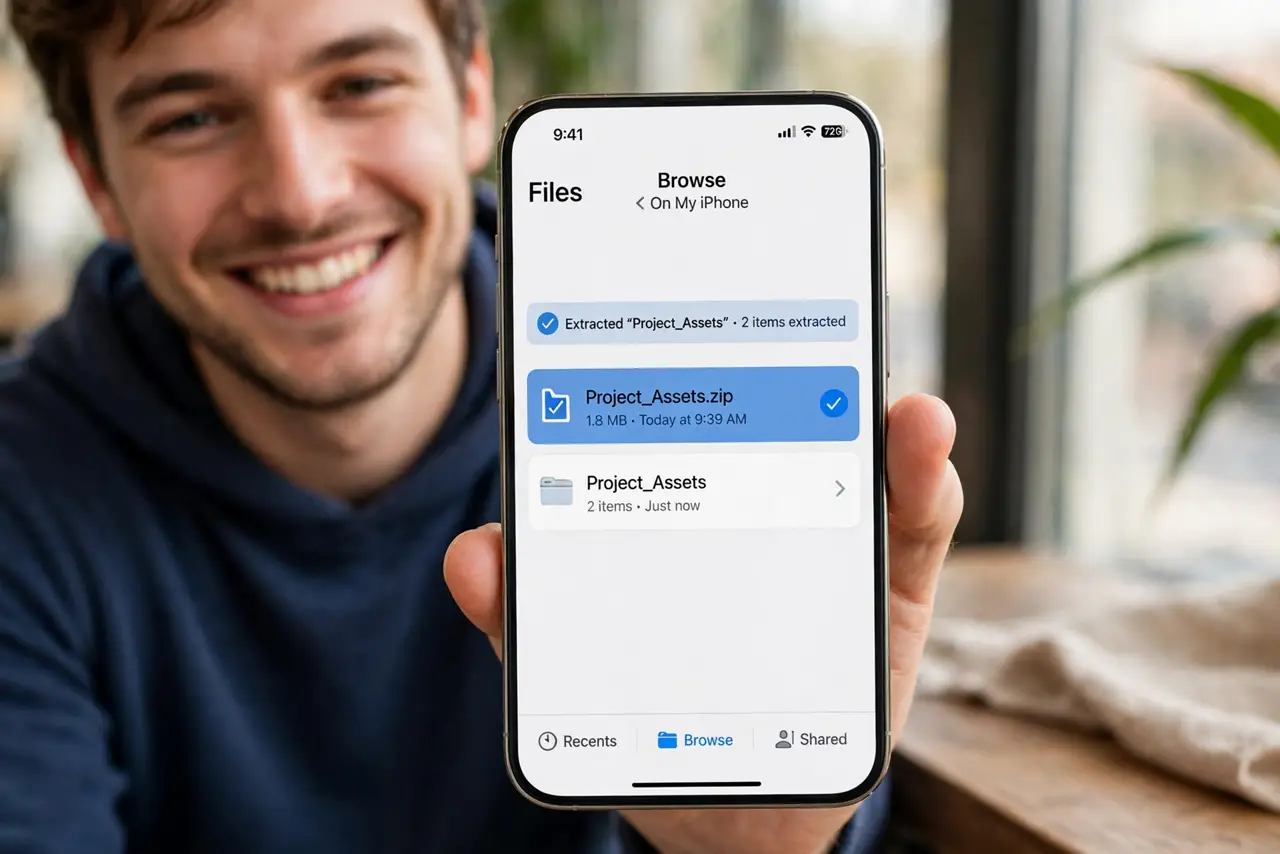
Quick fix: in the Files app, find the ZIP and tap it — iOS extracts it into a folder with the same name, right beside the archive. Big ZIPs take a few seconds. If tapping does nothing, the file may be a format like RAR, which needs a third-party app.
Follow these steps
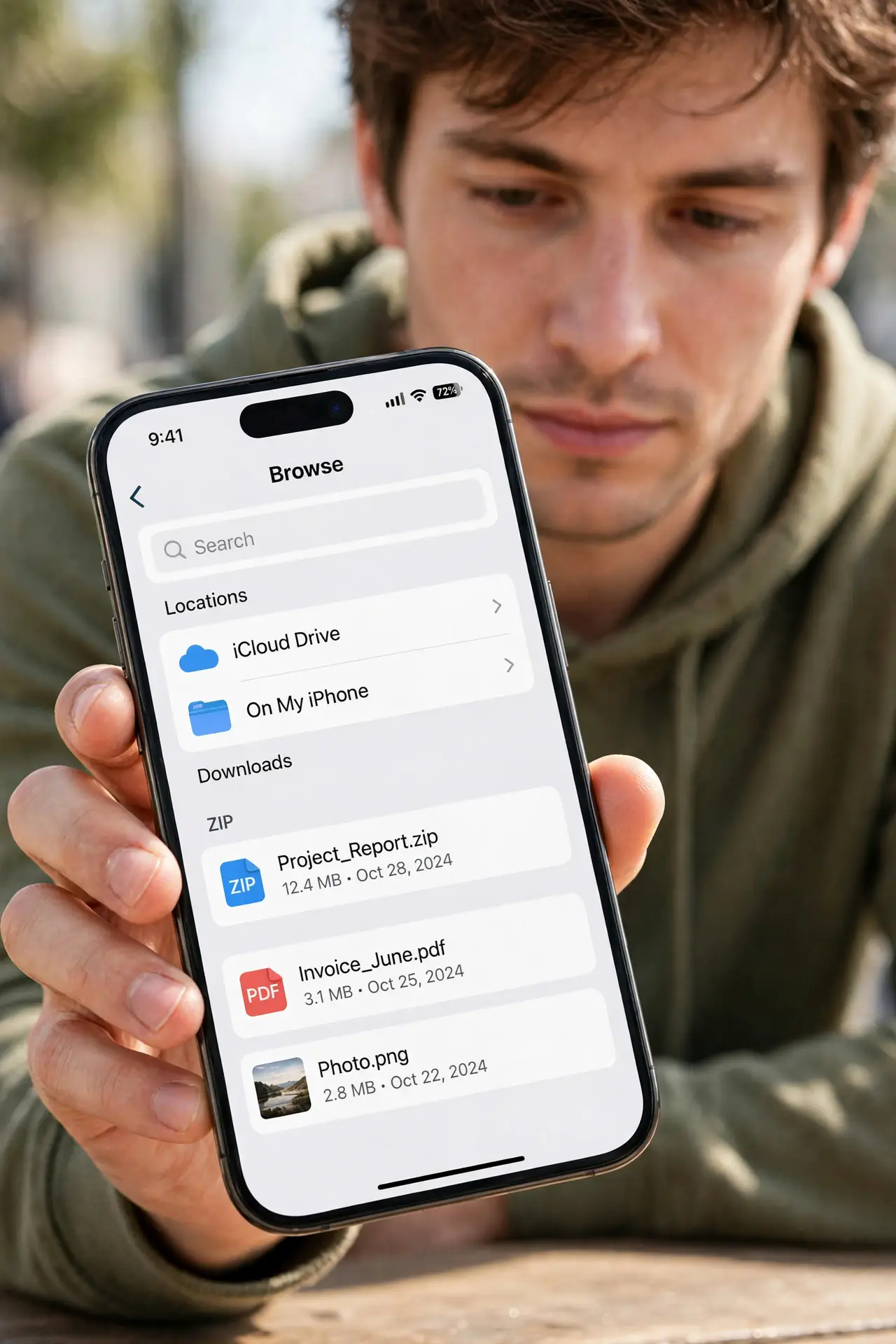
- Find the ZIP in the Files app. Open Files > Browse and navigate to where the ZIP landed — Downloads, iCloud Drive, or On My iPhone.
- Tap the ZIP once. iOS extracts it into a new folder with the same name, sitting right next to the archive. No menus, no confirmation.
- Give large archives a moment. Big ZIPs take several seconds with no progress bar. Wait before tapping again — double taps just queue duplicate work.
- Open the extracted folder. Your files are inside, ready to view, share, or move. The original ZIP stays put until you delete it.
- Handle RAR and 7z differently. The Files app does not open RAR or 7z. For those, grab a reputable extractor app — the built-in tool only speaks ZIP.
- Tidy up the archive. Once extracted, delete the ZIP if you need space — or tag it and the folder so both stay findable.
What NOT to do
- Do not pay for an unzip app before trying the Files app. Built-in ZIP support has been there for years.
- Do not tap repeatedly on a large ZIP. It is working — extra taps just slow it down.
- Do not unzip archives from strangers blindly. A ZIP can hold anything; preview the file list before opening the contents.
- Do not assume a failed extraction means a broken phone. Corrupt downloads fail the same way — re-download first.
Frequently asked questions
Where do unzipped files go on iPhone?
Into a new folder with the ZIP's name, in the same location as the archive. Move it anywhere from there.
Can the Files app create ZIP files too?
Yes — select files, tap the three dots, and choose Compress. Handy before emailing a batch.
Why won't my RAR file open?
The Files app only handles ZIP. RAR, 7z, and other formats need a dedicated extractor app.