Use a USB Drive With Files
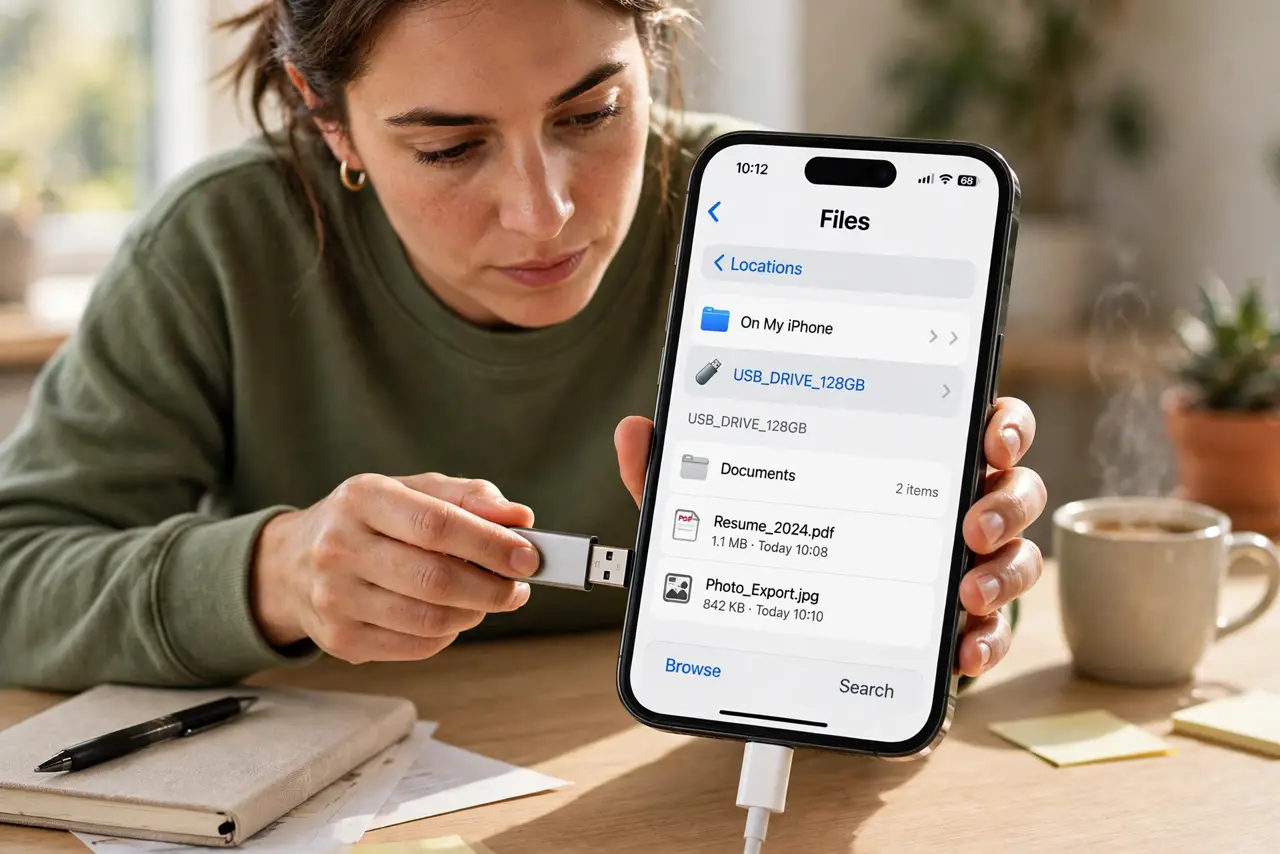
Need to pull photos off a camera card, hand someone a big video, or back up documents without the cloud? Your iPhone reads USB drives directly in the Files app — flash drives, card readers, even portable SSDs. The drive just shows up under Locations, ready to copy both ways.
TL;DR / Quick Fix
Quick fix: plug the drive into your iPhone — older models need a USB-C to USB adapter — then open Files > Browse and tap the drive under Locations. Copy files on or off like any folder. If the drive never appears, it may be NTFS; reformat it as exFAT.
Follow these steps
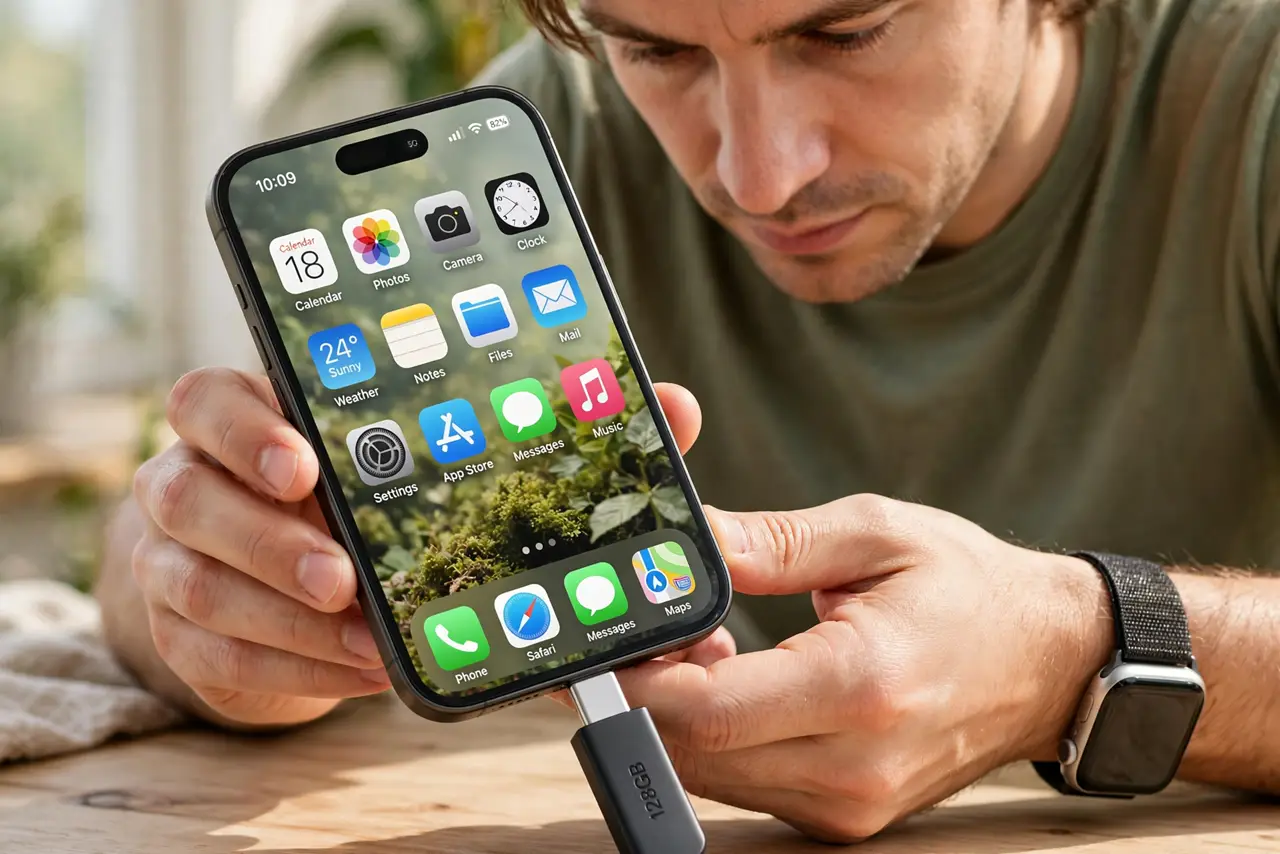
- Connect the drive. Plug it straight into a USB-C iPhone, or use a Lightning/USB-C to USB adapter on older models. Card readers work the same way.
- Find it under Locations. Open Files > Browse and look under Locations — the drive appears by name. Tap it to browse its contents.
- Copy files both directions. Long-press to copy, then paste into any Files folder — or select iPhone files and paste them onto the drive. Big video moves take a while.
- Eject before unplugging. There is no eject button — just make sure no copy is in progress before pulling the drive. Mid-copy removal corrupts files.
- Use exFAT for cross-device drives. FAT32 and exFAT work everywhere; NTFS drives may not appear at all. Reformat a stubborn drive to exFAT on a computer first.
- Power-hungry drives need help. Big portable hard drives can draw more power than the iPhone gives. Use a powered USB hub for those.
What NOT to do
- Do not yank the drive mid-copy. Wait for the progress to finish or you will corrupt the file being written.
- Do not reformat the drive on the iPhone. The Files app cannot format — do it on a computer before connecting.
- Do not assume every NTFS drive will appear. If Locations stays empty, the format is the first suspect.
- Do not skip the adapter on older iPhones. A drive that cannot physically connect cannot be troubleshooted in software.
Frequently asked questions
Why doesn't my USB drive show up in Files?
Check the format — NTFS often fails. Also try the adapter and drive separately, and confirm the drive works on a computer.
Can I edit files directly on the drive?
Small edits yes, but copy to the iPhone first for big work. Editing in place on a slow drive invites corruption.
How do I safely remove the drive?
Wait until no copy or save is running, then unplug. iOS has no eject ritual — an idle drive is a safe drive.